Getting Started with Acti Voice: Speak More, Type Less

Hiii, nice to see you here again! 👋
First of all, congratulations on completing the basic installation steps! If you've made it here from our Getting Started with Acti Keyboard guide, your keyboard should be ready to go.
Let's be honest, typing is our go-to way of communicating, but wouldn't it be nice if we could just speak instead? Especially when you have a long message to write or simply don't feel like typing everything out. (Haha, we've all been there.)
Well, that's where Acti Voice comes in!
Acti offers several voice features that make everyday typing and getting things done a lot easier. Let's explore them one by one.
How Does Acti Voice Work?
Before we get into the features, there's one important thing you should know about how Acti Voice works.
Unlike some voice assistants where you have to select what you want to do before speaking, Acti lets you speak first and decide what to do afterward.
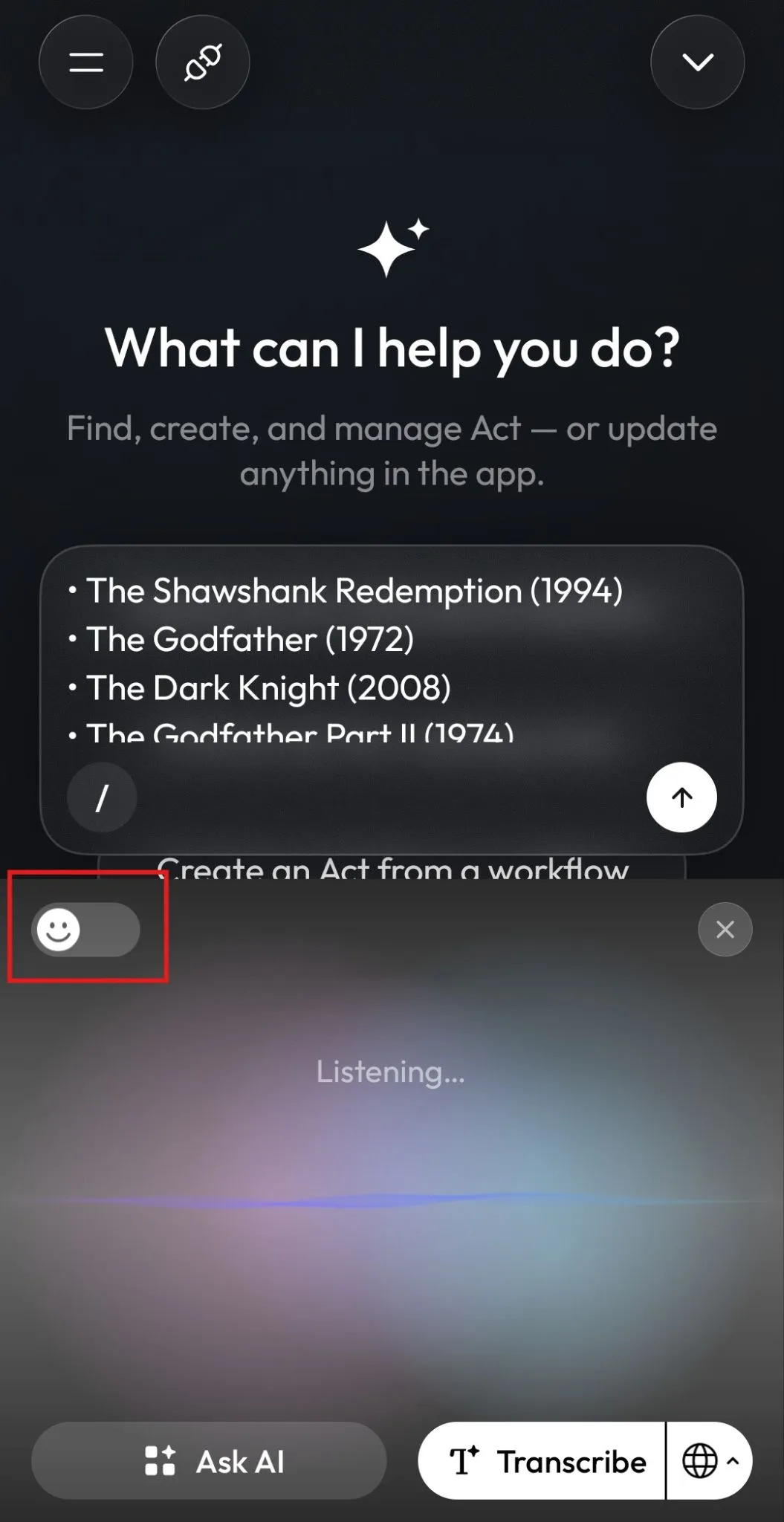
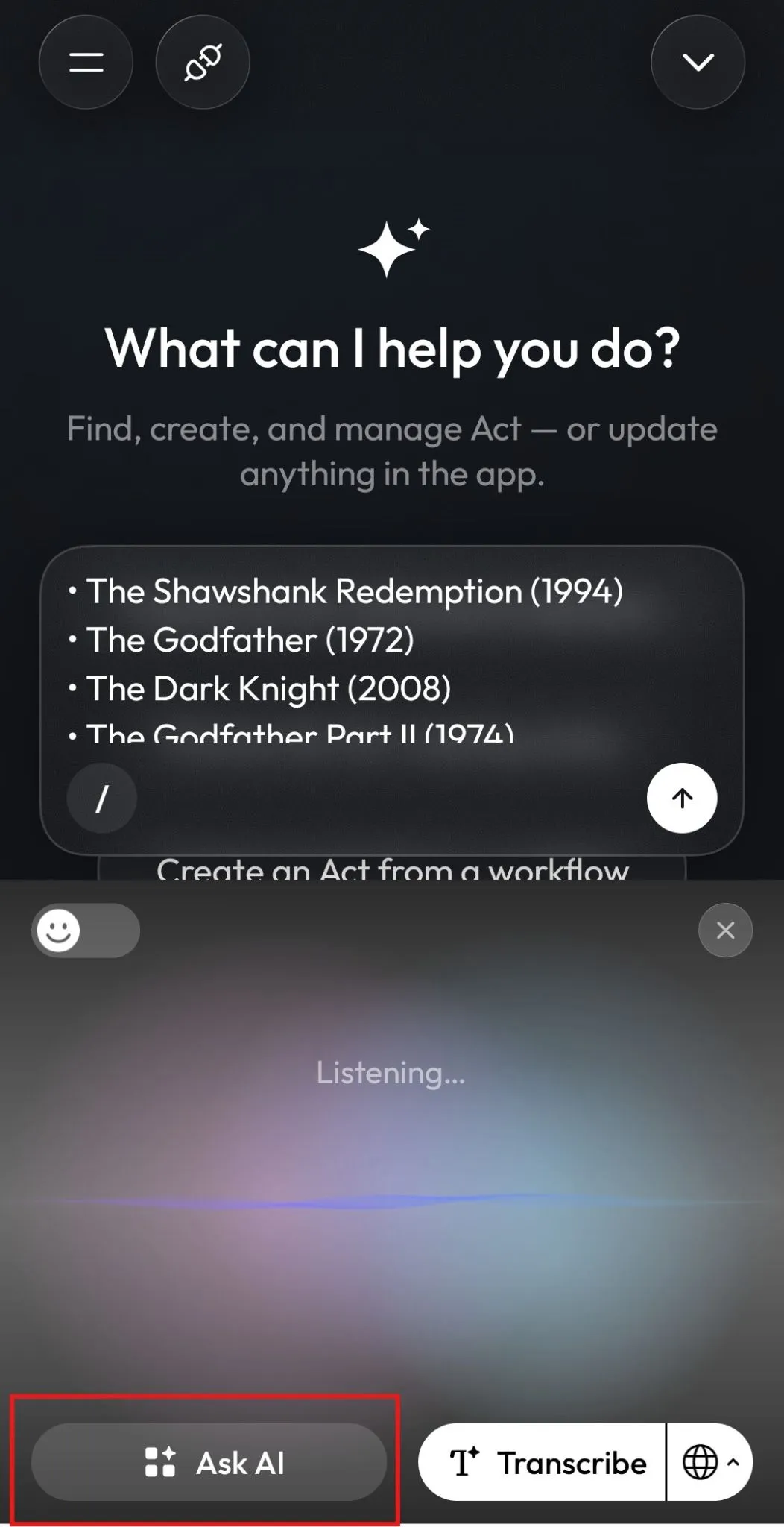
Simply tap the microphone icon on your Acti keyboard and start speaking. Once you're done, you can choose whether to transcribe your speech into text or use it as a "Ask AI"(command).
This way, you don't have to decide everything beforehand. Just speak naturally and let Acti handle the rest based on what you choose.
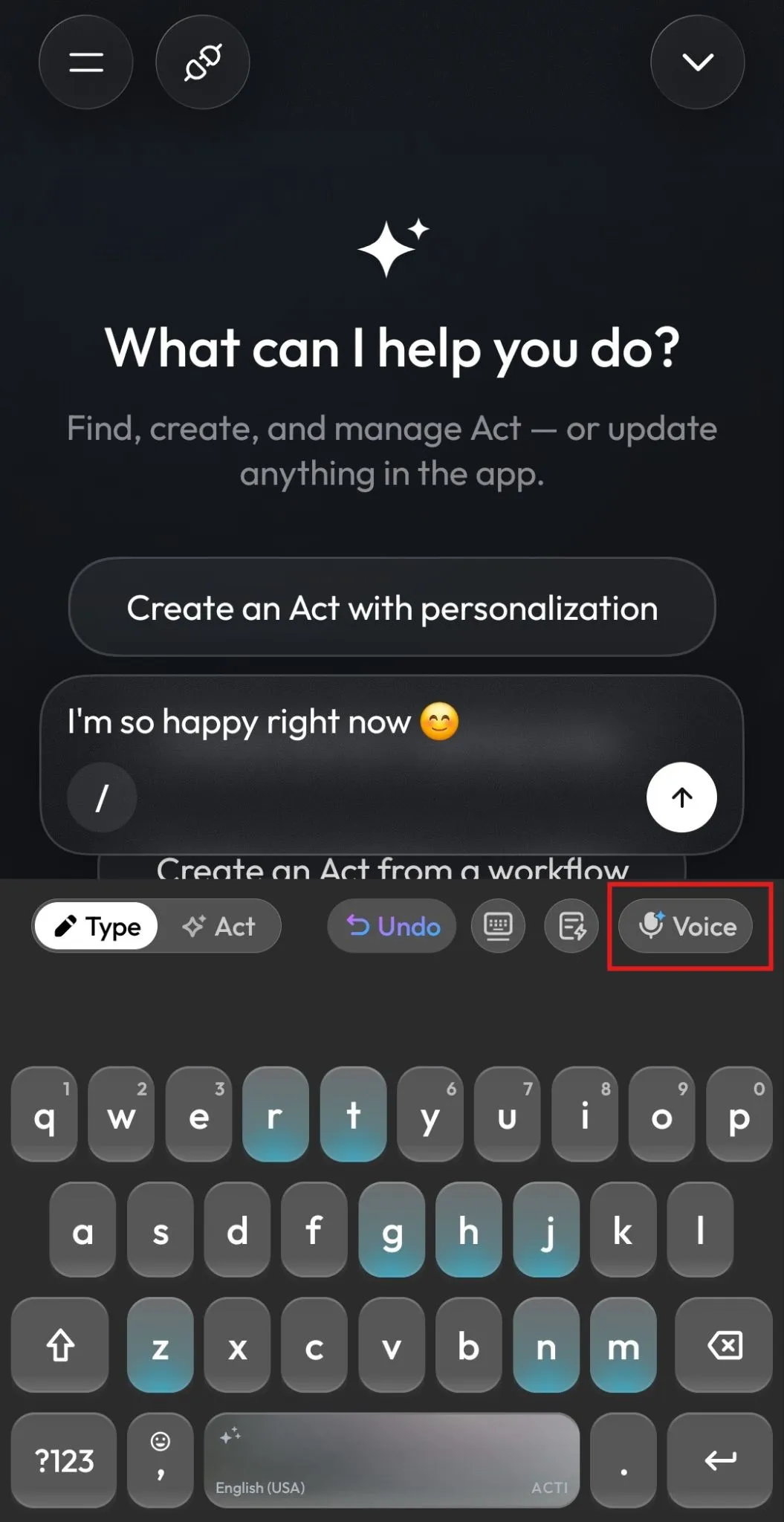
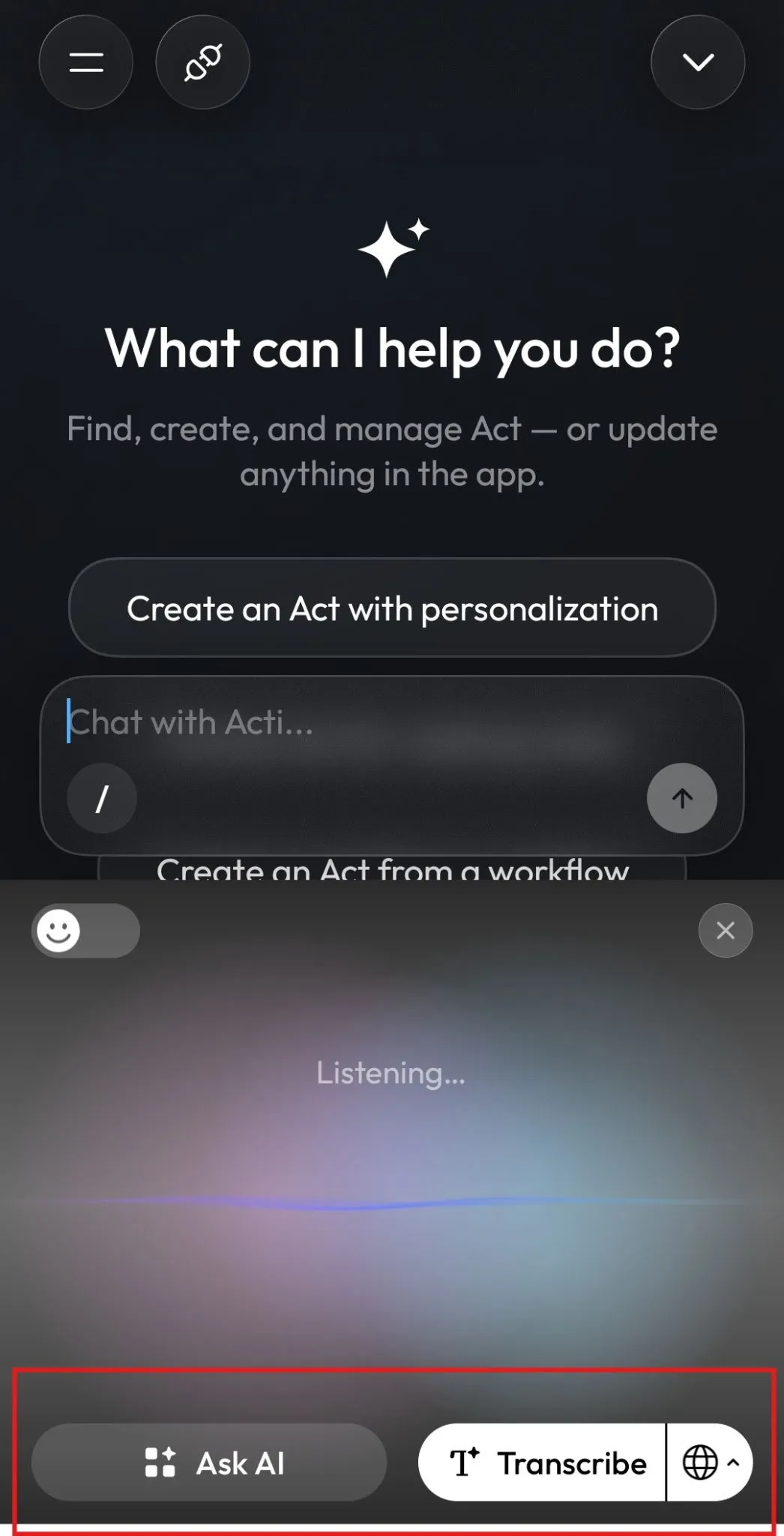
1. Transcribe: Turn Your Voice into Text
As the name suggests, Transcribe (or dictation) allows you to speak whatever you want and convert it into written text.
Whether you're replying to a friend, writing a long message, or quickly noting down an idea, you can simply say it out loud instead of typing every word.
And here's the best part: Transcription is currently completely free and doesn't cost any AI credits!
But you might be wondering, that's it???
Well, not quite. There's a lot more you can do with Acti's transcription features.
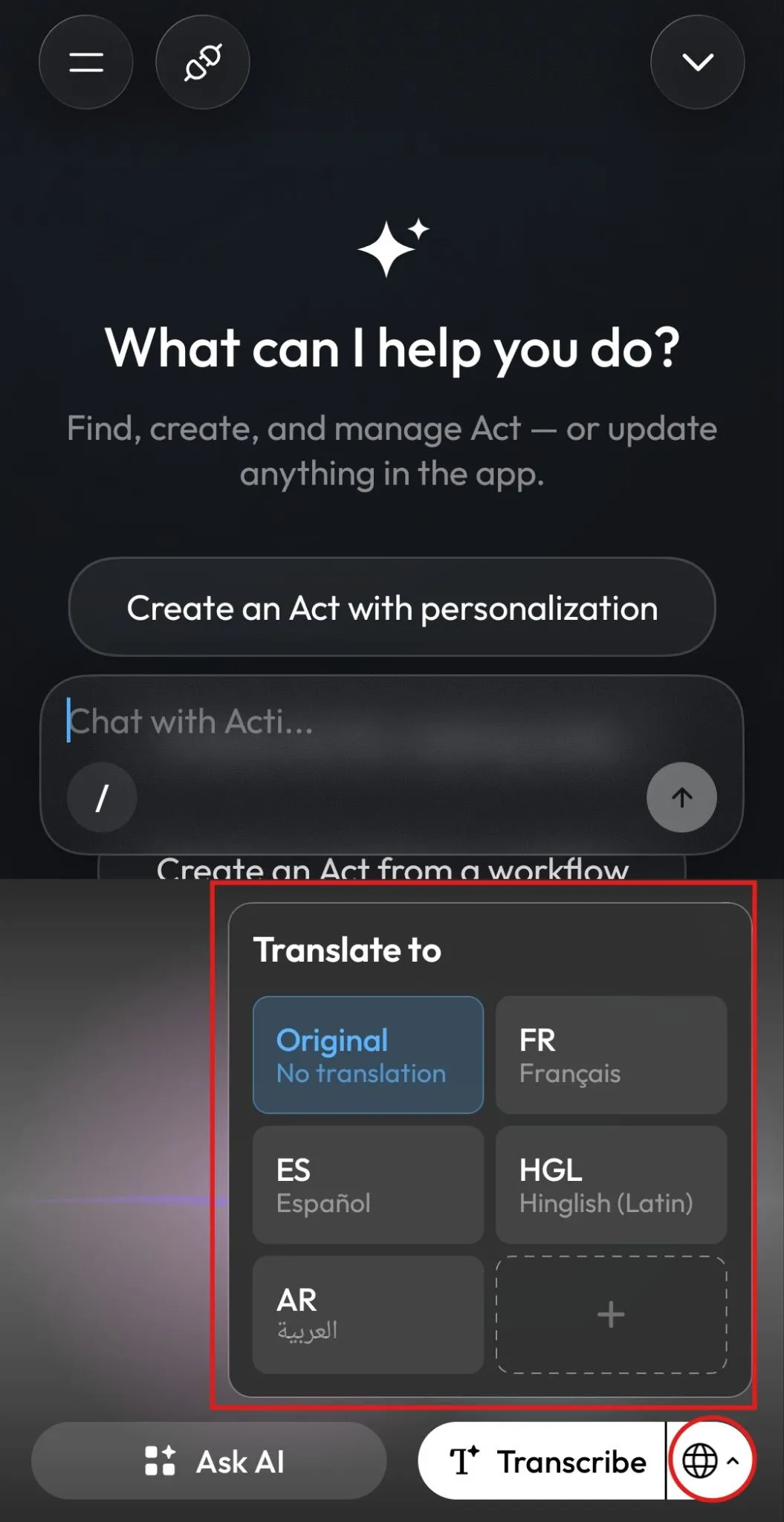
Transcribe and Translate Between Languages
What if you want to speak in one language but have the final text appear in another?
We got you!
Acti lets you select the language you want your speech to be transcribed into, so you're not limited to converting speech into text in the same language.
For example, you can:
- Speak in English and get the text in English.
- Speak in Hindi and get the text in Hindi.
- Speak in Hindi and get the text in English.
- Speak in English and get the text in Hindi.
And that's just an example! You can use other supported languages too.
All of this happens directly within the Acti Voice panel, so you don't need to copy your text into a separate translation app and then bring it back.
Make Your Dictation Better with Polishing Options
Sometimes, what we say out loud isn't exactly how we'd want it to look in a written message. We pause, repeat words, or phrase things differently while speaking.
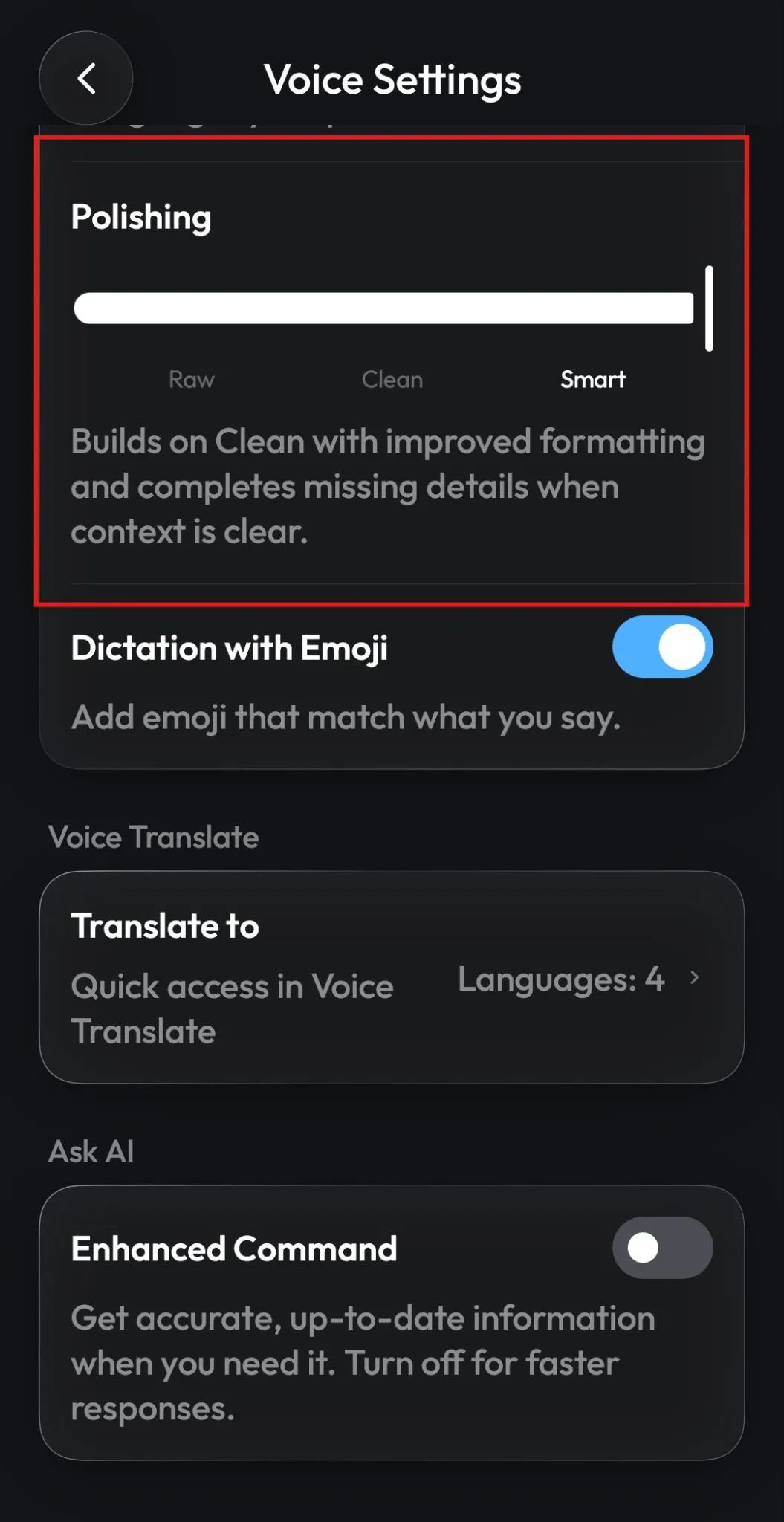
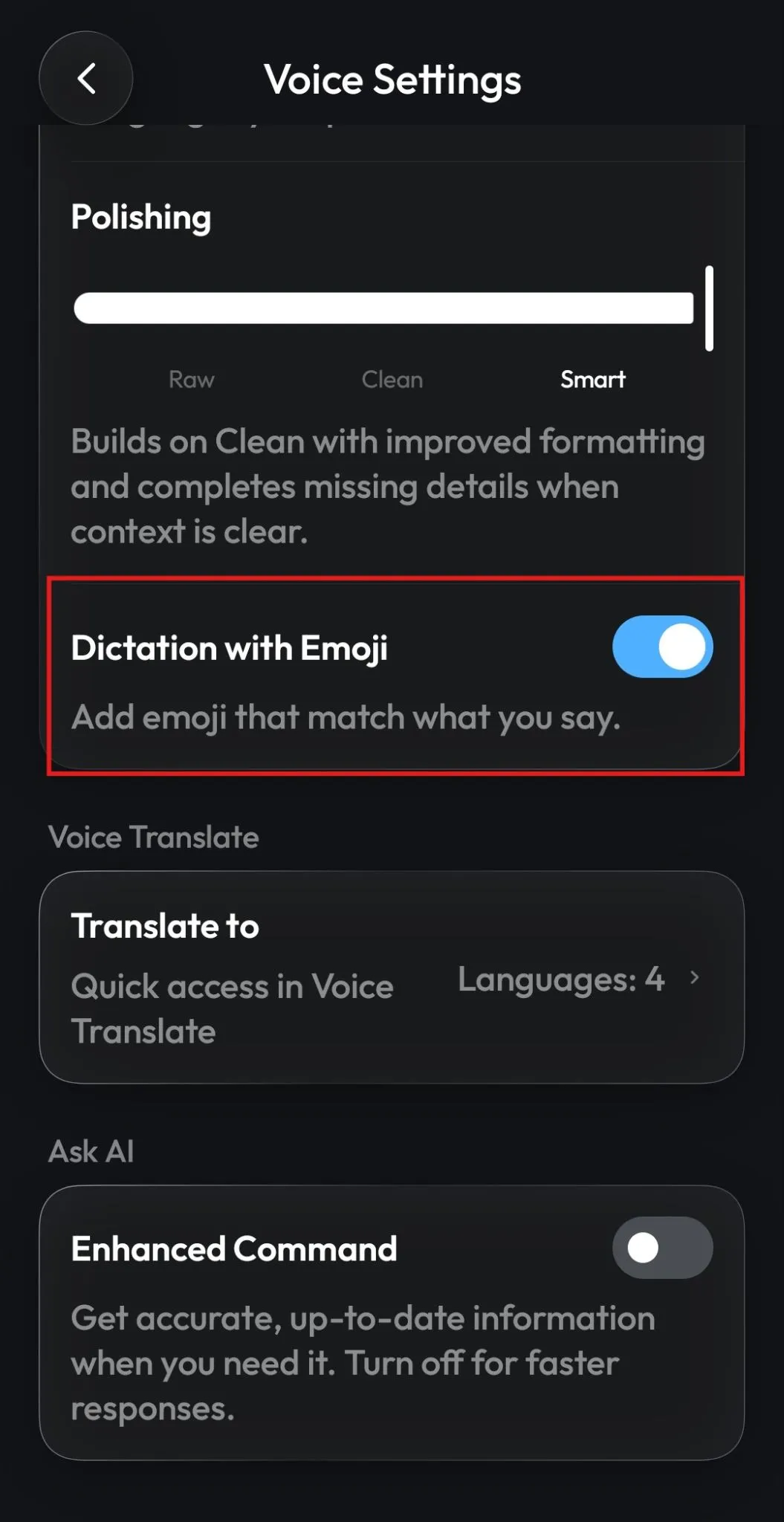
That's why Acti offers three transcription polishing options:
Raw: Keeps the transcription close to what you actually said, without unnecessary rewriting.
Clean: Helps clean up your dictated text, making it easier to read while preserving what you meant to say.
Smart: Goes a step further by polishing the wording to make the final text more natural and well-structured.
You can choose whichever option works best for your situation. Personally, I'd suggest experimenting with all three to see which one fits your typing habits.
Want to Add Some Emotion to Your Dictation? 😭
Text messages can sometimes feel a little dry, especially when you're trying to express excitement, happiness, or something funny.
Don't worry, we thought about that too!
You can enable the "Dictation with Emoji" option in Acti Voice settings to include relevant emojis in your dictated text.
It's a small feature, but it can make your messages feel a lot more expressive without having to add emojis manually afterward.
2. Ask AI: Ask Questions Directly from Your Keyboard
Now, what if you don't want to dictate a message? What if you actually want an answer to something?
That's where Ask AI, available through Acti's Command feature, comes in.
Think of it as having an AI assistant accessible right from your keyboard. Instead of opening a separate app to ask a question, you can speak your request and let Acti respond.
For example, you could say:
"Give me a list of the top 5 best movies to watch."
Acti will process your request and provide a response, all without having to leave your keyboard.
Pretty handy, right?
Need Better or More Up-to-Date Answers?
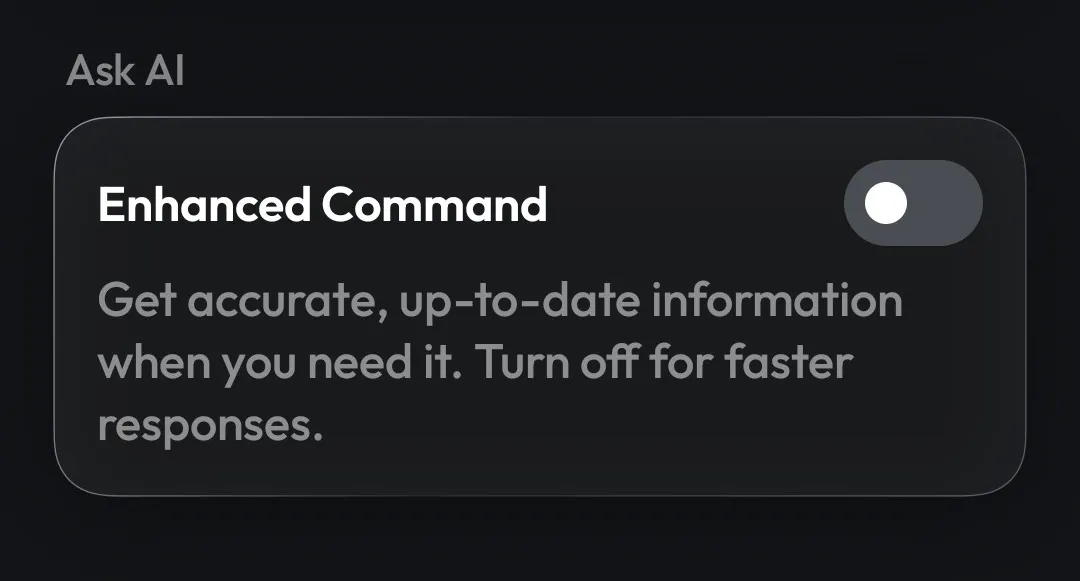
You can also enable Enhanced Command Mode.
When enabled, this option is designed to provide more detailed or up-to-date information for your requests. However, there's a small trade-off: responses may take a little longer compared to using the regular Command mode.
If you're asking something simple and want a quick response, the regular mode may be enough. But if your question requires more information, Enhanced Command Mode can be worth trying.
That's It! You're Ready to Explore Acti Voice
And there you have it! You now know how to use Acti Voice for everyday dictation, multilingual transcription, text polishing, and asking AI questions directly from your keyboard.
My suggestion? Start with something simple. The next time you're writing a long message, try dictating it instead. Play around with the polishing options, experiment with different languages, and see what works best for you.
You don't have to use every feature right away. The idea is to make typing and everyday tasks more convenient, one feature at a time.
And we're not done exploring Acti just yet!
Next, we'll take a look at Acti Wheel, which gives you quick access to your favorite Acts right from your keyboard.
Read next: Getting Started with Acti Wheel
Have questions or suggestions about Acti Voice? Come hang out with us in the Acti community on Discord. We'd love to hear how you're using it!
See you in the next guide! 👋