Getting Started with Acts: Make Your Keyboard Do More Than Type

Hiii, welcome back! 👋
Okay, this time we're talking about something that makes Acti really different from your regular keyboard, and honestly, it's one of my favorite features: Acts!
Think about how often you switch between apps just to get something done. Maybe you're chatting with someone and need to create a Google Meet link, schedule an event, or save something to Notion. Normally, you'd leave your conversation, open another app, do your thing, and come back.
Sounds like a lot of work for something so simple, right? (Okay, maybe I'm just lazy, haha.)
Well, that's exactly what Acts are here to help with!
What Are Acts?
In simple terms, Acts are reusable workflows that let you get things done directly from your keyboard.
An Act can be something as simple as fixing the grammar of your message or something more interesting, like creating a calendar event, generating a Google Meet link, or checking a stock price.
And you don't need to know how to code to create one. Just tell Acti what you want it to do, and it'll help you build it. We'll get to that in a moment!
Here Are a Few Acts You Can Try
Google Meet Link: Need to set up a quick meeting? Use an Act to generate a Google Meet link without opening another app.
Calendar: Someone asks you to schedule something for tomorrow? Use a Calendar Act to create the event.
Notion: Found something interesting that you want to save? Copy the text and use a Notion Act to add it to your workspace.
Stock: Want to check how a particular stock is doing? Just use an Act to get the information.
One-Tap Google Meet
Create an instant Google Meet link and drop it into the chat you are in.
View Act guideProductivitySchedule It
Type a plan in plain words and turn it into a Google Calendar event.
View Act guideProductivitySave to Notion
Copy text and save it as a titled, organized document in your Notion workspace.
View Act guideFinanceStock Analysis
Type a stock name or ticker and get a read on quotes, fundamentals, news, and risks.
View Act guideAnd these are just a few examples. You can create Acts for all sorts of tasks, depending on what you need.
How Do Acts Work?
Now, let's understand how Acts actually work. Don't worry, there's nothing complicated here!
Every Act needs something to work with, and it also needs to know what to do with the result.
What Can an Act Use?
Currently, Acts can work with two types of text:
- Written Text: The text you've typed into your current text field. For example, you could write a message and use an Act to fix its grammar.
- Copied Text: Something you've copied to your clipboard. For example, you could copy a long message and use an Act to summarize it.
What Happens After an Act Runs?
Once an Act finishes, you have a few options for what happens to the result:
- Replace: Replaces your existing text with the result.
- Copy: Copies the result to your clipboard.
- Append: Adds the result to your existing text.
You can also preview the result in the small panel above your keyboard (called the HUD) before deciding what to do with it.
So, if an Act rewrites your message and you don't like the result, you can simply choose not to use it. No awkward messages sent by accident. (Phew!)
Let's Create Your First Act!
Now comes the fun part!
You might think creating your own Act requires coding or some complicated setup. But nope! We've got Acti Agent to help you with that.
Here's how it works:
- Open the Acti app.
- On the main screen, you'll see a chat box for Acti Agent.
- Simply tell it what you want your Act to do.
- Acti Agent will help you create it. You can ask for changes or improvements along the way.
For example, you could say:
"Please create an Act that fixes my grammar and makes my messages sound more professional without changing the intended meaning."
That's it! You can talk to Acti Agent just like you're chatting with someone. No coding, no complicated instructions, just explain what you need.
And if you prefer watching rather than reading (I don't blame you, haha), here's a quick video showing the whole process.
Can Other People See My Acts?
Not unless you want them to!
When you create an Act, it's unpublished by default, so it won't automatically appear in the Acti Community.
If you create something useful and want others to try it, you can publish it to the community. Otherwise, you're free to keep it to yourself.
No pressure to share your secret productivity tricks. 👀
How to Use Acts from Your Keyboard
Now that you've created an Act, you're probably wondering where to find it.
You have three ways to access your Acts:
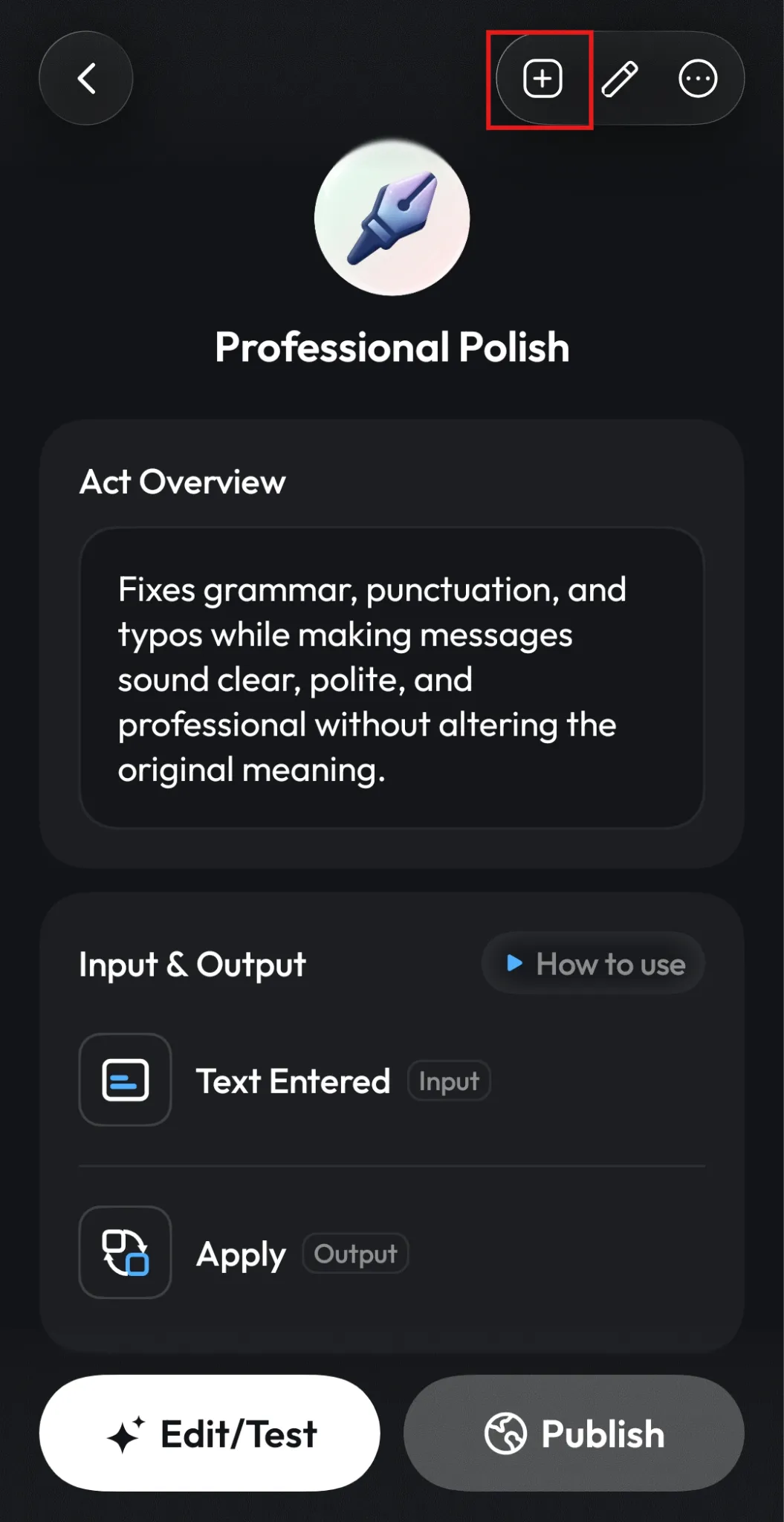
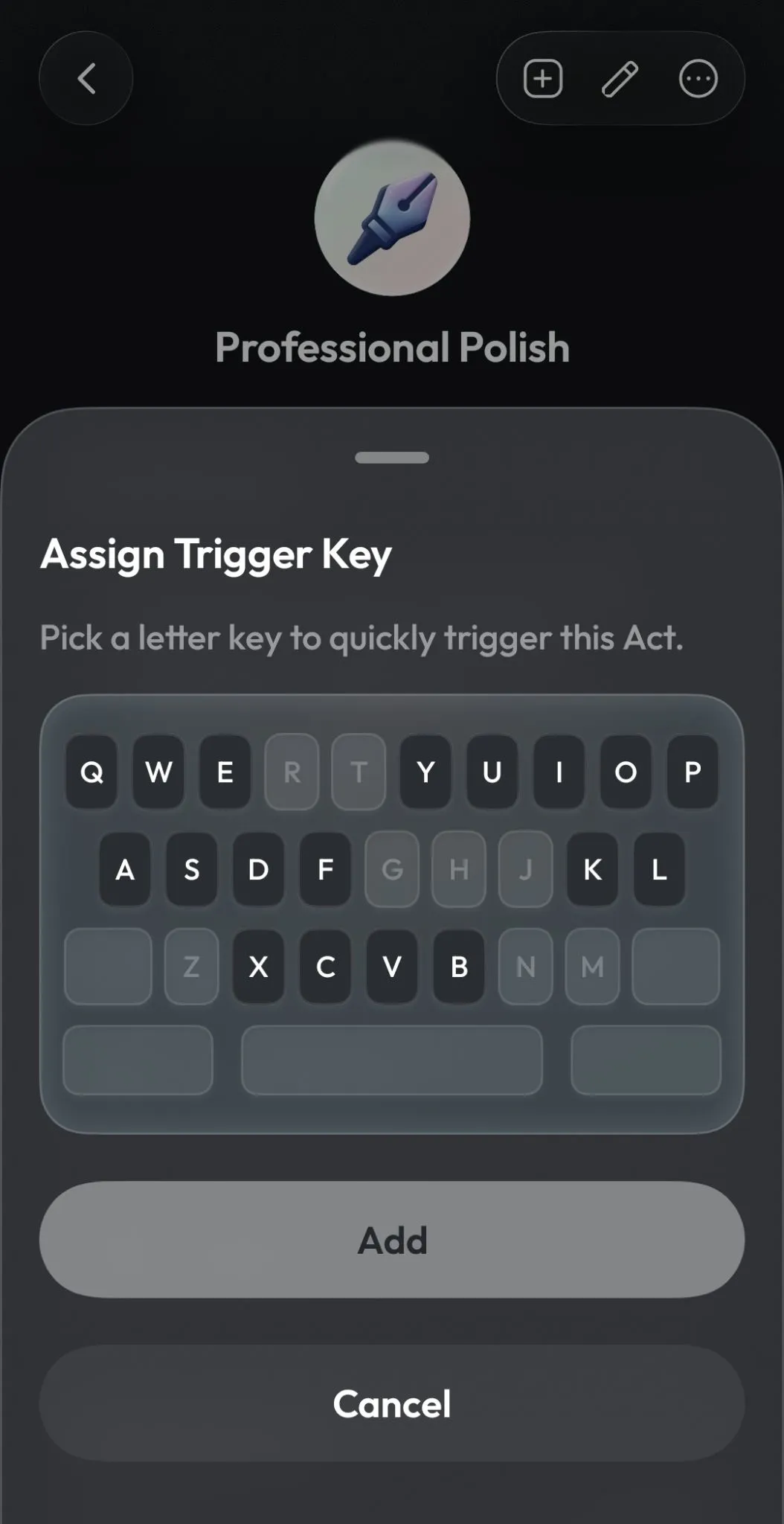
Assign Acts to Keys
You can assign an Act to a keyboard key using the + icon in the top-right corner of the Act Panel. This is handy for the Acts you use regularly.
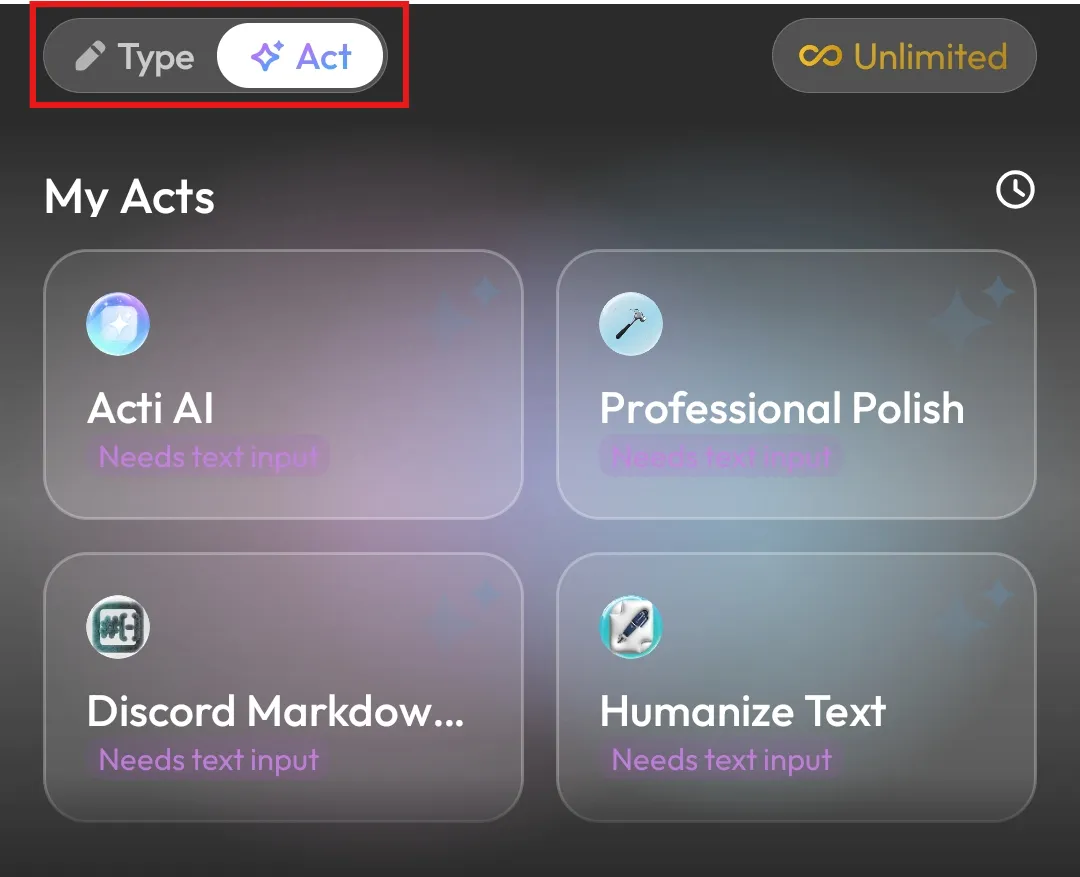
Use the Act Panel
Open the Acts tab on your keyboard to see your available Acts. Just select the one you want to use, and you're good to go.
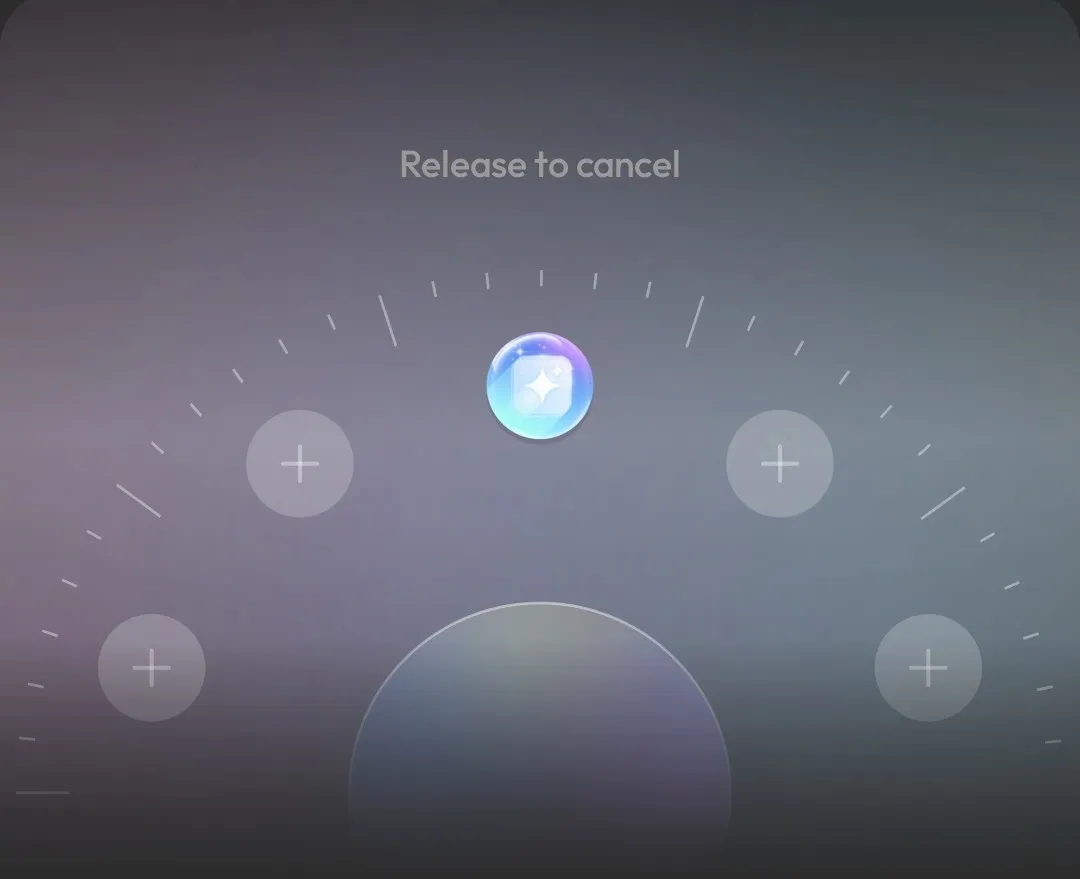
Use Acti Wheel
Remember the Acti Wheel from our previous guide? You can add your favorite Acts to its slots, then access them by holding the spacebar, dragging toward the Act, and releasing.
If you haven't explored it yet, check out our Getting Started with Acti Wheel guide.
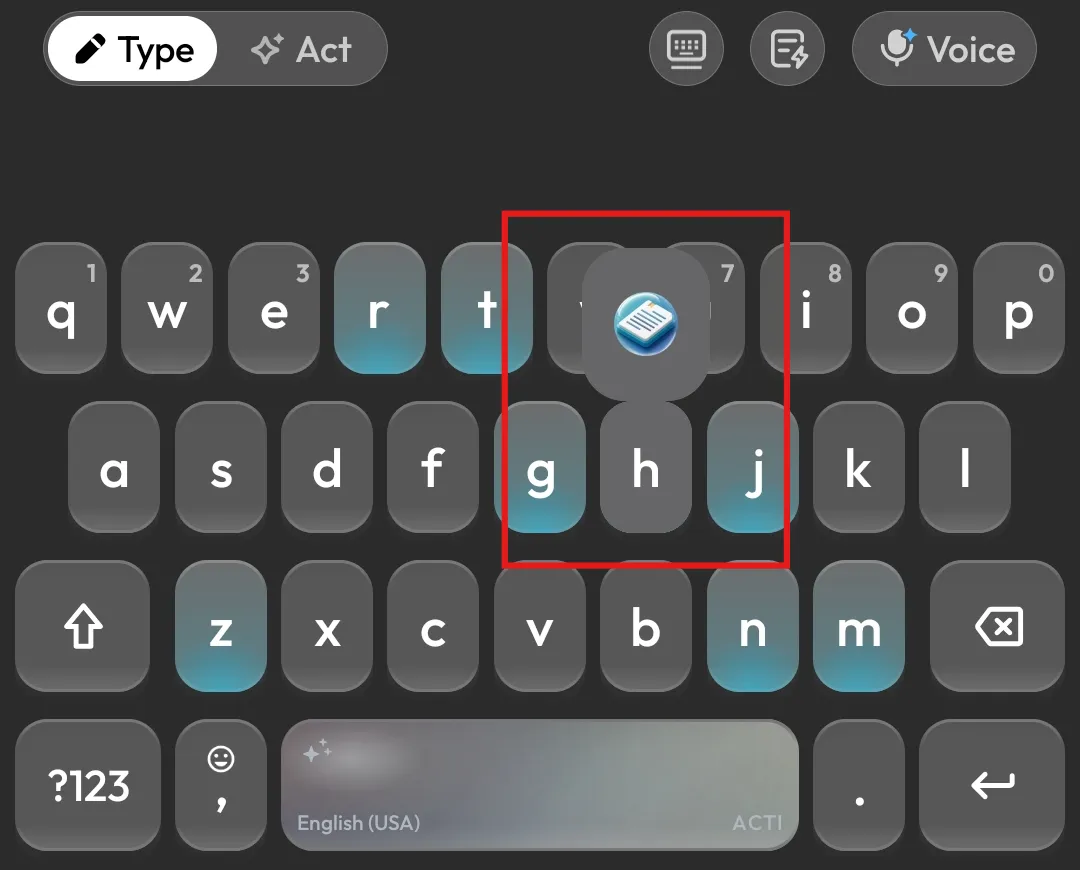
Personally, I'd recommend adding your most-used Acts to the Wheel and keeping the rest in the Act Panel. But hey, it's your keyboard, so use whatever works best for you!
Discover Acts Created by the Community
Here's something even better: you don't have to create every Act yourself!
The Acti Community is where people share Acts they've created, so others can discover and use them too.
Maybe someone has already made that perfect Act you've been thinking about. Why spend time building it from scratch when you can just install it? (Work smarter, not harder, hehe.)
You can browse the available Acts, find something useful, and add it to your keyboard. And if you find an Act that's almost perfect but needs a few changes, you can remix it to make your own version.
You can also explore available Acts here: Explore Acti Acts.
That's It! Time to Try Your First Act
And there you have it! You now know what Acts are, how to create your own, and how to use them directly from your keyboard.
If you're just getting started, I'd suggest trying something simple, like a grammar correction Act or a text summarizer. Once you're comfortable, you can explore more interesting things, like creating meetings or connecting your favorite apps.
And remember, you don't have to do everything yourself. The community is always there if you need a little inspiration.
Created something cool? Share it with us on Discord or publish it to the Acti Community. I'd love to see what you all come up with!
See you in the next guide! 👋