Getting Started with Acti Wheel: Your Favorite Tools, One Hold Away

Okay, this is something really interesting, and I definitely want you all to know about it!
We've already covered how to set up Acti and use Acti Voice, but there's another feature that makes using Acti even more convenient: Acti Wheel.
Before we jump into it, though, let's quickly talk about Acts. They'll make understanding the Wheel a lot easier.
First, What Are Acts?
Acts are reusable workflows that help you perform tasks directly from your keyboard. Instead of repeating the same instructions every time, you can create an Act for something you do regularly or install one made by someone else from the Acti Community.
For example, you might have an Act that helps you rewrite a message, summarize some text, or perform another task you frequently need. Once you've added it to Acti, you can access it whenever you need it.
Pretty useful, right?
We have a separate guide explaining how Acts work, how to create them, and how to explore community-created Acts.
Read more: Getting Started with Acts
Now, let's get back to the Wheel!
What Is Acti Wheel?
Think of Acti Wheel as a shortcut to your favorite Acts and tools, accessible directly from your keyboard.
As you can see in the screenshot below, it's a semicircular, roulette-style wheel with five slots. Instead of opening the Acti app or navigating through different menus, you can bring up the Wheel with a simple gesture.
All you have to do is press and hold the spacebar on your Acti keyboard. Once the Wheel appears, keep your finger on the screen and drag it toward the Act or tool you want to use. Release your finger over the desired slot to select it.
That's it! No need to open another menu or search for the feature you need.
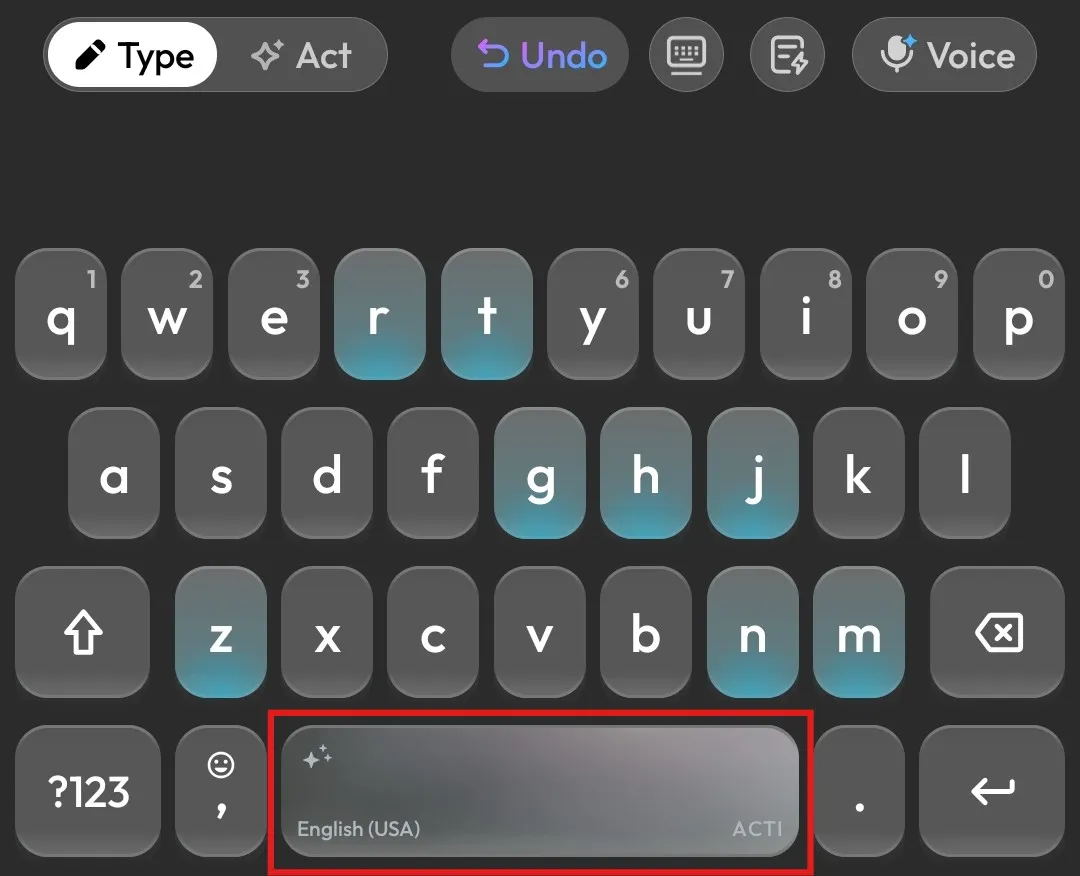
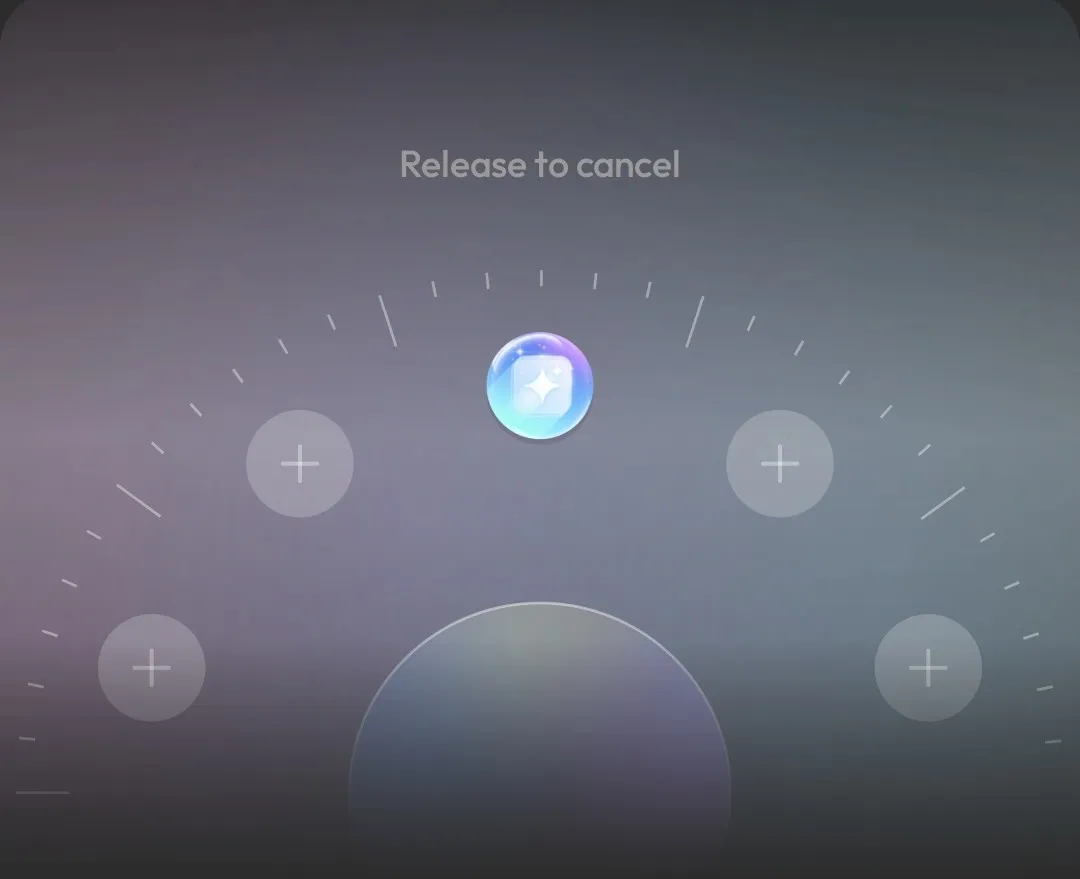
The idea is simple: keep the tools and workflows you use most often just one hold and drag away.
Wait, What About Cursor Movement?
If you're used to holding the spacebar and swiping to move your cursor, don't worry! You can still do that with Acti, just with a slightly different gesture.
Here's how the two interactions work:
- Hold and drag: Opens Acti Wheel and lets you select an Act or tool.
- Swipe directly on the spacebar: Moves your cursor left or right through the text.
So, if you want to move your cursor, simply swipe across the spacebar without holding it first. Holding the spacebar is reserved for opening Acti Wheel.
Both features are still there, just a little differently!
Ask AI: Your Default Act
You'll notice that the center slot of the Wheel is occupied by Ask AI.
This is the default Act, giving you quick access to Acti's AI assistant directly from your keyboard. Whether you want to ask a question, look something up, or get help with a task, you can access Ask AI from the Wheel.
If you've been using Acti for a while, you might remember the old Acti Bar. The Wheel takes its place, offering a more convenient way to access your Acts and tools.
And Ask AI is just the beginning. The other slots can be customized with shortcuts that suit your everyday needs.
Customize Your Acti Wheel
Now comes my favorite part: you can make the Wheel your own!
Not everyone uses their keyboard the same way. Some people use AI workflows constantly, while others might prefer quick access to their clipboard or voice features.
That's why Acti lets you choose what goes into your Wheel.
Here's how to customize it:
- Open the Acti app on your device.
- Navigate to Settings → Wheel.
- You'll see your current Wheel configuration, including the Acts and tools assigned to its slots.
- Tap an existing Act to change it, or select an empty + slot to add something new.
- Choose the Act or tool you want to assign to that slot.
And that's it! Your selected shortcut will now be available through the Acti Wheel.
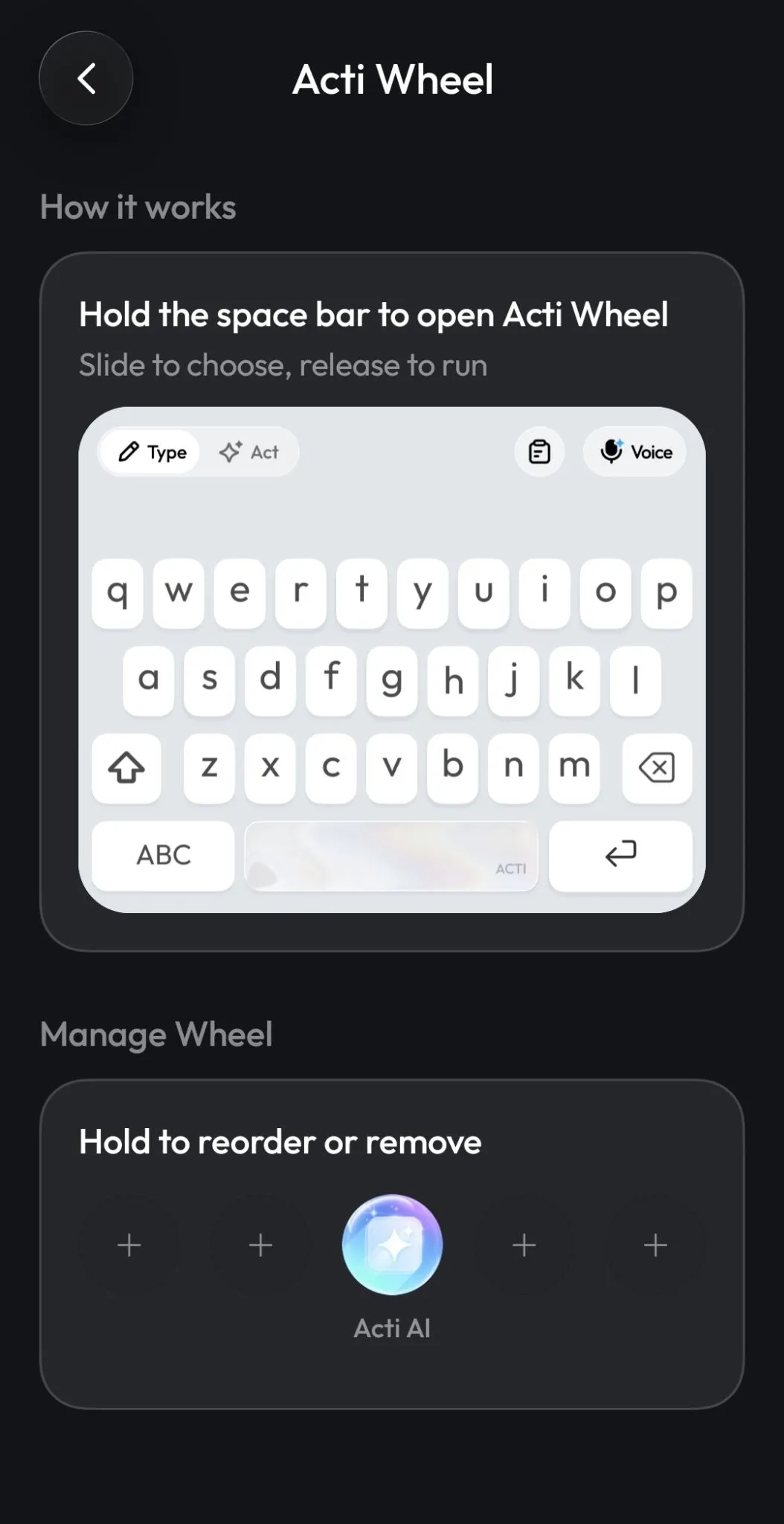
You can experiment with different combinations to find what works best for you. If you use a particular Act regularly, adding it to the Wheel can save you from having to find it every time.
Add Your Favorite Acts or Acti Tools
When customizing a slot, you're not limited to Acts. You can also choose from supported Acti Tools, such as Clipboard and Voice.
This gives you two ways to personalize your Wheel.
Acts: Add workflows you've created yourself or installed from the Acti Community. For example, if you regularly use an Act to rewrite messages, you can assign it to a slot for quicker access.
Acti Tools: Add shortcuts to built-in features such as Clipboard or Voice, making them easier to reach while you're typing.
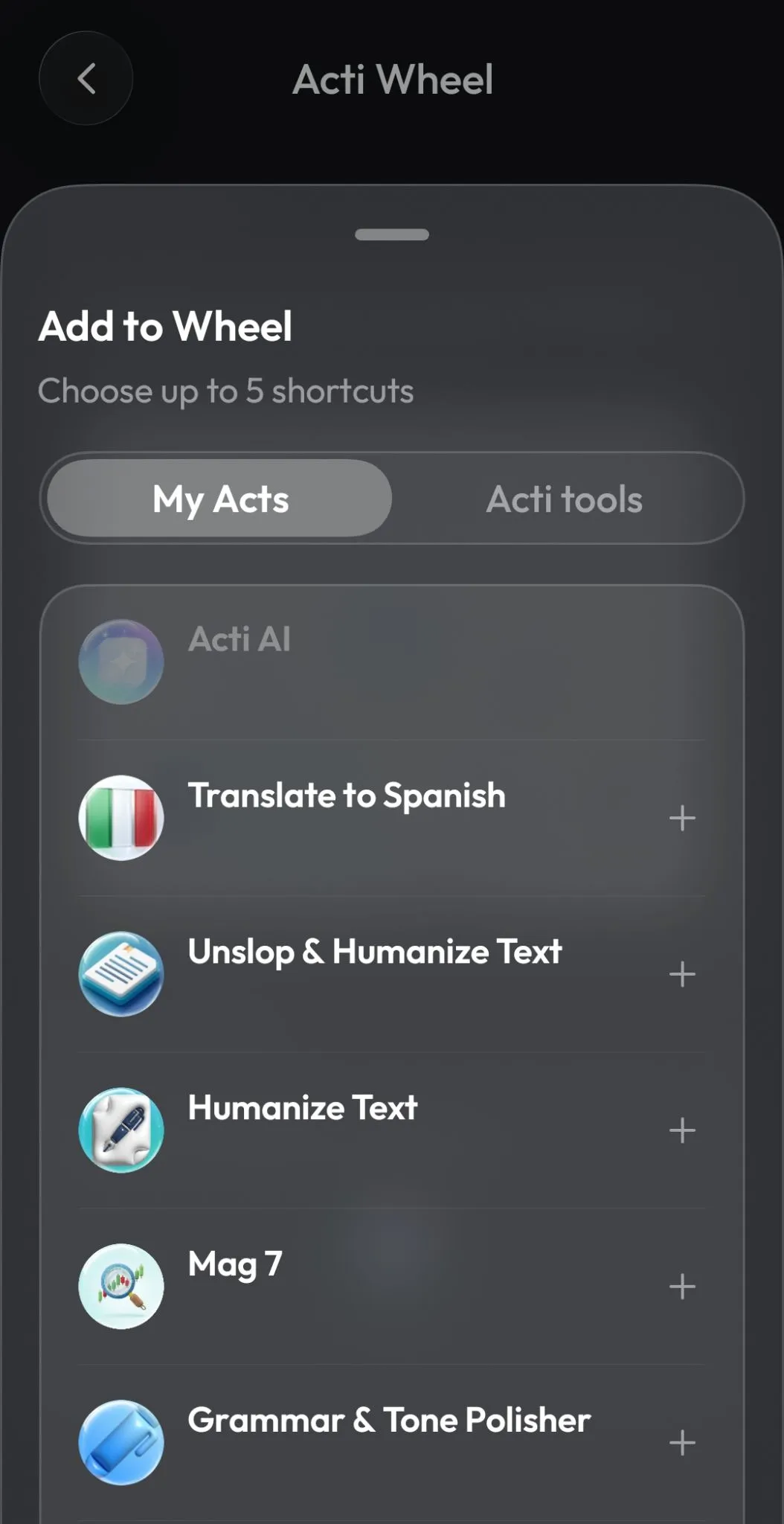
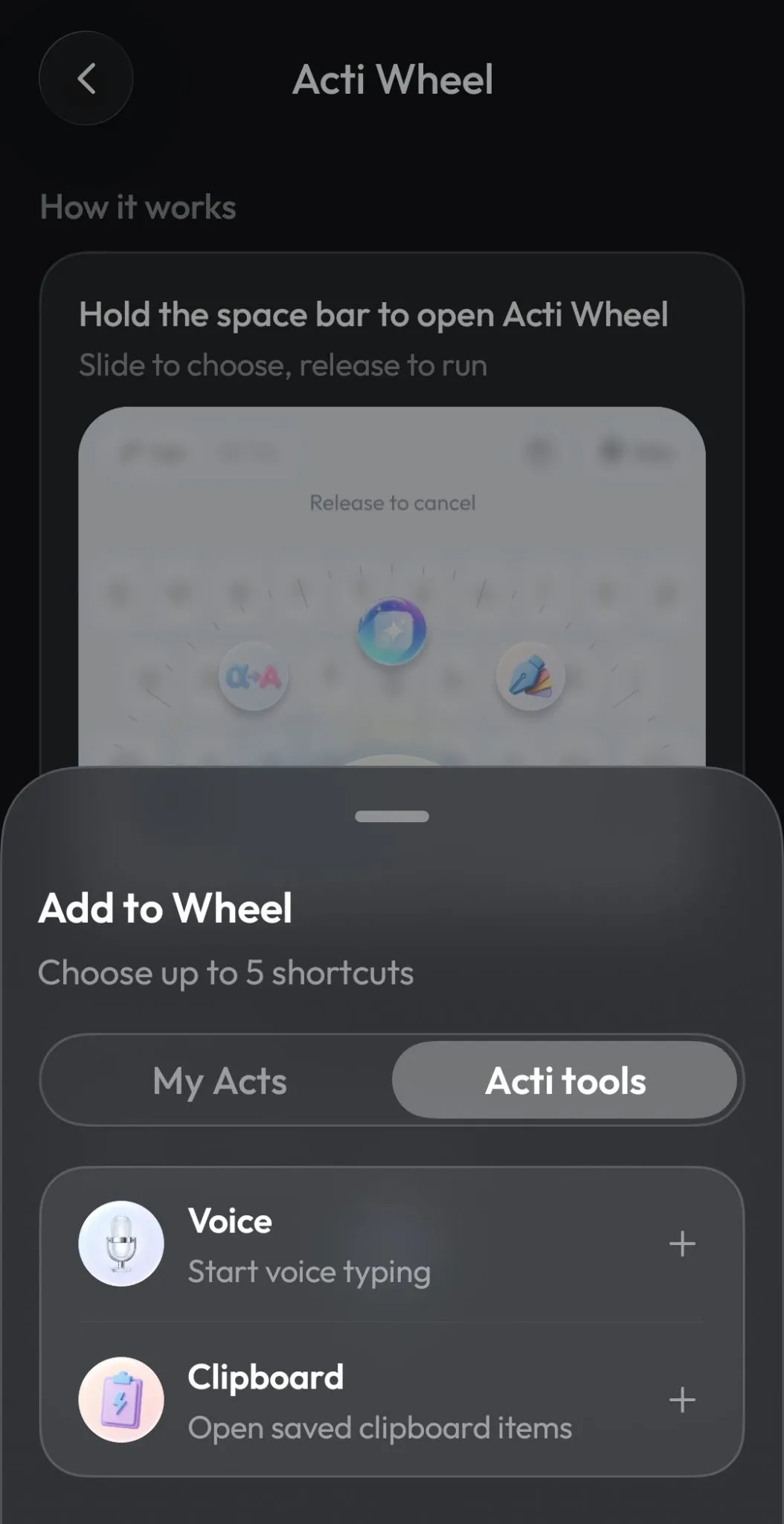
Personally, I'd suggest putting the features you use most frequently on the Wheel. There's no point filling every slot with something you rarely need!
And don't worry about getting the perfect setup on your first try. You can always return to Settings and change your shortcuts as your preferences evolve.
Give Acti Wheel a Try!
And there you have it! You now know what Acti Wheel is, how to open it, and how to customize it with your favorite Acts and tools.
The next time you're typing, try holding the spacebar, dragging your finger toward an Act, and releasing to select it. Once you've added your favorite shortcuts, you'll have fewer reasons to leave your keyboard for everyday tasks.
And if you're wondering what else you can do with Acts, that's exactly what we'll explore next!
Read next: Getting Started with Acts and Acti Community
Got an interesting Wheel setup? Share it with us in the Acti community on Discord. I'd love to see which Acts and tools you keep in your Wheel!
See you in the next guide! 👋