How to Turn On Swipe Typing on Android and iPhone
Typing a reply with one thumb can turn a short message into a surprisingly long task. Swipe typing gives you another option: slide your finger across the letters of a word, then lift it when you finish.
On iPhone, look for Slide to Type under Settings → General → Keyboard. On Android, the setting belongs to your keyboard app: Gboard calls it Glide typing, Samsung calls it Swipe to type, and Microsoft SwiftKey calls it Flow. Start with the keyboard you actually use, because changing one keyboard's settings won't change another.
Acti also offers swipe typing, alongside reusable workflows called Acts. We'll cover its spacebar gestures below, since moving your cursor and opening the Acti Wheel use different movements.
Find your swipe typing setting
You might see swipe typing described as gesture typing, glide typing or slide typing. The basic action is the same, but the controls depend on your keyboard and software version.
| Keyboard | Feature name | Where to look |
|---|---|---|
| Apple's iPhone keyboard | Slide to Type / QuickPath | Settings → General → Keyboard |
| Gboard on Android | Glide typing | Gboard settings → Glide typing |
| Samsung Keyboard | Swipe to type | Samsung Keyboard settings → Swipe, touch, and feedback → Keyboard swipe controls |
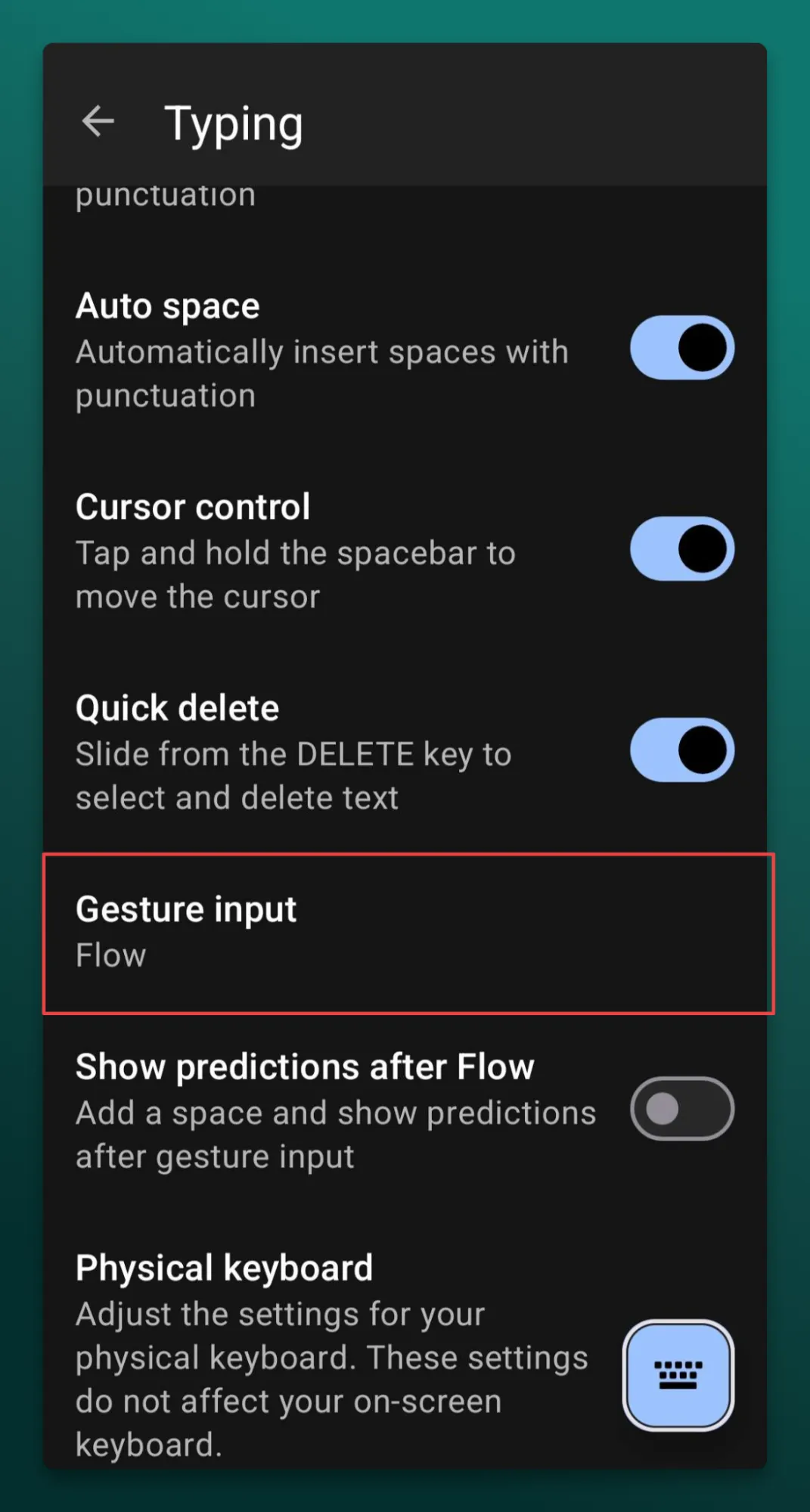
| Microsoft SwiftKey on Android | Flow | SwiftKey app → Typing → Gesture input |
| Microsoft SwiftKey on iPhone | Flow | SwiftKey app → Settings |
Menu labels can vary. If your phone's settings look different, open the keyboard itself and use its settings shortcut rather than following an Android settings path intended for another manufacturer.
iPhone: turn on Slide to Type
- Open Settings.
- Go to General → Keyboard.
- Turn on Slide to Type.
- Open Notes and try sliding across the letters in a word.
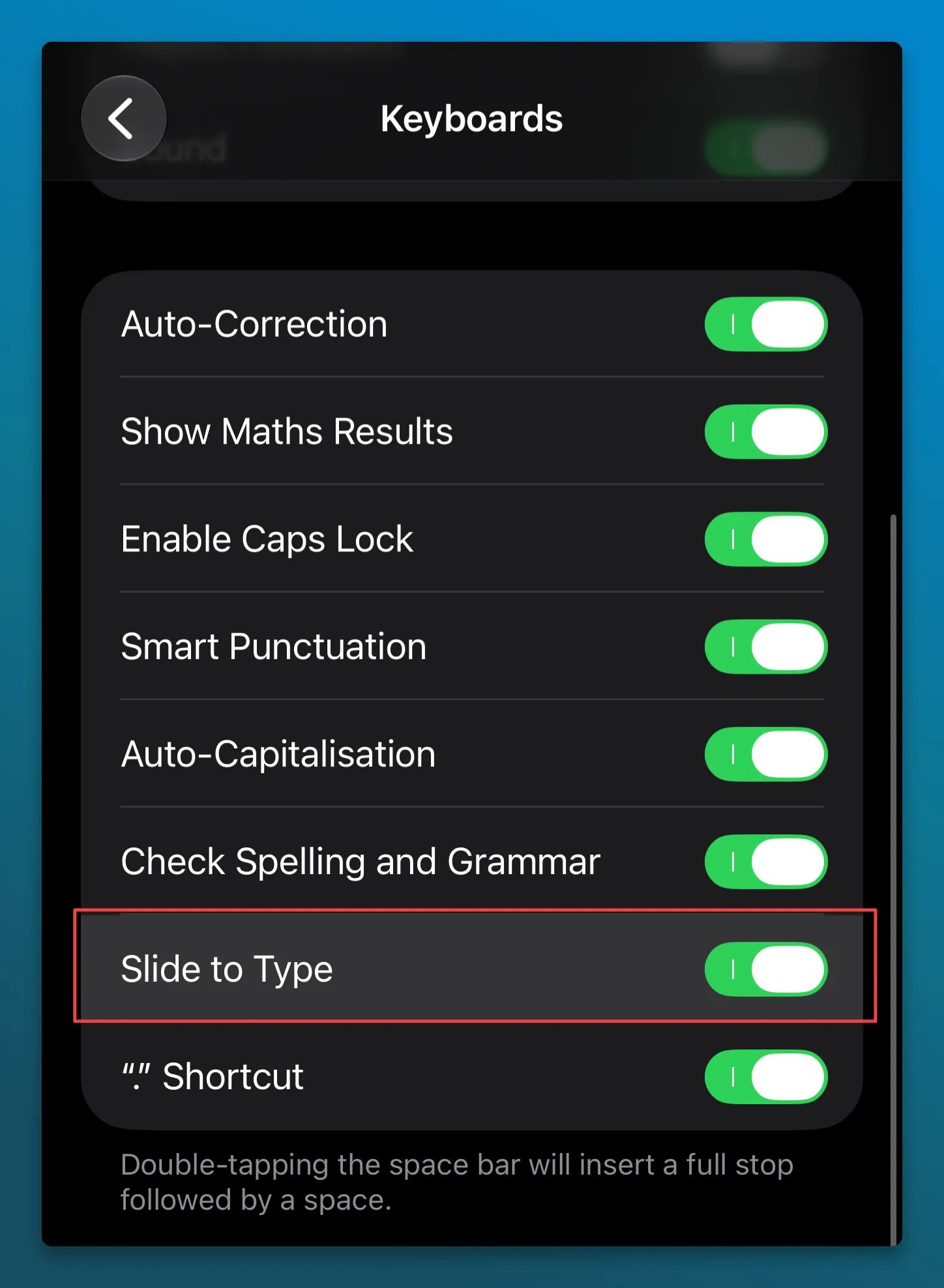
These controls apply to Apple's keyboard. If Acti, Gboard or SwiftKey is showing instead, use that app's controls or switch keyboards first.
Apple calls the typing method QuickPath. Its iPhone keyboard guide explains that you can mix tapping and sliding within a sentence. QuickPath availability depends on the keyboard language; having a language installed doesn't necessarily mean it supports sliding.
Android: turn on Gboard Glide typing
- Open Gboard settings, using the keyboard's settings shortcut or your phone's keyboard settings.
- Select Glide typing.
- Enable glide typing if it is off.
- Return to a text field and slide across a word.
Google documents one route as Settings → System → Languages & input → Virtual keyboard → Gboard, but Android manufacturers use different menu names. Its Glide typing help page also notes that the feature isn't available in every language.
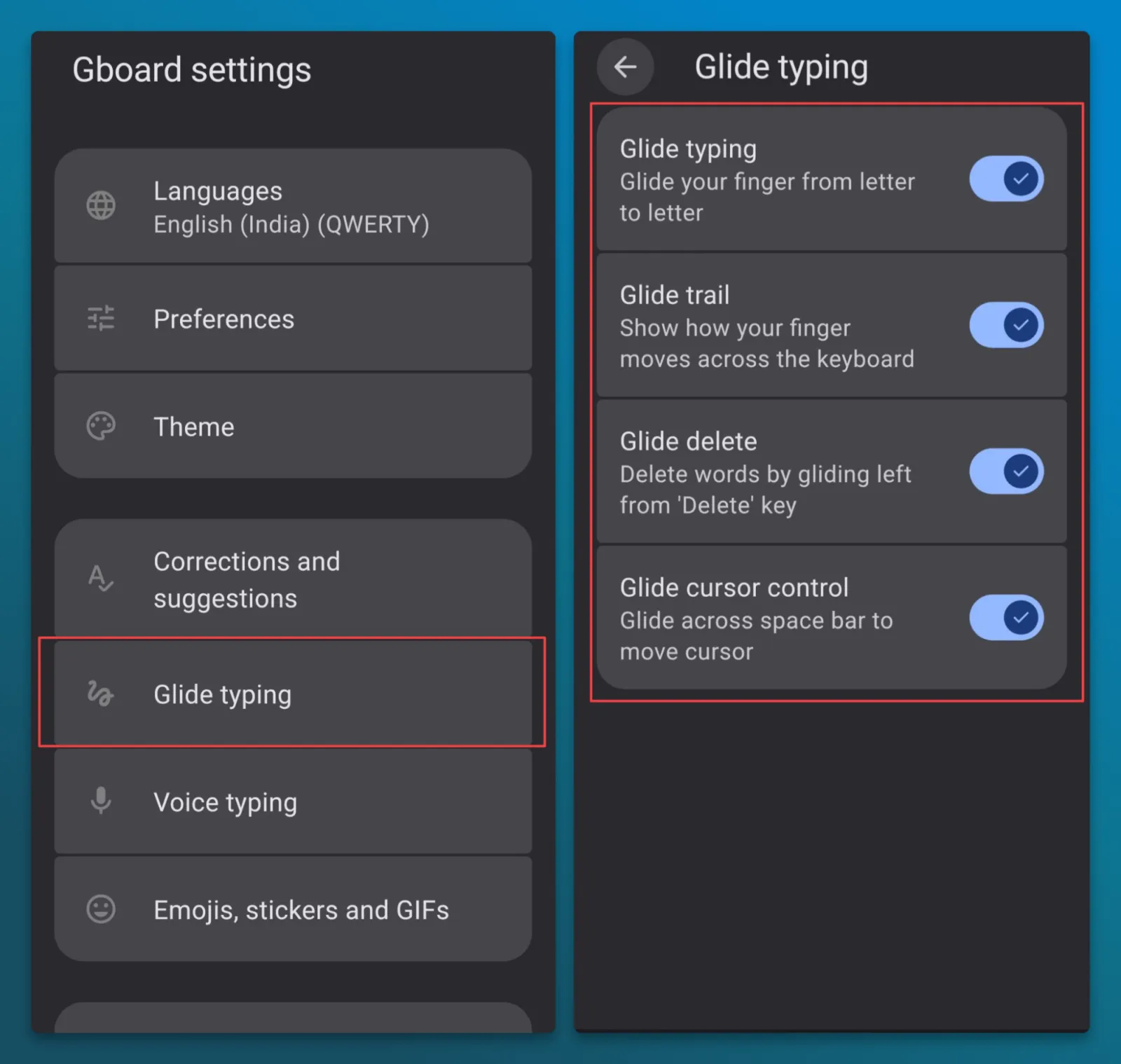
If you use Gboard on iPhone, open the Gboard app → Keyboard settings → Glide typing instead. Apple's Slide to Type switch controls Apple's keyboard, rather than Gboard.
Samsung Galaxy: choose Swipe to type
- Open Samsung Keyboard settings, either from the keyboard's settings icon or your phone's settings.
- Look for Swipe, touch, and feedback.
- Open Keyboard swipe controls.
- Select Swipe to type.
Samsung documents No swipe gestures, Swipe to type and Cursor control as alternatives in this menu. If sliding across the keys moves the cursor instead of entering words, check which option is selected.
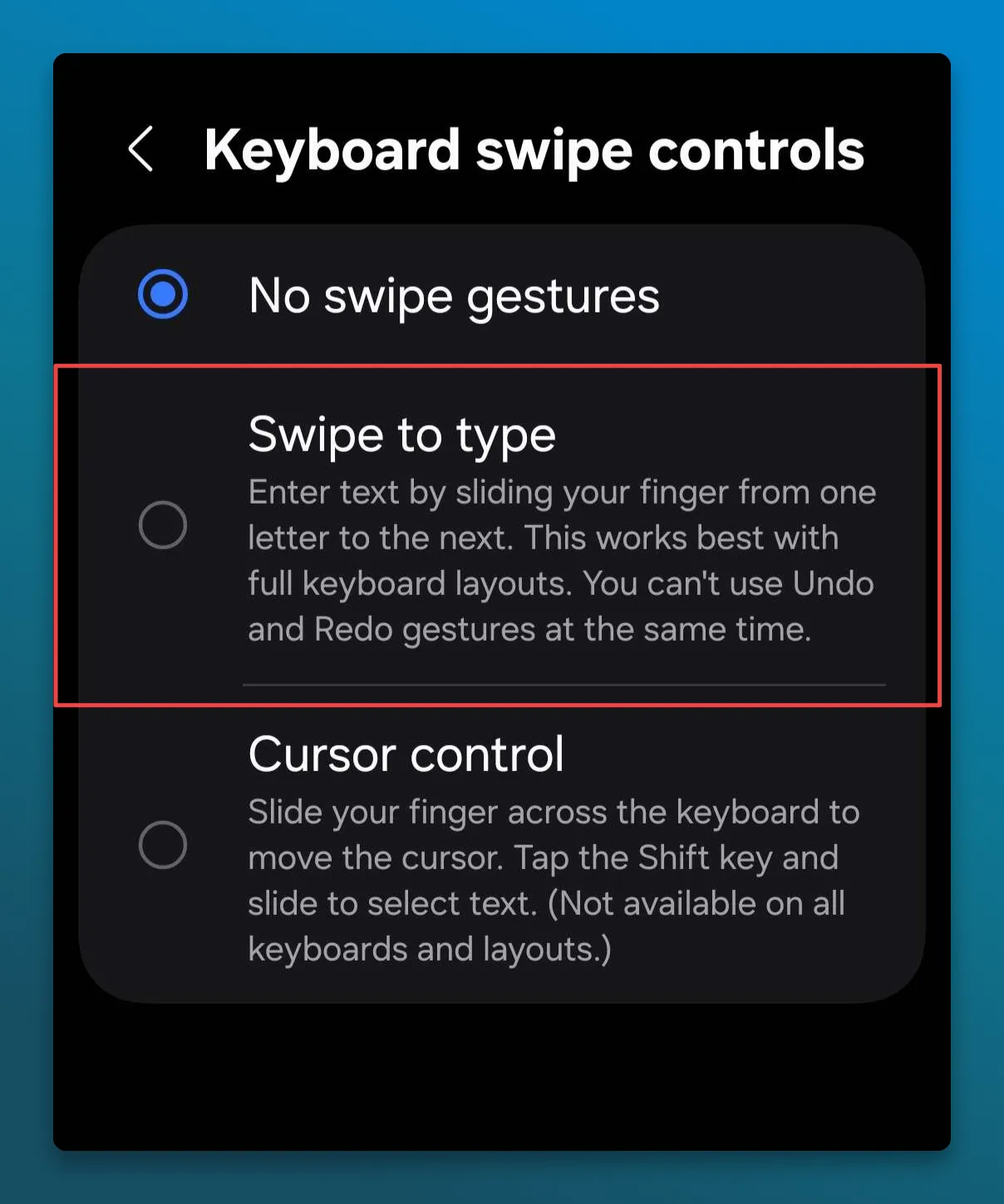
The route varies by Galaxy model and One UI version. Samsung's swipe typing instructions include older Android paths, so use the option names as a guide rather than expecting every screen to match.
Microsoft SwiftKey: enable Flow
On Android, open SwiftKey → Typing → Gesture input, then select Flow. On iPhone, open the SwiftKey app → Settings and turn on Flow.
Microsoft's Flow guide explains that Android's Flow and Gestures options are alternatives. If Gestures is selected, switch to Flow to type by sliding.
Using swipe typing in Acti
With Acti selected as your keyboard, try a short, familiar word in a normal text field. Start on its first letter, slide across the remaining letters and lift at the end. Swipe typing/Glide typing is available in Acti but language availability and settings should be checked for your current app version.
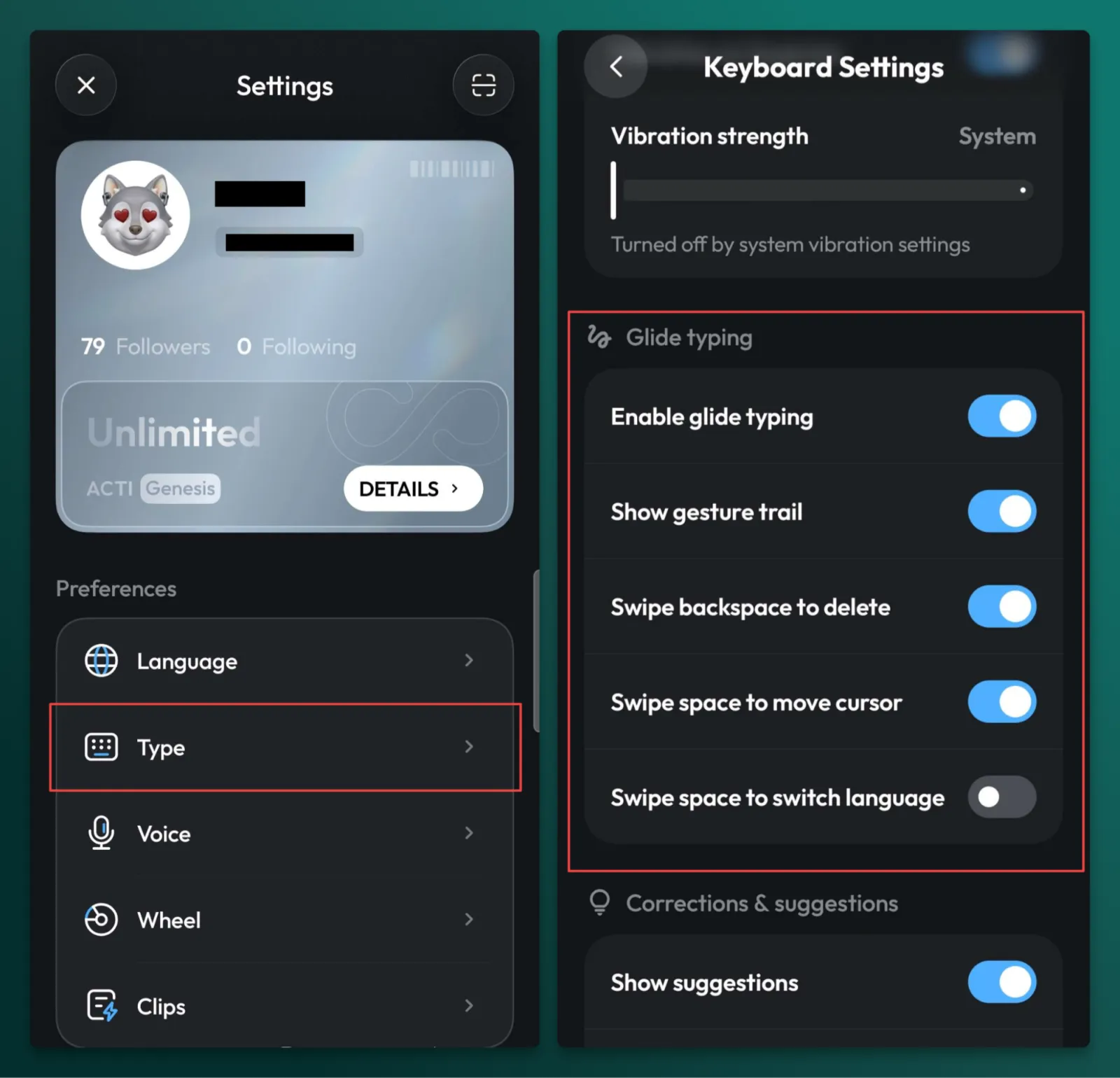
The spacebar has a different job. Swipe directly left or right on the spacebar to move the cursor. To open Acti Wheel, hold the spacebar, keep your finger down, drag toward the Act or tool you want, then release to select it. Our Acti Wheel guide shows the distinction.
That gives you a practical way to finish a message: enter the text, correct any wrong words, then deliberately run an Act if you want to rewrite or translate it. For example, a rewrite Act can help soften a reply that sounds too blunt. Check the result before sending, particularly names, dates and anything where the exact wording matters.
An Act is a separate action after writing. It shouldn't be treated as a substitute for accurate word recognition while you swipe.
How to swipe words without fighting the keyboard
Start with a short phrase such as “see you soon.” Swipe see, lift your finger, then swipe you and soon separately. Follow the letters in their normal spelling order; you don't need to draw a perfectly straight line between keys.
Give yourself a clear starting and finishing point. If a word is wrong, inspect the suggestions before deleting the whole thing. You may be able to choose the intended word immediately. If it isn't offered, tap the word manually and carry on.
Repeated letters don't mean you need to lift your finger and start again. Try the word normally first. For SwiftKey specifically, Microsoft suggests lingering slightly longer over a repeated letter when needed.
Names, usernames, abbreviations and mixed-language phrases deserve a little patience. A keyboard may recognize an ordinary word more readily than a friend's surname or “kal milte hain.” Tap those parts when swiping becomes more effort than it saves. You can use both methods in the same message.
Don't worry about swiping everything. The useful question is whether it makes your messages easier to write, including the time spent fixing mistakes.
Swipe typing not working? Check these first
There's a difference between no word appearing and the wrong word appearing. The first points you toward settings or availability; the second calls for checking language, suggestions and the words you're entering.
Nothing happens when you swipe
First, check the active keyboard. If your phone has switched back to its default, changing Acti or SwiftKey settings won't affect the keyboard currently on screen.
Next, check the swipe option in that keyboard and try a simple word in Notes or another ordinary text field. If swiping works there, the original field or app may be involved. Microsoft specifically documents that Flow isn't available where SwiftKey doesn't offer predictions, including password fields.
Then check your selected language. Ordinary keyboard support and swipe support are different capabilities. Google and Apple both document language limitations, so a working English layout doesn't prove another layout will support the same gesture.
If the feature previously worked, install available keyboard updates and restart the phone before trying broader resets. For SwiftKey, Microsoft's documentation also identifies Android's Explore by Touch as a setting that deactivates Flow. If you rely on accessibility features, keep that need in mind when choosing an input method.
Swiping enters the wrong words
Check that the selected keyboard language matches your text, then try a few familiar words. If those work but names or slang don't, tap the difficult words instead of repeatedly swiping the same path.
Persistent errors are useful feedback for the keyboard team. Include your phone model, operating system, keyboard app version, selected language, and a few examples of intended word → entered word. Those details are more actionable than “swipe typing is bad.” Avoid including private messages in a report.
For Acti, report recognition problems rather than assuming the keyboard needs a fixed number of days to learn your writing. There isn't a verified training period we can promise will resolve them.
How to turn swipe typing off
Return to the same keyboard controls you used to enable it. Turn off Slide to Type on Apple's keyboard, disable Glide typing in Gboard, or turn off Flow in SwiftKey. For Samsung Keyboard, choose No swipe gestures, or choose Cursor control if that is the behavior you want.
If you find yourself correcting more words than you save time entering, tapping is a reasonable choice. Swipe the everyday replies where it helps, tap the unusual words, and use whichever method lets you finish the message comfortably.