How to Use Voice Typing in WhatsApp (Android and iPhone)
You are cooking, walking, or holding something in one hand when a WhatsApp message needs a reply. Typing a long response with one thumb is annoying, but sending a voice note isn't always ideal either. The other person might be in a meeting, somewhere noisy, or simply not in the mood to listen to a two-minute recording.
That's where voice typing comes in.
To use voice typing in WhatsApp, open a chat, tap the message box, and press the microphone on your keyboard. Speak your message, check the text, and tap send. The important part is choosing the keyboard microphone instead of WhatsApp's voice-note button.
The exact steps depend on your phone and keyboard. This guide covers Gboard, Samsung Keyboard, Apple's Dictation, and Acti, an AI keyboard that also supports voice typing with additional features.
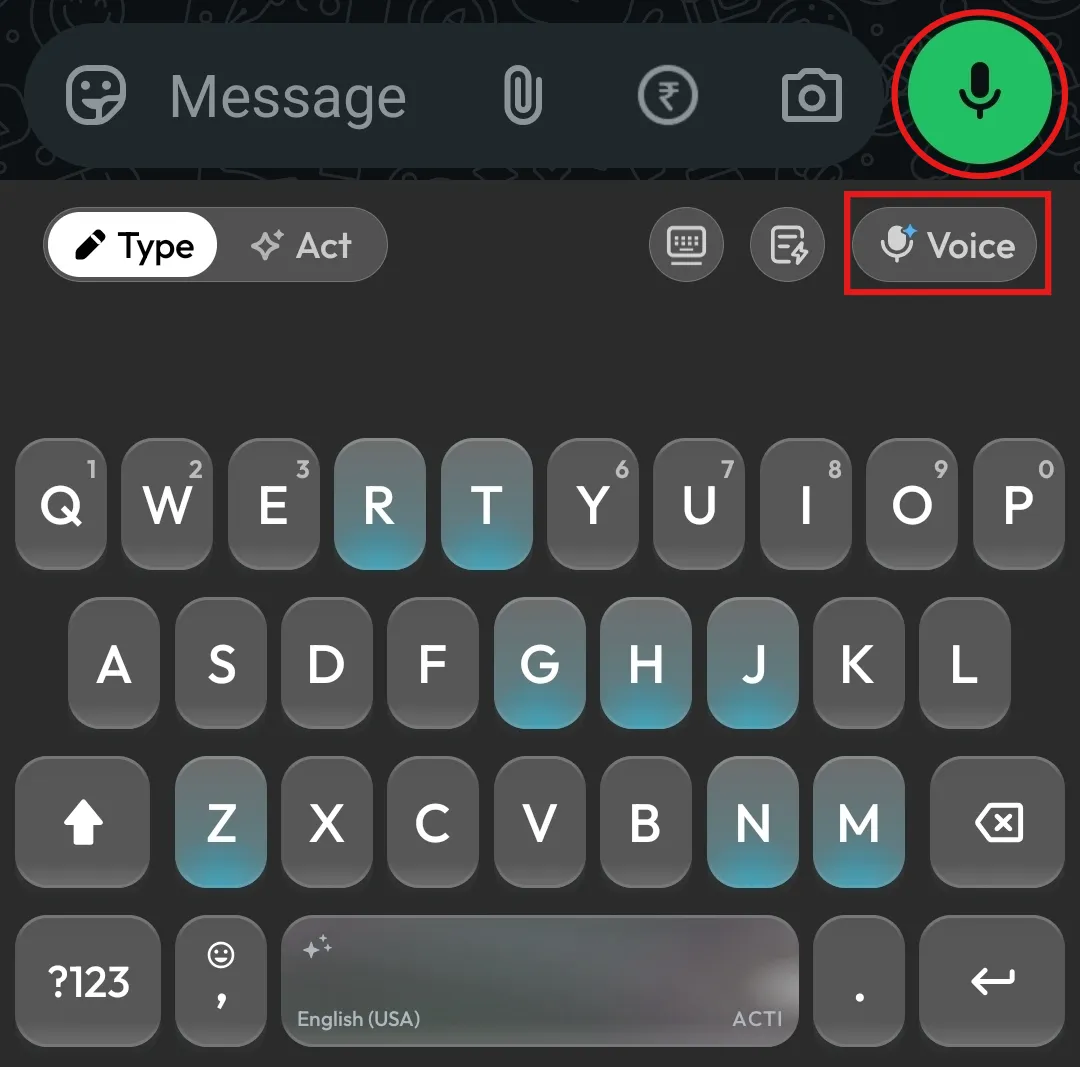
Voice Typing vs Voice Messages in WhatsApp
Before getting into the steps, there's one thing worth clearing up. Voice typing and voice messages are two different features, even though both use your microphone.
Voice messages are the audio recordings you send through WhatsApp. You press the microphone beside the message box, record something, and the recipient receives an audio clip they can play.
Voice typing, also called dictation or speech-to-text, turns what you say into written text. Instead of recording an audio message, your keyboard places the words directly into the WhatsApp message box. You can edit them before sending.
The easiest way to remember the difference is that voice messages are for when you want someone to hear you, while voice typing is for when you want them to read what you said.
For everyday conversations, both have their place. A voice note is useful when your tone or emotion matters. Voice typing is convenient for sending directions, sharing information, or replying to someone who can't listen to audio.
How to Use Voice Typing in WhatsApp on Android
Most Android phones come with a keyboard that supports voice typing. Google's Gboard is common on Pixel and many other Android devices, while Samsung Galaxy phones generally use Samsung Keyboard by default.
If you've installed Acti, the process is slightly different. We'll cover that too.
Voice Typing in WhatsApp Using Gboard
Gboard is Google's keyboard, and its built-in voice typing feature lets you dictate messages without installing a separate speech-to-text app.
Here's how to use it:
- Open WhatsApp and select the chat where you want to send a message.
- Tap the message box to open Gboard.
- Tap the microphone icon near the top of the keyboard.
- When the keyboard displays "Speak now," start talking.
- Once you're finished, stop voice typing using the microphone control.
- Review the text and tap WhatsApp's send button.
That's it. Your message is sent as text, just like something you typed manually.
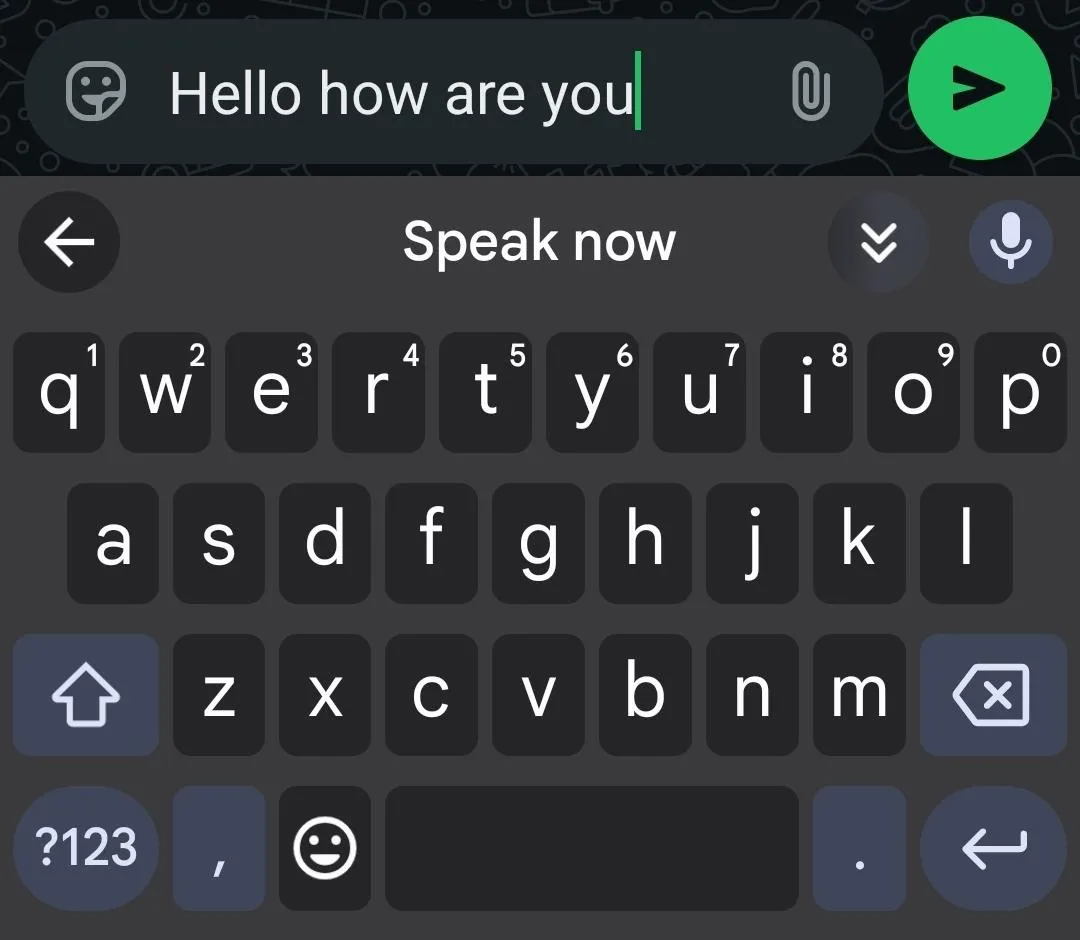
If you can't find the microphone, open Gboard's settings, select Voice typing, and make sure the feature is enabled. You may also need to allow microphone access in your phone's app settings.
Some Pixel devices have Advanced Voice Typing, which adds features such as automatic punctuation, editing commands, and the ability to continue typing while dictation is active. These advanced features aren't available on every Android phone.
Voice Typing in WhatsApp on Samsung Phones
Samsung Galaxy phones have their own keyboard with voice input support. Depending on your device and software version, you can use Samsung voice input or Google Voice Typing through Samsung Keyboard.
To dictate a WhatsApp message:
- Open WhatsApp and tap the message box.
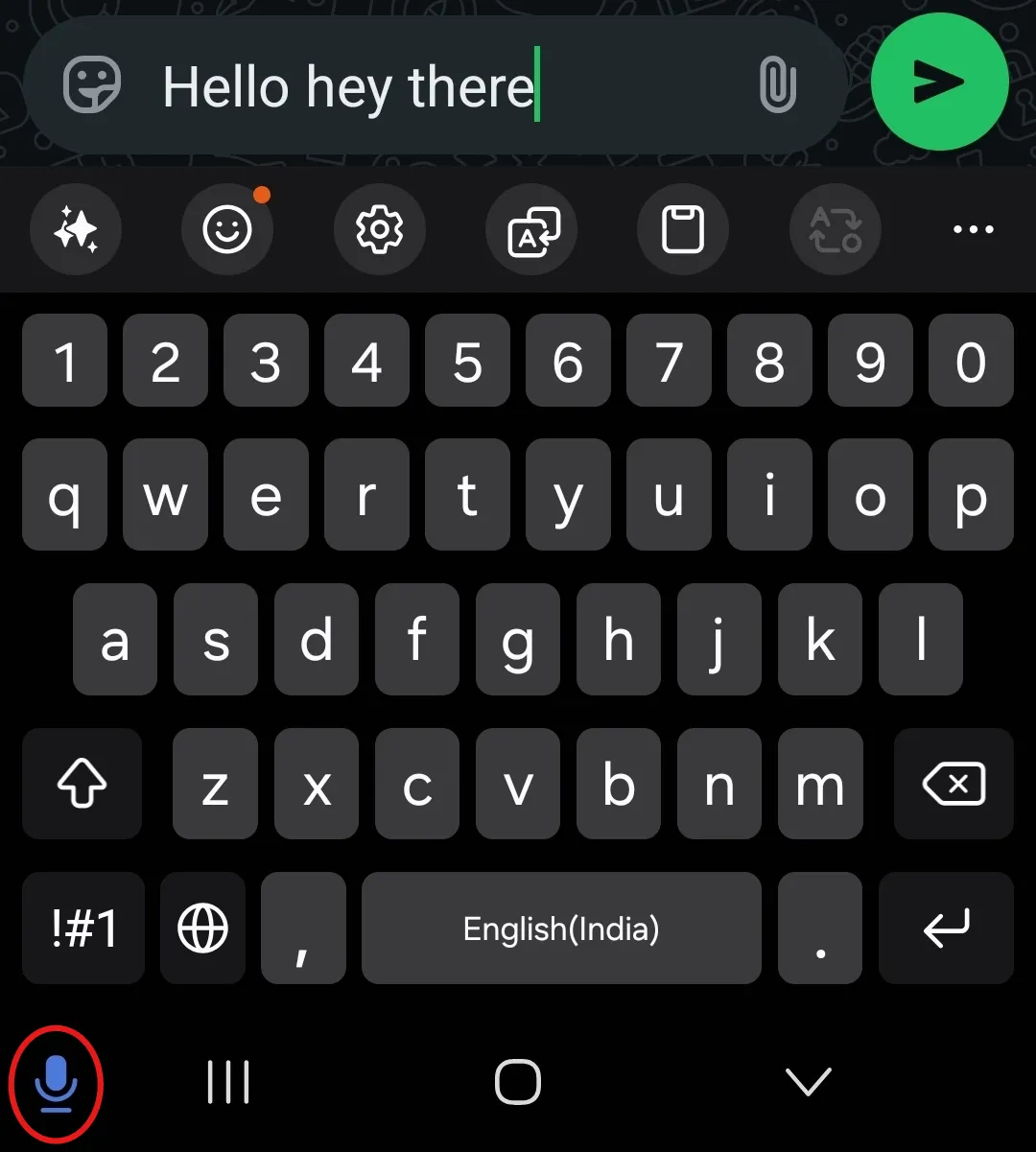
- Find the microphone icon. Depending on your Samsung software version, it may appear on the keyboard toolbar or near the bottom-left corner of the screen, in the navigation area.
- Tap the microphone to activate voice input.
- Speak your message and let the keyboard convert it into text.
- Check the message and tap send.
Can't find the microphone on your Samsung phone?
You're not alone. Samsung has changed the microphone's position in different versions of One UI, so it may not be where you remember.
Open Settings > General management > Keyboard list and default and look for the option called Keyboard button on navigation bar. Enabling it can make the keyboard or voice input control accessible near the bottom of the screen. Depending on the configuration, you may need to press and hold that button to select voice input.
You can also open Samsung Keyboard settings > Voice input to choose between Samsung voice input and Google Voice Typing, where those options are available.
If you're using Samsung Keyboard but don't see its toolbar, check whether Keyboard toolbar is enabled in Samsung Keyboard settings.
Using Acti Voice in WhatsApp on Android
If you use Acti as your Android keyboard, you can dictate WhatsApp messages through Acti Voice.
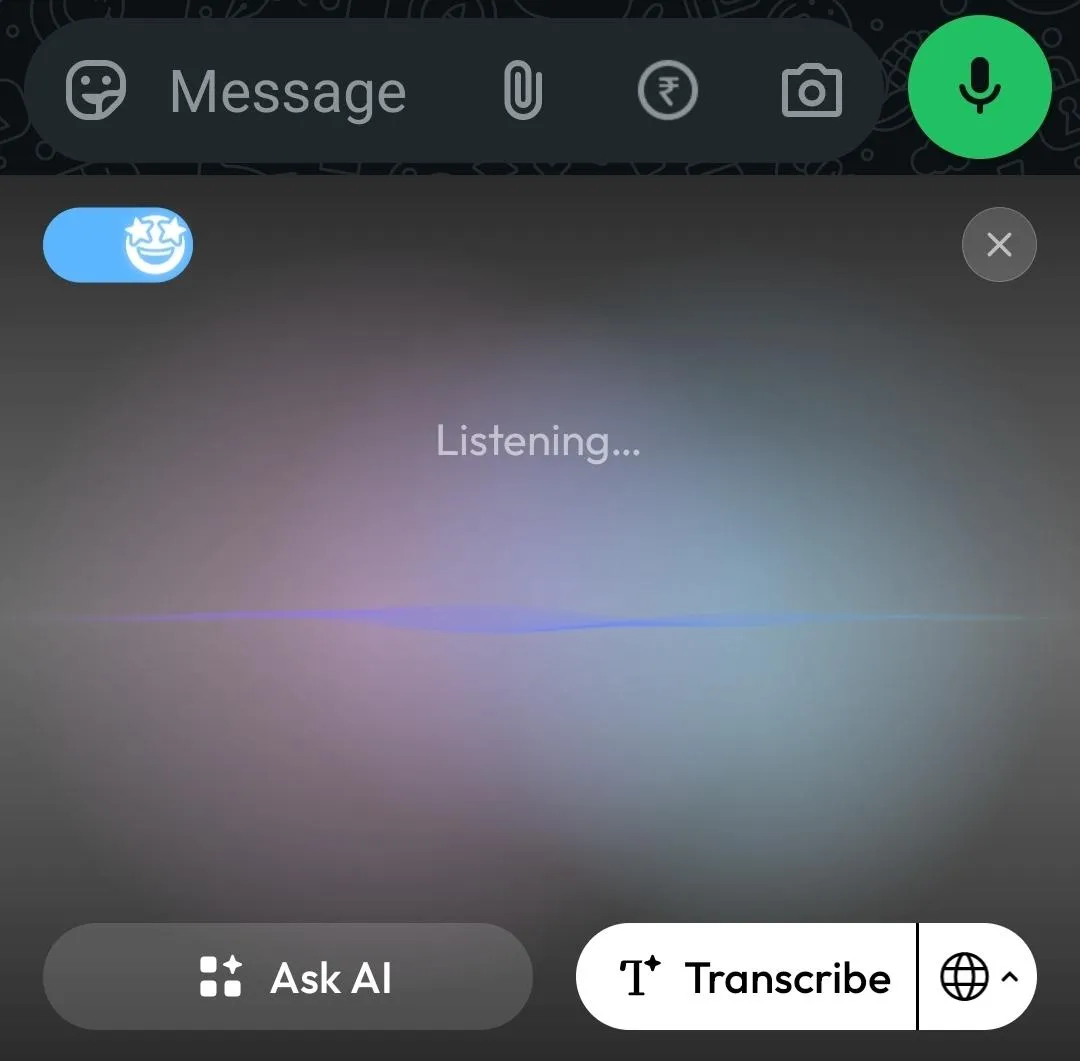
Unlike conventional dictation, where your speech is immediately converted into text as you talk, Acti uses a speak-first workflow. You finish speaking and then decide what you want to do with it.
Here's how:
- Open a WhatsApp conversation and tap the message box.
- Make sure Acti is your active keyboard.
- Tap the microphone on the Acti keyboard and speak your message.
- When you're finished speaking, select Transcribe.
- Review the resulting text and send your message.
Acti also offers Ask AI after you speak. Instead of treating your speech as text to dictate, Ask AI interprets it as a request. For ordinary voice typing, Transcribe is the option you want.
Transcription with Acti Voice is currently free and doesn't use AI credits.
How to Use Voice Typing in WhatsApp on iPhone
On iPhone, voice typing is called Dictation, and it's built into iOS. You don't need another app to get started.
First, make sure Dictation is enabled:
- Open your iPhone's Settings.
- Go to General > Keyboard.
- Turn on Enable Dictation.
Now open WhatsApp and follow these steps:
- Open a conversation and tap the message box.
- Tap the Dictation microphone on the keyboard, not the voice-message button in WhatsApp.
- Start speaking your message.
- When you're finished, tap the Dictation button again or say "Stop dictation."
- Review your message and tap send.
One useful detail about iPhone Dictation is that the keyboard stays available while you're speaking. You can switch between typing and speaking to fix a word without restarting the entire message.
iPhone Dictation also supports spoken punctuation, line breaks, and automatic punctuation in supported languages. We'll get into those in the next section.
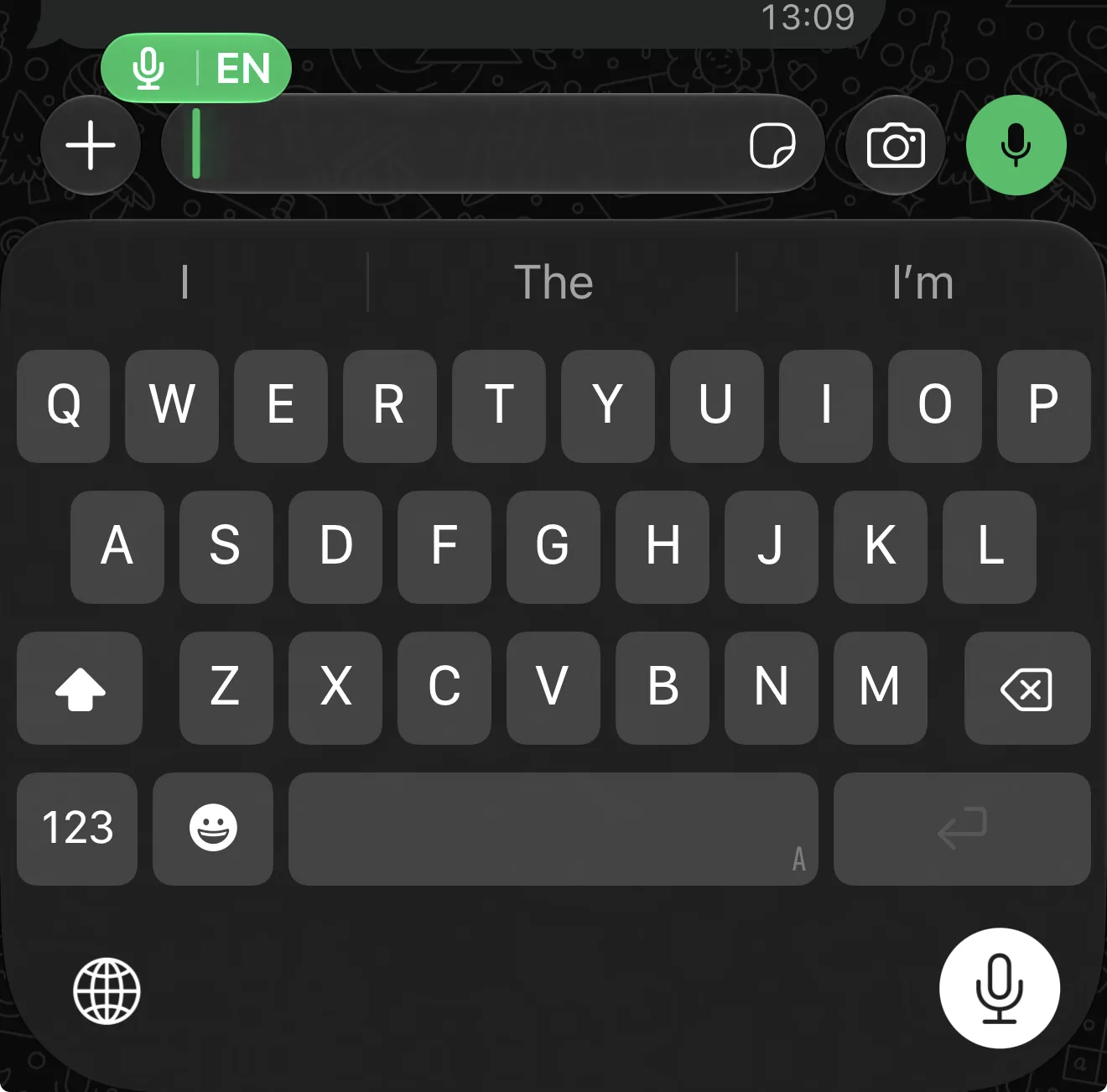
Using Acti Voice in WhatsApp on iPhone
Acti is also available as a keyboard for iPhone. Once you've installed and enabled it as a keyboard in iOS settings, you can switch to it using the keyboard switcher or globe key.
Open WhatsApp, choose Acti as your active keyboard, and tap the Acti microphone. Speak your message and select Transcribe when you're done.
The basic workflow is the same as on Android, so there's no need to learn two different ways of using Acti Voice.
For a more detailed walkthrough of its settings and features, see our Getting Started with Acti Voice guide.
How to Add Punctuation and Fix Mistakes While Voice Typing
Voice typing can save time, but a message without punctuation is not always pleasant to read. Imagine receiving a long paragraph with no commas, full stops, or line breaks. It becomes a guessing game where one sentence ends and the next begins.
Fortunately, most modern voice typing tools support ways to add punctuation.
Adding Punctuation with Your Voice
On Gboard, you can say punctuation commands such as "comma," "period," "question mark," and "new line" in supported languages.
For example, say:
"Hey Alex comma I'll be there in ten minutes period"
The expected result is:
Hey Alex, I'll be there in ten minutes.
You can also say "new paragraph" when you want to separate different thoughts.
On iPhone, Dictation supports similar commands. It can also add commas, periods, and question marks automatically in supported languages. If automatic punctuation isn't working well for you, its setting is available under Settings > General > Keyboard.
Samsung Keyboard's punctuation behavior depends on the voice input engine you've selected and the language you're using. If spoken punctuation doesn't work as expected, try the alternative voice input option.
What about Acti?
Acti Voice has three transcription polishing options:
- Raw: Keeps the transcription close to what you actually said, without unnecessary rewriting.
- Clean: Tidies the dictated text while preserving your meaning.
- Smart: Goes further by improving the wording and structure to make the text more natural and readable.
For a casual WhatsApp conversation, Clean can be a useful starting point. If you're dictating a longer, less structured message, Smart may be more suitable. Raw is useful when you want the result to stay closer to your original speech.
You can choose the level that best fits what you're writing.
Fixing Words That Voice Typing Gets Wrong
Even good speech recognition systems sometimes struggle with names, unfamiliar terms, accents, or background noise.
With Gboard, you can touch and hold a misheard word, activate the microphone, and speak the replacement. Google's Advanced Voice Typing also offers additional correction features on supported Pixel devices.
On iPhone, you can tap the incorrect text and edit it directly. Some devices and languages also support spoken editing commands, such as replacing or deleting selected words.
The simplest solution still works on every keyboard: read your message and manually correct anything that looks wrong. You don't need to dictate the entire message again because one word came out strangely.
For important messages involving dates, addresses, names, or numbers, a quick review is especially useful.
How to Voice Type WhatsApp Messages in Different Languages
WhatsApp is used around the world, so it's natural that people want to dictate messages in languages other than English.
Maybe you speak Hindi at home, use English for work, or regularly switch between different languages in the same conversation.
The good news is that voice typing isn't limited to English, although language support depends on your keyboard and device.
Gboard supports voice typing in multiple languages, but not every typing language is available for speech recognition. You can enable languages in Gboard settings and select the appropriate language for dictation. On supported Pixel devices, Advanced Voice Typing can also automatically switch between enabled languages.
Samsung Keyboard lets you configure voice input languages through its voice input settings. Samsung also offers downloadable offline voice input language packs for supported languages and configurations.
iPhone Dictation works with many languages. You can add another keyboard under Settings > General > Keyboard > Keyboards, then switch to the appropriate language before dictating.
Can You Speak Hindi and Send an English WhatsApp Message?
Yes, but there's an important distinction between transcription and translation.
Ordinary voice typing is primarily designed to write down what you say. If you speak Hindi, the expected output is generally Hindi text, provided your voice typing tool supports that language and is configured appropriately.
Acti Voice adds the option to choose a different output language. For example, you can speak in Hindi and get an English message, or speak in English and get Hindi text.
This can be useful when you're chatting with someone who prefers another language. Instead of dictating a message, copying it into a translation app, and returning to WhatsApp, you can handle the language conversion through Acti Voice.
Acti currently lists 61 supported voice input languages, including Hindi, Gujarati, Marathi, Tamil, Telugu, Bangla, Urdu, and Arabic. You can check the Acti language support page for the full list.
If you regularly type in Hindi, you can also explore our guide to Hindi keyboard apps for more information about typing layouts and multilingual input.
What to Do If WhatsApp Voice Typing Is Not Working
Sometimes the microphone disappears, doesn't respond, or stops working even though it worked yesterday. Before reinstalling WhatsApp or resetting your phone, check the keyboard you're using.
Most voice typing problems involve the keyboard's configuration rather than WhatsApp itself.
1. Check that voice typing is enabled. On Gboard, open its settings and check Voice typing. On iPhone, open Settings > General > Keyboard and enable Dictation. Samsung users can find voice input settings under Samsung Keyboard settings.
2. Check microphone permissions. Your keyboard or its associated voice input service may need microphone access. Check the relevant permissions in your phone's settings.
3. Make sure you're using the expected keyboard. If you've installed multiple keyboards, WhatsApp might open a different one from the one you normally use. Switch to the keyboard whose voice typing feature you want.
4. Check your connection when required. Some voice input systems need internet access, while others support on-device or offline processing. Acti Voice requires an internet connection for its cloud-based speech processing.
5. Restart or update your keyboard. If the microphone is enabled but isn't responding, restarting your phone or updating the keyboard may resolve a temporary issue.
Can WhatsApp Convert Received Voice Messages into Text?
Yes. WhatsApp has a separate feature called Voice Message Transcripts, which converts received voice notes into readable text.
This is different from voice typing. Instead of speaking to create a new message, you're reading the words from an audio message someone else sent.
To use it:
- Open WhatsApp Settings > Chats.
- Enable Voice Message Transcripts.
- Choose a supported transcript language.
- Return to a conversation and press and hold a received voice message.
- Select Transcribe. On some Android versions, you may need to open the additional options menu first.
The feature is disabled by default, and availability depends on your device and language.
On Android, WhatsApp currently lists English, Portuguese, Spanish, and Russian as supported transcript languages. On iPhone, WhatsApp supports a wider range of transcription languages, including Arabic, Chinese, French, German, and Japanese. Available languages depend on your iOS version.
For iPhone, WhatsApp also requires iOS 16 or later and Siri to be enabled for voice message transcripts.
You can check the official WhatsApp transcript instructions for Android or iPhone for the supported languages and current setup steps.
Remember, voice message transcripts help you read audio that someone has already sent. They don't replace your keyboard's microphone for writing new messages.
Going Beyond Basic WhatsApp Voice Typing with Acti
Traditional voice typing is useful when you simply want to turn speech into text. But sometimes, what you say isn't exactly what you want to send.
You might pause halfway through a sentence, use filler words, or change your mind while explaining something. You might also need the final message in another language.
That's where Acti Voice becomes useful.
With its speak-first workflow, you record what you want to say and then choose whether to Transcribe it or use Ask AI to interpret your speech as an instruction.
For transcription, you can select Raw, Clean, or Smart depending on how much polishing you want. You can also choose an output language, allowing you to dictate in one language and produce text in another.
Acti Voice is currently free for transcription, so you don't need to spend AI credits just to dictate a WhatsApp message.
And because Acti is a keyboard, you can use these features in WhatsApp without switching to a separate dictation app.
If you're curious about the setup, start with our Acti Voice getting started guide, or explore the Acti Voice feature page.
Frequently Asked Questions
How do I voice type in WhatsApp instead of sending a voice note?
Open a WhatsApp conversation, tap the message box, and select the microphone belonging to your keyboard. Speak your message, review the transcribed text, and tap send. Avoid the WhatsApp microphone beside the message box, which is used for recording voice notes.
Why is there no microphone on my WhatsApp keyboard?
Voice typing may be disabled, microphone permissions may be missing, or you may be using a different keyboard. On Samsung phones, the microphone can also appear in the navigation area instead of the keyboard toolbar, depending on the software version.
Can WhatsApp convert a voice note into text?
Yes. WhatsApp supports Voice Message Transcripts for received voice notes on supported devices and languages. Enable the feature in WhatsApp's Chats settings, then press and hold a received voice message and select Transcribe. This is separate from voice typing.
Can I use WhatsApp voice typing in Hindi or another language?
Yes, provided your keyboard supports voice typing in that language. Gboard, Samsung Keyboard, Apple Dictation, and Acti all offer multilingual voice input, although the supported languages differ. Acti also lets you choose an output language different from the one you're speaking.
Does WhatsApp voice typing work without internet?
It depends on your keyboard and its voice input system. Apple's Dictation works on-device in many languages, and Samsung offers offline voice input language packs for supported configurations. Other voice typing features may require connectivity. Acti Voice requires an internet connection.
Conclusion
Voice typing is one of those small features that becomes surprisingly useful once you start using it regularly. Whether you're replying to a friend, sending directions, or writing a longer message, speaking can sometimes be more convenient than typing everything out.
You don't need anything complicated to get started. Open WhatsApp, find the microphone on your keyboard, speak, and check the text before sending.
If basic dictation is enough for you, your phone's built-in keyboard may already do everything you need. And if you want to clean up your speech, choose a different output language, or do more with what you say, Acti Voice gives you those additional options.
Either way, the next time someone sends you a long message while you're busy, you have another way to reply without recording a voice note.