How to Check Grammar While Typing on Your Phone
You typed a message, hit send, and immediately spotted a mistake. Maybe it was "your" instead of "you're," a missing word, or an autocorrect that somehow made the sentence worse. It's especially annoying when the message was going to your manager, a client, or someone you were trying to impress.
Most of us write a surprising amount on our phones, from WhatsApp messages and work emails to application forms and social media comments. And when you're typing quickly with your thumbs, checking every sentence isn't exactly your first priority.
A grammar-checking keyboard can help catch mistakes before you send them. Some keyboards offer spelling and grammar suggestions as you type, while others include AI tools that review a complete message. For example, Acti lets you run a Fix Grammar & Polish Act directly from your keyboard, while Gboard, Samsung Keyboard, and Apple's Writing Tools offer their own correction features on supported devices.
This guide covers how grammar checking works on Android and iPhone, how to use it in apps such as WhatsApp, and which features are worth looking for if you regularly write on your phone.
Spell Check, Autocorrect, and Grammar Check: What's the Difference?
These features are closely related, but they don't do exactly the same job. Most phone keyboards already have spelling suggestions and autocorrect, whereas full-sentence grammar correction may require additional features.
Spell check looks for words that appear to be misspelled. If you type "recieve" instead of "receive," it can flag the mistake and suggest the correct spelling. However, spell check may not notice when you've used the wrong word if both words exist in the dictionary.
Autocorrect goes a step further by changing words while you type. It's useful for fixing common typing mistakes, but it can occasionally replace something you meant to write, especially names, slang, or words from another language.
Grammar check considers how words work together in a sentence. It can catch mistakes involving verb forms, missing words, punctuation, and expressions such as "your" versus "you're."
For example:
Before: Your going to love this, its really good.
After: You're going to love this. It's really good.
A grammar checker can help with both mistakes because the issue isn't simply that a word has been misspelled.
Some keyboards offer grammar suggestions while you're typing, while AI proofreading tools may require you to run a check after writing the message. Knowing which approach your keyboard uses makes it easier to understand what to expect.
How to Check Grammar with Acti on Android and iPhone
If you want to correct complete messages without moving your text into a separate writing app, Acti is an option worth considering.
Acti is an AI keyboard for Android and iPhone that supports reusable workflows called Acts. One of them, Fix Grammar & Polish, is designed to correct grammar, spelling, punctuation, and awkward wording while keeping the message close to what you originally wrote.
For example, imagine you're typing a message to a colleague:
Hey, I has sent you the documents yesterday, did you checked them?
A corrected version could read:
Hey, I sent you the documents yesterday. Did you check them?
The second version fixes the grammar without turning a casual message into an unnecessarily formal email. That's an important distinction, because sometimes you want to correct your English without changing how you normally communicate.
How to Use Fix Grammar & Polish
Once you've installed Acti and enabled it as your keyboard, you can use Fix Grammar & Polish on text you've written.
- Open an app where you want to type, such as WhatsApp, Gmail, or Messages.
- Type your message using Acti.
- Open your Acts and choose Fix Grammar & Polish. If you haven't added it yet, find it in Acti Community.
- Run the Act to correct the message.
- Review the corrected version before sending it.
You can also use copied text as input when supported by the Act. This is useful when you've written something elsewhere and want to clean it up without retyping it.
Unlike conventional autocorrect, Fix Grammar & Polish is an action you run when you want a more complete check. You don't have to use it for every message, and there's little reason to run a full grammar correction on something like "ok see u soon."
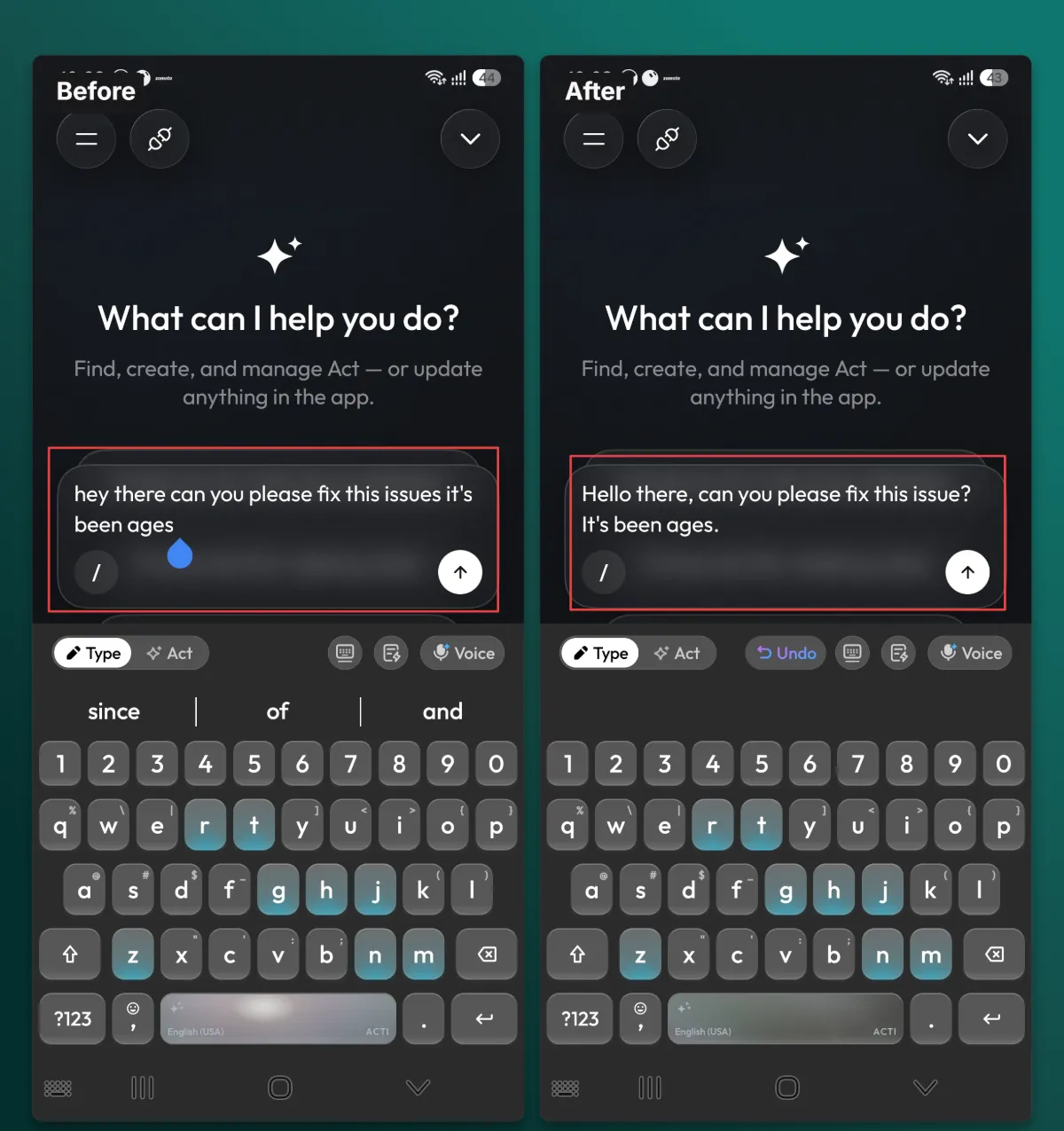
Make Grammar Correction Easier to Access
If you frequently write emails, work messages, or longer replies, opening the same Act repeatedly can become unnecessary extra work. Acti lets you assign frequently used Acts to the Acti Wheel or individual trigger keys for quicker access.
To open the Acti Wheel, hold the spacebar and drag toward the Act you've assigned. You can also bind an Act to a key and use that shortcut when you want to run it.
If you want something more personalized, Acti Agent lets you create your own Acts by describing what you want them to do. For example, you could create a workflow that fixes grammatical mistakes while keeping your informal writing style, or one that cleans up professional emails without adding unnecessary greetings or changing the intended tone.
You can learn more about creating these workflows on the Acti Agent page.
How to Check Grammar on Android with Gboard
Gboard is Google's keyboard and comes installed on many Android phones. It offers familiar typing features such as autocorrect, spelling suggestions, and predictive text, along with more advanced writing tools on supported devices.
For basic corrections, open Gboard settings and look for Text correction. Depending on your device and keyboard version, you can manage options such as Auto-correction, spelling suggestions, and the suggestion strip. These features help with everyday typing mistakes without requiring you to run a separate proofreading action.
Using Gboard's Proofread Feature
On supported Android phones, Gboard also includes AI Writing tools with a Proofread option. This is useful when you want to check a complete sentence or message rather than correct one word at a time.
To use it, type your message with Gboard and open Writing tools from the keyboard toolbar or menu. Select Proofread, review the suggested corrections, and tap Use this if you're happy with the result.
Gboard Writing tools also provides options for changing tone and rephrasing text, but availability depends on the phone and supported language. Not every Android device with Gboard installed will have these AI features.
If the Writing tools option is missing, check Google's official Gboard instructions for the current compatibility requirements.
How to Check Grammar with Samsung Keyboard
Samsung Galaxy phones come with Samsung Keyboard, which offers predictive text, autocorrect, and text correction settings. On compatible Galaxy devices, Samsung also provides Galaxy AI Writing assist for more advanced writing assistance.
For basic typing corrections, open Settings > General management > Samsung Keyboard settings and look for options such as Predictive text, Auto replace, and Suggest text corrections. Depending on your software version, Samsung Keyboard may highlight suggested corrections while you type.
Using Galaxy AI for Grammar Correction
If your phone supports Writing assist, you can check a complete message using its Spelling and grammar feature.
Open an app using Samsung Keyboard, type your message, and tap the Writing assist icon on the keyboard toolbar. It is generally represented by three stars. Choose Spelling and grammar to review the suggested corrections, then tap Replace to apply them.
Writing assist also offers other features, including writing styles and text composition, but those serve different purposes from grammar correction. If your message is grammatically correct and you only want it to sound more polite or professional, a writing-style tool may be more appropriate.
Not every Galaxy phone supports the same AI features. Availability depends on the device, software version, and language, so consult Samsung's Writing assist documentation for current information.
How to Check Grammar on iPhone
Apple's built-in iPhone keyboard includes spelling and autocorrect features that help with everyday typing mistakes. You can enable them by opening Settings > General > Keyboard and turning on Auto-Correction and Check Spelling.
With Check Spelling enabled, iOS can highlight words that appear incorrect, allowing you to select a suggested correction. Autocorrect can also replace common mistakes while you're typing.
These features are useful for individual words, but if you want to review an entire sentence or paragraph, a more advanced writing tool may be helpful.
Using Apple Writing Tools to Proofread Text
On iPhones that support Apple Intelligence, Writing Tools includes a Proofread feature that checks grammar, spelling, and other writing errors.
To use it, select the text you want to check, open Writing Tools, and choose Proofread. Review the suggested changes and apply them when you're satisfied.
Writing Tools can be accessed in many places where you write, including supported third-party apps. However, the feature requires an Apple Intelligence-compatible iPhone, such as an iPhone 15 Pro or a supported newer model, along with the necessary software and language settings.
If your iPhone doesn't support Apple Intelligence, you can still use its built-in spell check or a compatible third-party keyboard such as Acti.
For the current setup instructions, see Apple's Writing Tools guide.
How to Use Grammarly on Your Phone
Grammarly is another option for checking writing mistakes, although its mobile experience differs between Android and iPhone.
On Android, Grammarly offers a writing assistant that works alongside your existing keyboard rather than requiring you to use a separate Grammarly keyboard. After installing and configuring the app, you can use its on-screen assistant to review text in supported apps.
On iPhone, Grammarly offers its own keyboard, which you can enable through iOS keyboard settings. Once it's active, you can receive writing suggestions while composing messages and use additional proofreading features according to your account and available settings.
This makes Grammarly useful for people who want writing assistance across different apps, though the setup and interaction differ between platforms.
For more information, see Grammarly's Android guide and its iPhone keyboard instructions.
How to Check Grammar in WhatsApp and Other Messaging Apps
WhatsApp messages are a common place for grammar mistakes, partly because people tend to write them quickly and send them without much review. A message to a friend might not need perfect grammar, but one to a customer, colleague, or landlord can benefit from a quick check.
The easiest approach is to use the grammar tools available through your active keyboard. If you're using Acti, type your WhatsApp message and run Fix Grammar & Polish before sending it. With Gboard or Samsung Keyboard, use the available text correction or proofreading features. On iPhone, the built-in keyboard provides spelling corrections, while additional proofreading options depend on your device and the app.
The same general approach applies to other messaging apps. Rather than looking for a separate grammar checker for every app, start by checking which features your keyboard supports.
For example, imagine writing this message to a client:
Hi, I have attached the files you requested yesterday, please let me know if there's any issue.
A cleaner version would be:
Hi, I've attached the files you requested yesterday. Please let me know if there are any issues.
The difference is small, but it makes the message easier to read without changing its meaning or making it overly formal.
If you regularly write messages that need a particular tone, such as polite customer replies or professional follow-ups, you can also use Acti's Rewrite in Any Style after checking the grammar. Grammar correction and tone rewriting are related, but they solve different problems.
Common Grammar Mistakes to Watch for on Your Phone
Even with a grammar checker, it's useful to recognize some mistakes yourself. Many of the errors people make on their phones involve words that look or sound similar, which is why basic spell check doesn't always catch them.
| Mistake | Correction |
|---|---|
| Your welcome | You're welcome |
| Me and him went | He and I went |
| I should of called | I should have called |
| Its been a long day | It's been a long day |
| Less people came | Fewer people came |
| Thanks John | Thanks, John |
Some mistakes are obvious once you read them back, while others are easy to miss because the sentence still looks familiar. "Your" and "you're," for example, are both correctly spelled words, so detecting the error requires understanding how the sentence is constructed.
It's also worth watching for unnecessary autocorrect changes. A keyboard might replace a contact's name, a brand name, or a word from another language with something more familiar. Grammar correction can help with sentence structure, but names and specialized terms still deserve a quick review.
When Is a Grammar Checker Actually Worth Using?
Not every text message needs perfect grammar. If you're talking to a friend, informal expressions, abbreviations, and incomplete sentences might be part of how you naturally communicate. There's no reason to make "see u at 7" sound like a business email.
Grammar checking becomes more useful when the message needs to be clear, professional, or easy to understand. That could be an email to a recruiter, an application form, a message to a client, or a request to someone you don't know particularly well.
For longer messages, another useful habit is to separate grammar correction from rewriting. First, check that the sentence is grammatically correct. Then decide whether the tone and length are appropriate for the recipient. A grammatically perfect message can still sound rude, and a friendly message can still contain mistakes.
If you're using Acti, Fix Grammar & Polish handles the correction side, while Rewrite in Any Style can help when you want to change how a message sounds. You can use either one depending on what the text actually needs.
Frequently Asked Questions
What is a good grammar keyboard for Android?
Acti is a useful option if you want to run a full grammar and spelling check on messages directly from your keyboard using Fix Grammar & Polish. Gboard and Samsung Keyboard also provide typing corrections, with additional AI proofreading features available on supported Android devices.
Is there a grammar-checking keyboard for iPhone?
Yes. Acti offers Fix Grammar & Polish for checking written messages on compatible iPhones. Apple's built-in keyboard also includes spelling corrections, while supported Apple Intelligence devices offer more advanced proofreading through Writing Tools. Grammarly provides another iPhone keyboard option.
Can I check grammar in WhatsApp?
Yes. With Acti, you can type a WhatsApp message and run Fix Grammar & Polish before sending it. Other keyboards also offer spelling suggestions and, on supported devices, more advanced grammar correction features.
What's the difference between autocorrect and AI grammar checking?
Autocorrect primarily fixes or replaces individual words while you type. AI grammar checking can examine a complete sentence or message, helping with errors involving sentence structure, word choice, punctuation, and phrasing.
Can a grammar checker change the tone of my message?
Some writing tools can adjust both grammar and style, but they aren't the same task. In Acti, Fix Grammar & Polish is intended for corrections, while Rewrite in Any Style is designed for changing tone, such as making a message friendlier, more professional, or more casual.
Does grammar checking work in other languages?
Many mobile keyboards support spelling corrections in multiple languages, although advanced grammar features may support fewer. Acti provides multilingual typing and writing Acts, but available behavior can vary by language. Check the Acti languages page for supported keyboard languages.
Do I need a separate grammar-checking app?
Not necessarily. Your phone may already have spelling, autocorrect, or proofreading features through its keyboard. If you want additional grammar correction or rewriting capabilities, a keyboard such as Acti can provide those features without requiring a separate editor for every message.
Conclusion
Catching grammar mistakes on your phone is easier when the tools you need are already available where you type. Basic spelling suggestions and autocorrect can handle everyday errors, while proofreading tools are useful for checking complete messages before you send them.
If you want to go beyond individual word corrections, Acti's Fix Grammar & Polish lets you run a grammar check directly from the keyboard. You can also save frequently used writing workflows as Acts, so they're easy to access whenever you're composing something important.
And if all you're sending is "ok see u soon," you can probably skip the grammar check. Your friends will survive.