How to Create Custom Commands on Your Phone Keyboard

What if you could hold a key on your phone's keyboard to fix your grammar, summarize a long message, translate a sentence, or even create a Google Calendar event?
You can already create basic commands on your phone through text shortcuts and automation apps. But if you want to create commands that work directly from your keyboard, Acti lets you build your own reusable actions, called Acts, simply by describing what you want them to do.
You don't need to know how to code, and you don't have to build everything from scratch either.
In this guide, we'll look at how to create custom keyboard commands on Android and iPhone, how they differ from regular text shortcuts and phone automations, and how you can use them for everyday tasks.
How can you create custom commands on your phone?
There are three common ways to create custom commands on Android and iPhone. The right one depends on what you want your command to do.
- Text shortcuts: Use iPhone Text Replacement, Gboard's personal dictionary, Samsung Keyboard's text shortcuts, or clipboard shortcuts in Acti and SwiftKey to insert frequently used text.
- Custom keyboard actions: Use Acti to create reusable commands that rewrite text, translate messages, summarize copied content, retrieve information, or perform tasks through connected apps.
- Phone automation: Use Apple Shortcuts on iPhone or an automation app like Tasker on Android to automate supported app and device tasks.
| Method | Example command | Available on |
|---|---|---|
| Text shortcuts | Type myemail to insert your email address | Android and iPhone |
| Acti Acts | Hold a key to rewrite a message in a particular tone | Android and iPhone |
| Apple Shortcuts | Run a shortcut that performs several tasks across apps | iPhone |
| Tasker | Change supported phone settings based on a trigger | Android |
Text shortcuts are usually enough if you want to insert the same information repeatedly. Custom keyboard actions are more useful when the result needs to change depending on what you're typing.
How to create custom keyboard commands with Acti
Acti is a keyboard for Android and iPhone that supports everyday typing, including swipe typing, autocorrect and word suggestions, alongside custom keyboard actions called Acts.
An Act is a reusable workflow that you can create once and run whenever you need it. Unlike a text shortcut, it can produce a different result each time based on the information you provide.
For example, you could create an Act that:
- Rewrites your messages in a friendly but professional tone.
- Translates whatever you type into Spanish.
- Summarizes long messages or articles you copy.
- Extracts dates, names, and important information from text.
- Creates a Google Calendar event from a written plan.
- Generates a Google Meet link to share in a conversation.
You can create your own Acts or add existing ones from the Acti Community.
Step 1: Install and set up Acti
Download Acti on your Android phone or iPhone and enable it as your keyboard.
If you haven't installed a third-party keyboard before, follow our Getting Started with Acti guide.
Once you've set it up, open the Acti app to create your first Act.
Step 2: Describe what your command should do
You can create an Act through Acti's in-app chat-based builder. Instead of writing code or manually connecting workflow blocks, describe what you want your command to do in plain language.
Let's say you frequently write messages that sound a little too direct, and you want to make them friendlier without making them unnecessarily formal.
You could describe your Act like this:
Create an Act that rewrites the message I type to sound friendly and polite. Keep it short, preserve the original meaning, and don't add emojis or unnecessary greetings.
The builder uses your instructions to propose an Act.
You can be as specific as you want about the tone, structure, language, length, and information you want it to preserve.
Step 3: Choose what your Act works on
Acts can work with two types of text input:
| Input | When to use it |
|---|---|
| Written text | When you want to work with the message you're currently typing |
| Copied text | When you want to work with a message, article, link, or other text you've copied |
For our message-rewriting command, written text makes more sense because we want the Act to work on the message we're composing.
If you were creating a command to summarize an article or explain a message someone sent you, copied text would be a better choice.
Some Acts can also work with connected services, such as Google Calendar or Notion, depending on what the workflow is designed to do.
Step 4: Decide how the result should be returned
Not every command needs to replace what you're typing. Sometimes you just want to read a summary, check an explanation, or copy the result for later use.
Acti gives you two ways to handle the result:
- Apply: Replace the text the Act worked on with the result.
- Preview: Show the result in a panel above the keyboard, where you can copy it or tap Apply to use it.
For a grammar correction or translation Act, Apply is useful when you want to replace your text directly. For a summary or an explanation, Preview makes more sense because you can read the result without changing what you're typing.
Step 5: Test and save your custom command
Before saving your Act, try it with a few different examples.
If the result is too formal, too long, or changes information you wanted to keep, you can refine the Act through the same conversation.
For example:
Make the responses more casual and keep them under two sentences whenever possible.
Once you're happy with how the Act works, save it.
New Acts are unpublished by default. You can keep your Act for personal use or publish it to the Acti Community if you want other people to discover and use it.
How to run custom commands from your keyboard
After creating an Act, you don't need to reopen the Acti app every time you want to use it. There are three ways to access your saved commands directly from the keyboard.
1. Run a command from the Act Panel
Open an app where you can type, such as WhatsApp, Gmail, or Notes.
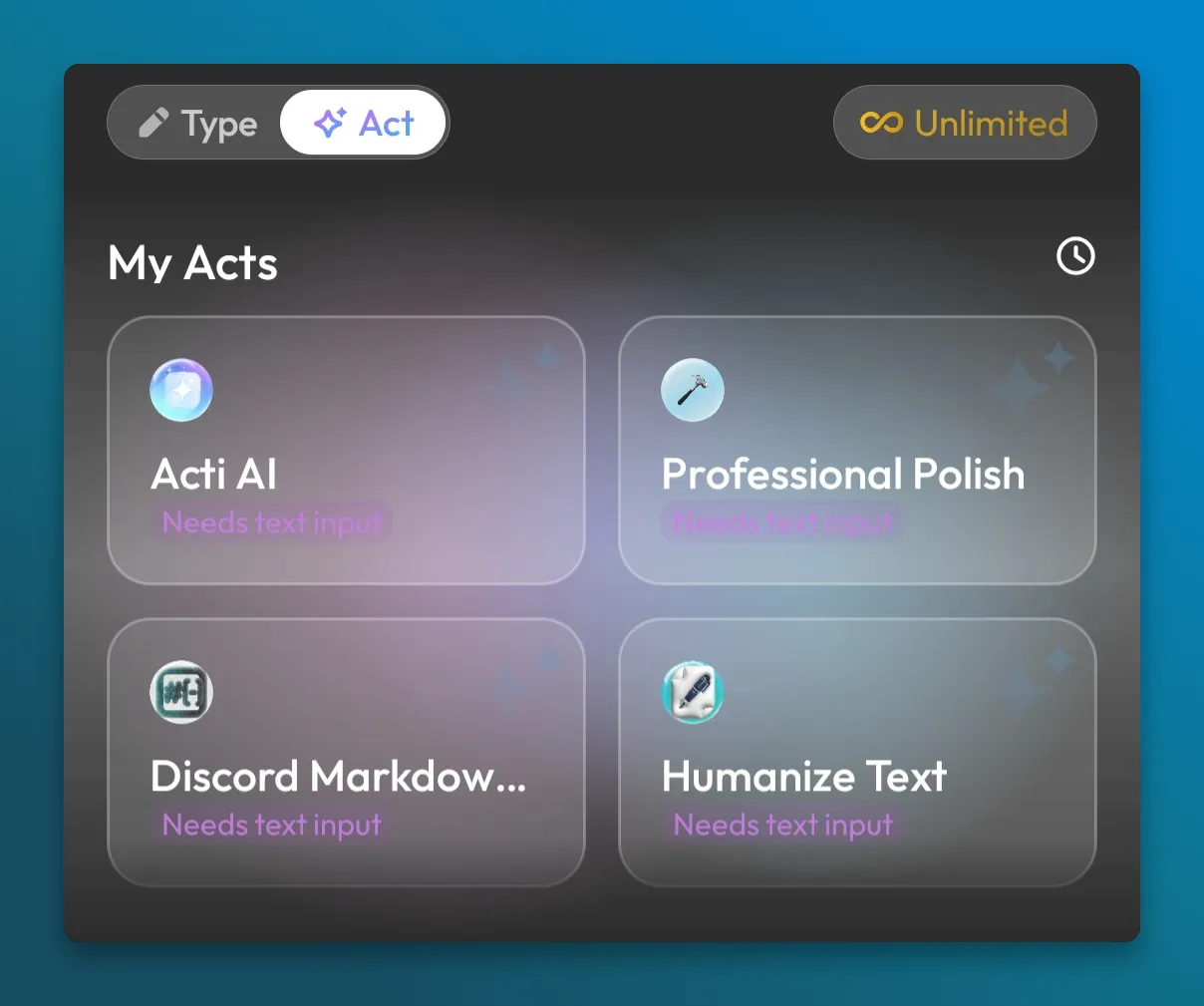
Tap Act on the keyboard to open the Act Panel and select the command you want to run.
This is useful when you have several Acts and don't need immediate access to all of them.
2. Assign a command to a keyboard key
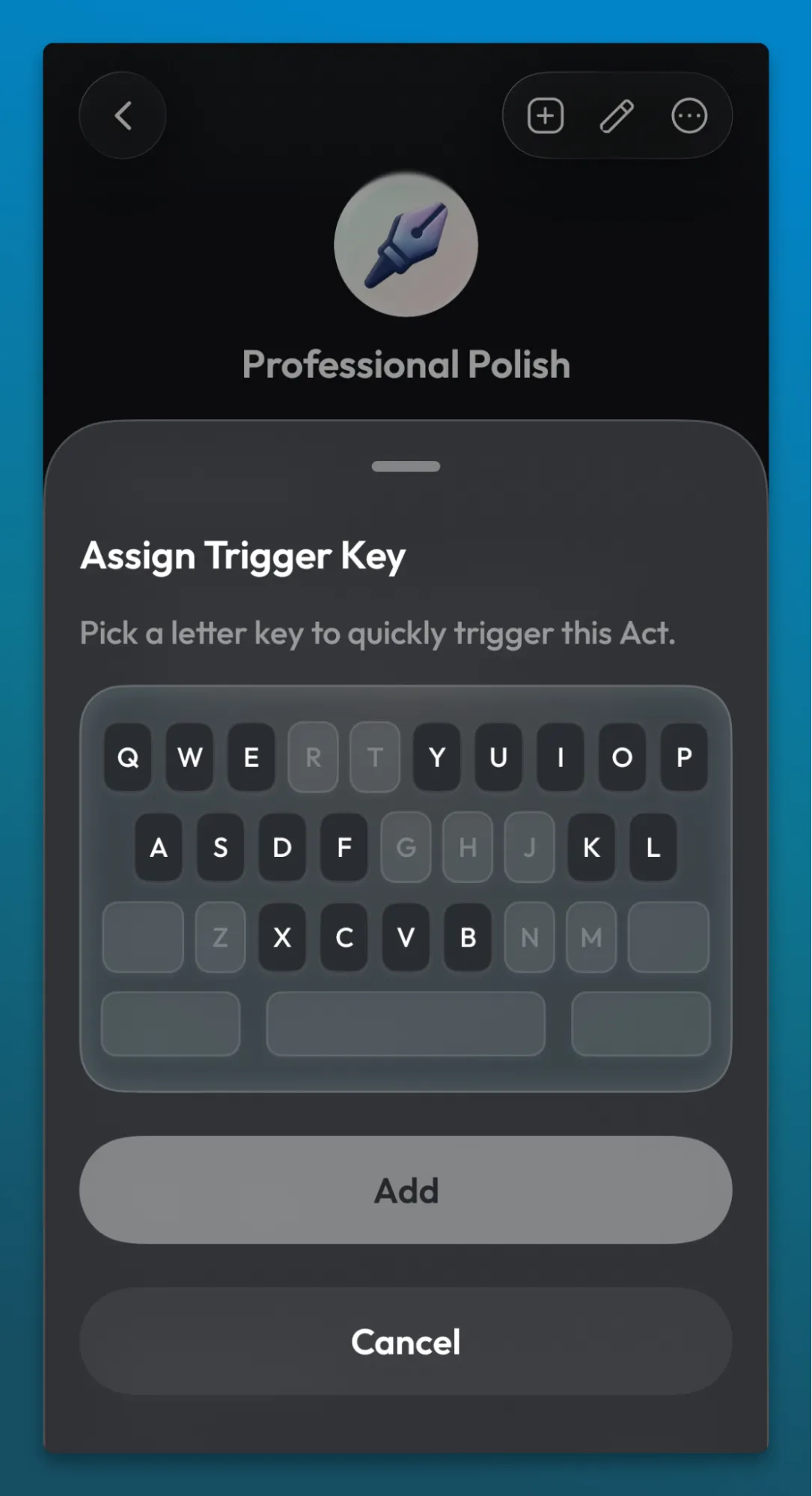
If you frequently use a particular Act, you can assign it to a letter key on your keyboard.
For example, you could assign a grammar correction Act to the G key or a translation Act to the T key.
Tapping the key still types the letter as usual. Holding the assigned key runs the Act.
This makes it easier to access commands you use regularly without opening the Act Panel every time.
3. Add a command to the Acti Wheel
The Acti Wheel gives you quick access to your favorite Acts through the spacebar.
- Open the Acti app.
- Go to Settings → Wheel.
- Select an available slot and assign an Act to it.
- Open an app where you can type.
- Press and hold the spacebar to open the Wheel.
- Keep holding, drag toward your Act, and release to run it.
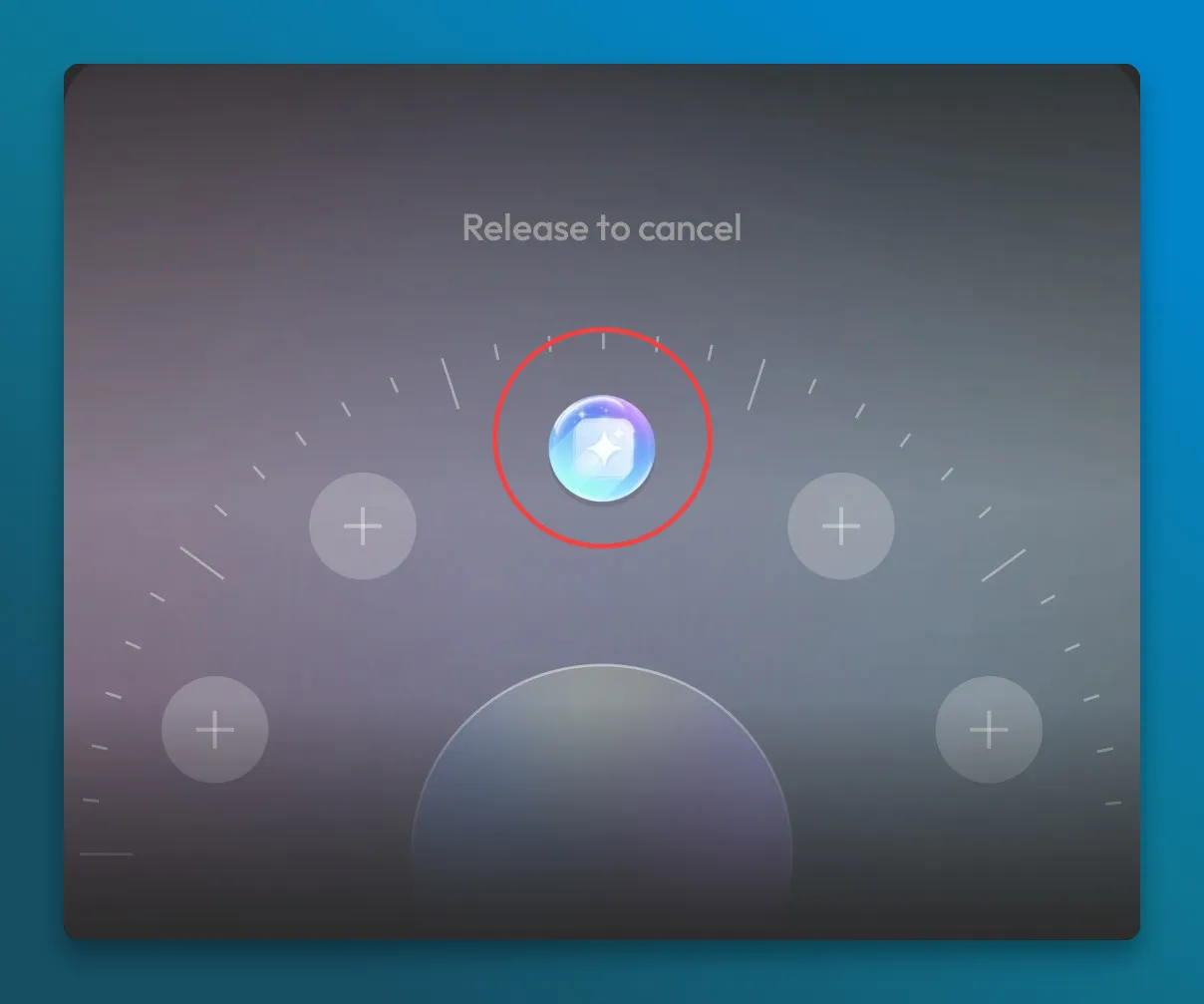
The Wheel has five slots, with Acti AI in the center by default and other slots available for customization.
You can read our Getting Started with Acti Wheel guide for more details on setting it up.
Useful custom keyboard commands you can create
You don't necessarily need complicated workflows. Some of the most useful commands are simply small tasks you find yourself repeating throughout the day.
Here are a few examples of what custom keyboard commands can look like in practice.
Rewrite messages in your preferred tone
Sometimes a message makes perfect sense to you but sounds a little rude, blunt, or overly formal when someone else reads it.
Instead of explaining your preferred writing style to an AI assistant every time, you can save that preference as an Act.
For example, your command could be:
Rewrite my message to sound polite and natural. Keep it concise and don't change any facts.
You could type:
cant make it thurs maybe next week
And get a result like:
I won't be able to make it on Thursday. Could we do next week instead?
Once you've created the Act, you can use the same command on different messages without entering the instructions again.
Summarize long messages
Someone sends a long message in a group chat, and you just want to understand the important parts before replying.
With a command that works on copied text, you can copy the message, run the Act, and read a shorter version above your keyboard.
Acti already has a Summarize Anything Act for this purpose.
You could also create your own version that extracts only deadlines, important decisions, or action items instead of producing a general summary.
Translate messages into another language
If you frequently communicate with someone in another language, you can create a translation command with your preferred output language and writing style.
For example:
Translate my message into Spanish. Keep it conversational and preserve names and numbers.
You can then type your message in English and run the Act whenever you want a translated version.
This is especially useful if you regularly translate messages into the same language and don't want to select the language every time.
You can also use the existing Translate to Any Language Act if you need to work with different languages.
Create calendar events from conversations
Imagine you're arranging lunch with someone over WhatsApp and finally agree on a date and time.
Normally, you would open your calendar, create an event, enter the details, and return to the conversation.
With the Schedule It Act, you can type a plan in plain language, such as:
Lunch with Sam on Friday at noon.
Run the Act after connecting your Google Calendar account, and it can create the corresponding calendar event.
Be sure to provide enough information to identify the correct date, time, and time zone, and check the event details afterward.
Create a Google Meet link
If you frequently share meeting links, you can use an Act to create a Google Meet link directly from your keyboard.
Instead of opening another app to generate a meeting link and copying it back into your conversation, you can run the One-Tap Google Meet Act from your keyboard after setting up the required connection.
This is an example of a keyboard command that performs an action rather than simply generating or changing text.
Save copied information to Notion
You might come across an interesting article, a useful explanation, or something you want to remember while browsing or chatting.
A command like Save to Notion lets you work with copied content and send it to your connected Notion workspace.
You can also create a custom version of the workflow based on how you prefer to organize your information.
You don't have to create all these commands yourself. You can explore the available Acts and add the ones you find useful.
How to create text shortcuts on Android
If your main goal is to insert an email address, a standard reply, or another frequently used phrase, a text shortcut may be all you need.
Unlike an AI keyboard command, a text shortcut retrieves predefined content rather than generating a new result.
Create text shortcuts in Acti
Acti's built-in clipboard lets you assign shortcuts to saved or pinned text clips.
- Open the Acti clipboard.
- Save or pin the text you want to reuse.
- Open the clip's editing options.
- Assign a shortcut to the clip.
- Use the shortcut while typing to retrieve the saved content.
For example, you could assign myemail to your email address or address to your delivery address.
You can also organize your saved clips into custom categories. Read our guide to the best clipboard managers for Android to learn more about clipboard shortcuts and organization.
Create text shortcuts in Gboard
Gboard supports shortcuts through its personal dictionary.
- Open Gboard Settings.
- Go to Dictionary → Personal dictionary.
- Select your language.
- Tap the plus icon.
- Enter the word or phrase you want to save and its shortcut.
When you type the shortcut, Gboard can offer the corresponding text as a suggestion.
Create text shortcuts in Samsung Keyboard
- Open Settings → General management → Samsung Keyboard settings.
- Select Text shortcuts.
- Tap the plus icon.
- Enter your shortcut and the expanded phrase.
- Save it.
The saved phrase can appear in the suggestion bar when you type the shortcut.
Create text shortcuts in Microsoft SwiftKey
SwiftKey lets you assign shortcuts to saved clipboard clips.
- Open the SwiftKey clipboard.
- Add or select a saved text clip.
- Enter a shortcut for that clip.
- Type the shortcut and select the saved phrase from the suggestions.
You can find more details in Microsoft's clipboard guide.
How to create text shortcuts on iPhone
Apple's built-in keyboard includes a feature called Text Replacement.
- Open Settings.
- Go to General → Keyboard → Text Replacement.
- Tap the plus icon.
- Enter the full phrase and the shortcut you want to use.
- Tap Save.
For example, you could save:
- Phrase: Thank you for reaching out. I'll get back to you shortly.
- Shortcut:
tyreply
When you type the shortcut using Apple's keyboard, the saved phrase can replace it.
This works well for frequently used information, but it won't adapt the phrase to different conversations.
If you want a command that rewrites a different message each time, summarizes copied content, or performs a connected-app action, you can use an Acti Act instead.
How are keyboard commands different from Apple Shortcuts and Android automation apps?
Custom keyboard commands and phone automations can both save you time, but they aren't quite the same thing.
Apple Shortcuts
Apple's Shortcuts app lets you combine actions across supported apps and device features.
For example, you could create a shortcut that resizes an image, saves a file, or performs several steps across compatible apps.
You can run shortcuts from the Shortcuts app, Home Screen, widgets, Siri, or the share sheet of another app.
Apple Shortcuts is particularly useful when you want to automate tasks that aren't primarily related to typing.
Android automation apps
Android users can use automation apps such as Tasker to create workflows involving supported phone settings, apps, conditions, and triggers.
For example, you could create a task that changes your phone's sound settings under particular conditions.
These apps are useful for broader device automation, although some workflows require additional configuration and permissions.
Custom keyboard actions
Acti's custom keyboard actions are designed around the keyboard itself.
You can work with something you're typing or have copied, generate a result, retrieve information, or perform a supported connected-app action without manually switching between applications.
For example, a translation Act works on the message you're currently composing, while a calendar Act can turn the plan you've written into an event.
Here's a comparison of the three approaches.
| Feature | Text shortcuts | Apple Shortcuts / Tasker | Acti Acts |
|---|---|---|---|
| Insert predefined text | Yes | Possible | Yes, through suitable Acts or clipboard shortcuts |
| Adapt output to different messages | No | Depends on the workflow | Yes |
| Work with copied text | Limited to saved content | Supported workflows | Yes |
| Rewrite the text you're composing | No | May require additional steps | Yes |
| Run directly from the keyboard | Yes | Not generally | Yes |
| Automate device settings | No | Yes, where supported | Not designed for this |
| Connect to external services | No | Depends on integrations | Supported integrations |
| Create workflows without coding | Yes | Yes, for many workflows | Yes |
These tools aren't necessarily replacements for one another. You might use text shortcuts for your email address, Apple Shortcuts or Tasker for phone automation, and Acts for tasks you regularly perform while typing.
Are custom keyboard commands free?
It depends on the method you use.
Text Replacement is built into iPhone, and keyboards such as Gboard, Samsung Keyboard, and SwiftKey offer text shortcuts without requiring a separate text-expansion app.
Apple Shortcuts is also included with iPhone. Third-party Android automation apps may have their own pricing.
Acti is free to download on Android and iPhone, and users can create their own Acts through the app. Running AI-powered Acts uses AI credits, with a daily allowance on the Free plan and additional credits available through Acti Pro.
You don't need Acti Pro simply to start creating and trying custom commands on your phone.
What are the limitations of custom keyboard commands?
Custom commands are useful, but they're not a way to automate absolutely everything on your phone.
Before creating a workflow, there are a few things worth knowing.
AI-generated results may need checking
A command that rewrites or summarizes text can occasionally misunderstand your instructions or leave out important information.
Review generated text, particularly when it contains names, dates, numbers, or information you're sending to someone else.
If you're creating your own Act, giving it specific instructions and testing it with different inputs can help improve its consistency.
Connected apps require authorization
If a command needs to create an event in Google Calendar or save information to Notion, you'll need to connect the relevant account and grant the required permissions.
A text preview is not necessarily an approval step for external actions. Some Acts perform an action and then show the result, so check what a workflow does before running it.
Not every text field supports third-party keyboards
Some apps or text fields, particularly secure fields such as passwords on iPhone, may switch back to the system keyboard.
In those situations, custom commands from a third-party keyboard may not be available.
On iPhone, Acti's network-dependent features also require Allow Full Access to be enabled in the keyboard settings.
Keyboard commands aren't full device automation
If you want your phone to automatically change its settings based on your location, time of day, or another device condition, an automation app is generally better suited to that task.
Acts are more useful when you want to deliberately run a task from your keyboard while writing, reading, or working with copied information.
Frequently Asked Questions
Can I create my own keyboard commands on Android?
Yes. Android keyboards support different kinds of custom commands. You can create text shortcuts in keyboards such as Gboard and SwiftKey, or use Acti to create reusable actions that work with text and supported connected apps.
Can I create custom keyboard commands on iPhone?
Yes. Apple's keyboard supports Text Replacement for fixed phrases, while Apple Shortcuts supports broader phone automation. Acti also supports custom keyboard actions on iPhone through Acts.
Do I need to know how to code to create a keyboard command?
No. Text shortcuts only require a shortcut and a saved phrase. With Acti, you can create an Act by describing what you want it to do in plain language and refining it through conversation.
Can I assign a custom command to a letter key on my phone?
Yes. Acti lets you assign an Act to a keyboard key. Tapping the key types the letter, while holding the assigned key runs the Act. You can also access commands through the Act Panel or Acti Wheel.
Can I create custom keyboard commands for WhatsApp?
Yes. With Acti enabled as your keyboard, you can run supported Acts while typing in WhatsApp. For example, you can rewrite a message, translate text, summarize something you copied, or create a meeting link.
Can a keyboard command use information from other apps?
Yes, where the keyboard supports the relevant integration or input. Acti can work with copied text and supported connected services, such as Google Calendar and Notion. It doesn't automatically have access to everything displayed in other apps.
Can I share my custom keyboard commands with other people?
With Acti, you can publish your custom Acts to the Acti Community so other users can discover and add them. You can also keep your Acts unpublished for personal use.
Start with something you do every day
You don't need to automate your entire phone to make custom commands useful.
Start with a small task you find yourself repeating. Maybe it's rewriting a message that sounds too formal, translating something into another language, or creating a meeting link.
If the task involves inserting the same text every time, a text shortcut is probably enough. If the result needs to change based on what you're typing, a reusable keyboard action makes more sense.
You can explore the available Acts or follow our Getting Started with Acts guide to create your own.
Spotted something outdated or incorrect? Email us at help@openacti.com.