How to Turn Off Autocorrect on Android, Samsung and iPhone

You type a friend's name, press space, and your phone swaps it for a word that has nothing to do with it. You type a work term your team uses every day, and it turns into something else. After the third time in one chat, most people go looking for the off switch.
The good news is that you can turn off autocorrect without necessarily losing word suggestions or other typing features. The confusing part is where the setting lives, since different keyboards have different names for it.
Whether you use Gboard, Samsung Keyboard, Apple's built-in keyboard, or Acti, an everyday keyboard that also lets you fix grammar and polish entire messages, this guide will help you understand your correction options, disable unwanted corrections, and fix autocorrect when it isn't working properly.
How to turn off autocorrect: Quick answer
The setting depends on which keyboard you're using, not necessarily which phone you own.
| Keyboard | Where to find the setting |
|---|---|
| Gboard (Android) | Gboard Settings → Text correction → Auto-correction |
| Samsung Keyboard | Settings → General management → Samsung Keyboard settings → Auto replace |
| iPhone keyboard | Settings → General → Keyboard → Auto-Correction |
| Acti (Android and iPhone) | App → Settings → Type → Auto-correction |
If you use Gboard on a Samsung phone, for example, follow the Gboard instructions. Changing Samsung Keyboard's settings won't affect Gboard or Acti.
The same applies to WhatsApp, Instagram, Gmail, and most other apps. Autocorrect is generally a feature of your keyboard, not the app you're typing in.
Understanding autocorrect, predictive text and spell check
Before turning everything off, it's worth understanding which feature is actually causing the problem. You might dislike autocorrect but still find word suggestions useful.
| Feature | What it does |
|---|---|
| Autocorrect | Automatically replaces words it thinks are incorrect. |
| Predictive text | Suggests words as you type or predicts the next word. |
| Spell check | Highlights possible spelling mistakes without automatically replacing them. |
| Auto-capitalization | Capitalizes the first letter of a sentence automatically. |
| Grammar correction | Checks a phrase or sentence for grammatical errors rather than just individual spelling mistakes. |
For example, you type "teh" and your keyboard changes it to "the". That's autocorrect. If your keyboard shows "the" above the keys and lets you select it yourself, that's a word suggestion.
Keyboards like Acti include regular autocorrect and word suggestions, alongside additional writing tools that can work on an entire message when you choose to use them.
These features serve different purposes, so you don't necessarily need to disable all of them just because one is bothering you.
How to turn off autocorrect on Android (Gboard)
Gboard comes preinstalled on Google Pixel phones and many other Android devices. The easiest way to access its settings is directly from the keyboard.
-
Open any app where you can type, such as WhatsApp or Messages.
-
Tap a text field to bring up Gboard.
-
Tap the Settings gear in the keyboard toolbar. You may need to expand the toolbar first.
-
Select Text correction.
-
Find Auto-correction and turn it off.
You can also touch and hold the comma key, slide your finger toward the settings gear, and release it to open Gboard's settings.
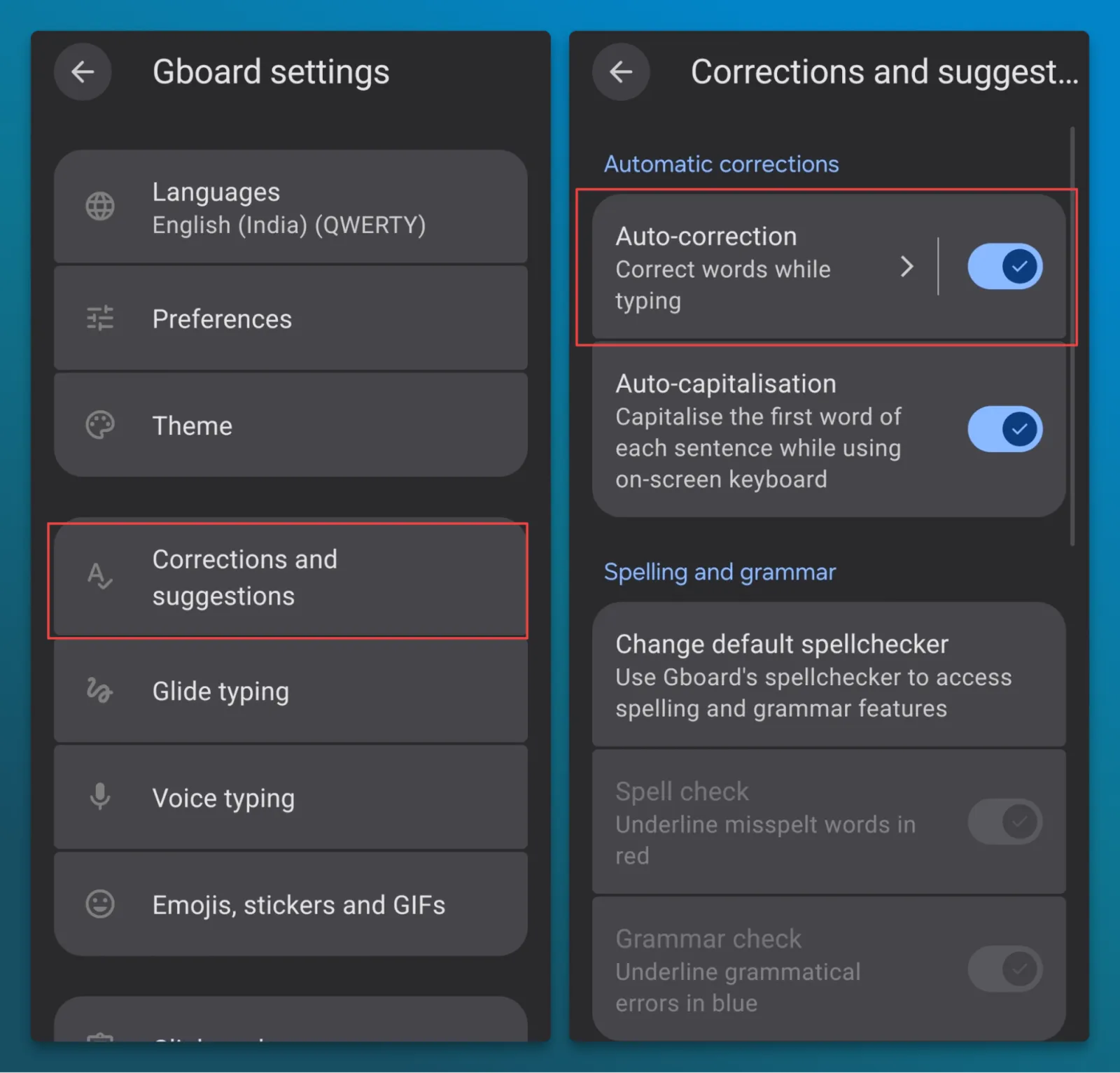
On Google Pixel phones, another route is:
Settings → System → Keyboard → On-screen keyboard → Gboard → Text correction
The exact path can differ depending on your Android version and phone manufacturer.
Keep word suggestions without autocorrect
Under Gboard's Text correction settings, you'll find several other typing options:
-
Show suggestion strip: Displays word suggestions above the keyboard.
-
Auto-capitalization: Automatically capitalizes the beginning of a sentence.
-
Spell check: Helps identify spelling mistakes.
-
Undo auto-correct on backspace: Lets you reverse an automatic correction by pressing backspace immediately afterward, where available.
If your only problem is unwanted word replacements, leave the suggestion strip enabled and turn off Auto-correction.
You can still select suggested words whenever you want without letting the keyboard automatically replace what you type.
For more information, see Google's guide to word suggestions and text correction.
How to turn off autocorrect on Samsung Galaxy phones
Samsung Galaxy phones usually come with Samsung Keyboard, which calls its automatic correction feature Auto replace.
From your phone's settings
-
Open Settings.
-
Select General management.
-
Tap Samsung Keyboard settings.
-
Select Auto replace.
-
Disable it for the languages you use, if individual language switches are available.
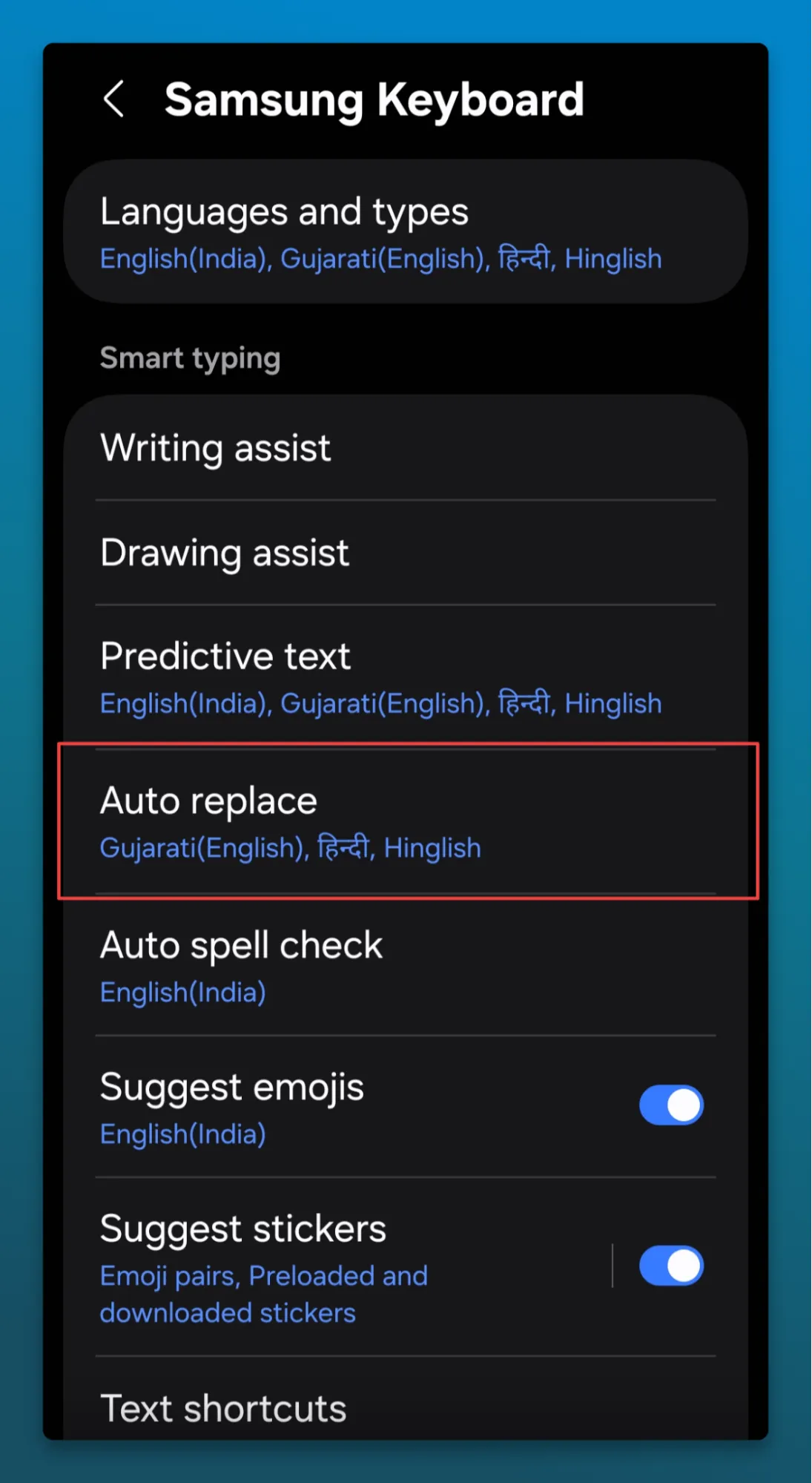
You can also access Samsung Keyboard settings by tapping the gear icon on the keyboard toolbar while typing.
Auto replace vs. Predictive text on Samsung
Samsung separates automatic word replacement from predictive suggestions.
Predictive text displays possible words above your keyboard, while Auto replace can automatically insert a suggested word when you press space or enter.
If you like seeing suggestions but don't want Samsung Keyboard changing your words automatically, disable Auto replace and keep Predictive text enabled.
If you don't want suggestions at all, you can turn off Predictive text as well.
Samsung also offers Auto spell check on supported devices and languages. This can help identify misspelled words without automatically correcting them.
Menu names and available settings may differ between One UI versions. If you can't find the setting, search for Samsung Keyboard in your phone's Settings.
You can also refer to Samsung's official autocorrect and predictive text guide.
How to turn off autocorrect on iPhone
Apple keeps its autocorrect controls in the main iPhone settings rather than inside a separate keyboard app.
-
Open Settings.
-
Select General.
-
Tap Keyboard.
-
Turn off Auto-Correction.
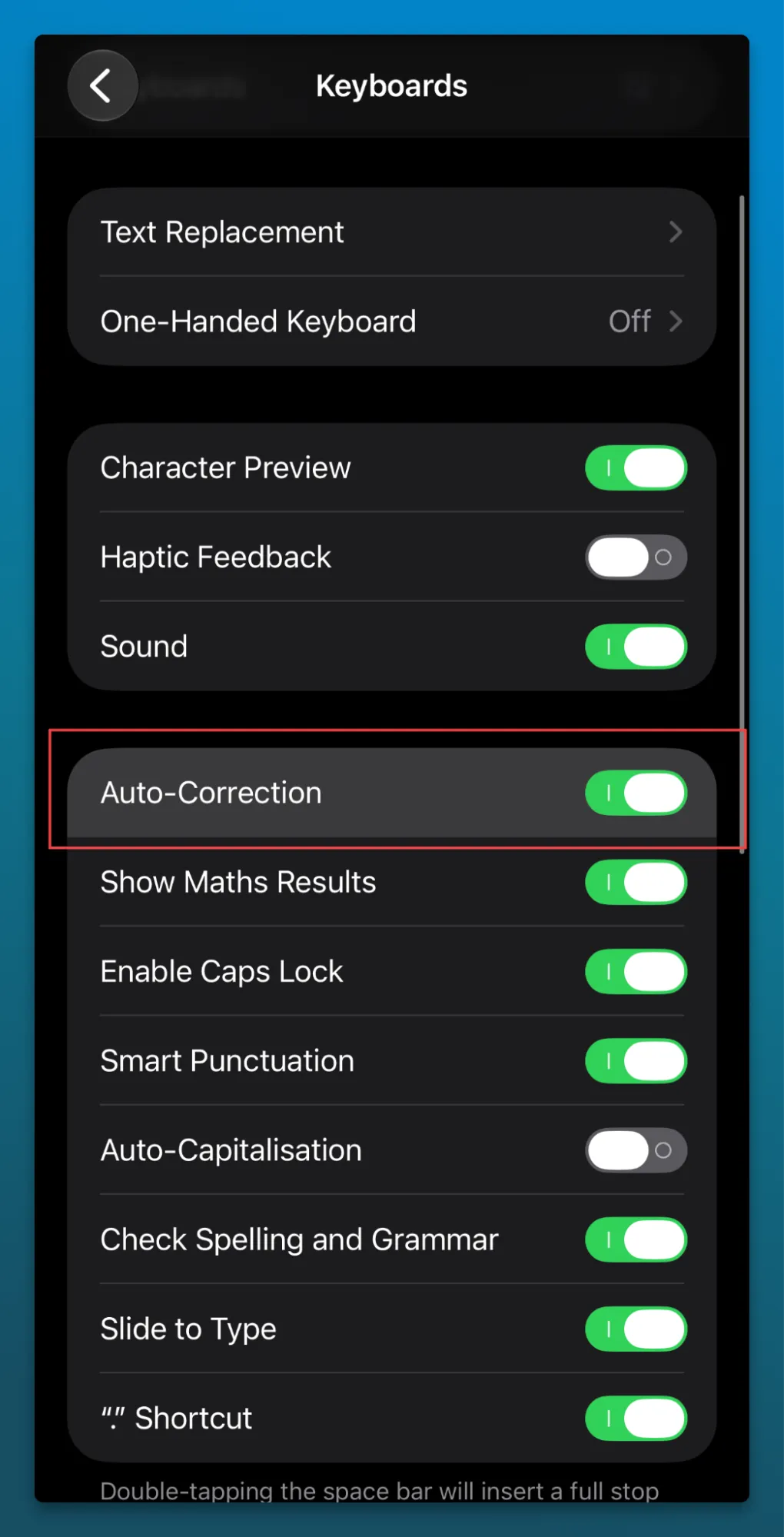
Apple's built-in keyboard will now stop automatically correcting spelling mistakes.
On the same screen, you'll find other typing preferences, such as Predictive Text, Auto-Capitalization, and Check Spelling.
These can be managed separately, so turning off Auto-Correction doesn't mean you have to lose word suggestions or spelling assistance.
Undo a correction without turning off autocorrect
If autocorrect is useful most of the time, you might not need to disable it completely.
On iOS 17 and later, words changed by autocorrect are temporarily underlined. You can tap an underlined word to see the original spelling and change it back.
This is particularly helpful when typing names, nicknames, or words that your keyboard doesn't recognize yet.
If you repeatedly have trouble with the same word, Apple's Text Replacement feature can also help. We'll cover that below.
For more details, see Apple's guide to Auto-Correction and predictive text.
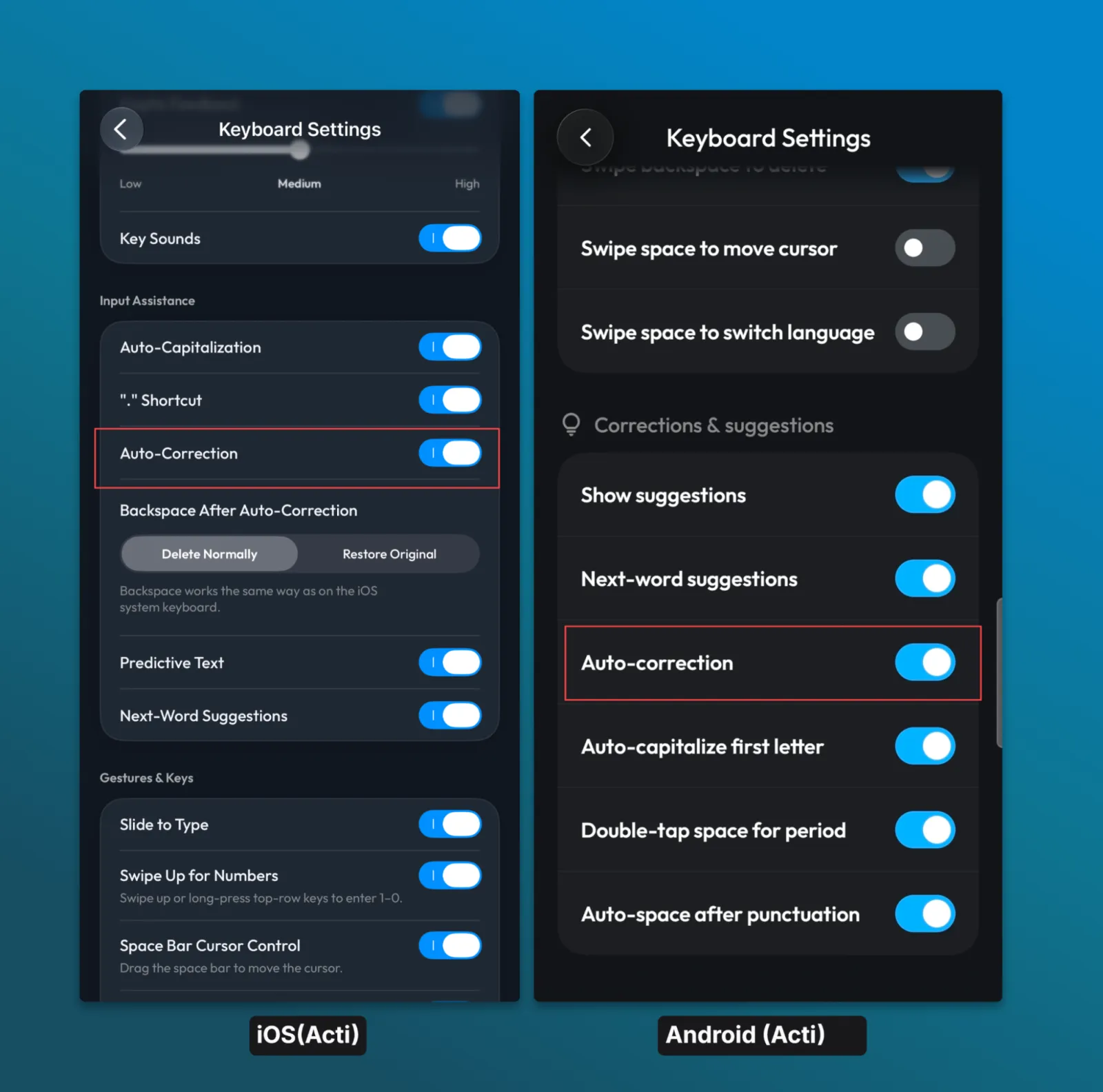
How to turn off autocorrect in Acti (Android and iPhone)
Acti has its own typing settings, which you can manage directly from the Acti app without changing your phone's system keyboard settings.
-
Open the Acti app.
-
Go to Settings → Type.
-
Find the Auto-correction option and turn it off.
If you only want to stop automatic word replacements, you can keep word suggestions enabled. You can also continue using other typing features, such as swipe typing.
Unlike regular autocorrect, Acti's Fix Grammar & Polish Act lets you correct the spelling, grammar, and punctuation of an entire message whenever you need to, rather than correcting words as you type.
If you're looking to fix more than just spelling mistakes, read our guide on how to check grammar while typing on Android and iPhone.
Can you turn off autocorrect only in WhatsApp?
WhatsApp doesn't have a separate autocorrect switch for your phone's keyboard. It uses whichever keyboard you've selected on your device.
If you're using Gboard, follow the Gboard instructions above. If you're using Samsung Keyboard or Apple's keyboard, change the corresponding settings. And if you're using Acti, its typing behavior follows Acti rather than your previous keyboard.
These changes generally apply wherever you're using that keyboard, including Instagram, Telegram, Gmail, and other apps.
If you want automatic corrections in work emails but not in casual conversations, you could use two keyboards with different typing preferences and switch between them when needed. However, constantly switching keyboards isn't particularly convenient.
Another approach is to keep everyday typing separate from grammar correction. With Acti, for example, you can write casual WhatsApp messages normally and run a grammar-polishing Act when you're writing something more important.
How to stop autocorrect from changing certain words
Sometimes the problem isn't autocorrect itself. It's those few words that your keyboard refuses to accept.
Names, slang, abbreviations, technical terms, and words from another language are common examples. Before disabling autocorrect altogether, try these options.
1. Add words to your personal dictionary
If your keyboard doesn't recognize a word you frequently use, adding it to its dictionary can help reduce unwanted corrections.
Gboard: Open Gboard Settings → Dictionary → Personal dictionary. Select your language, tap the plus icon, and enter the word.
Samsung Keyboard: Samsung Keyboard can learn words from your typing and use them in future predictions.
iPhone: You can use Text Replacement to help your keyboard recognize frequently used names, phrases, or abbreviations.
This is especially useful if you regularly type programming terms, company names, or nicknames that aren't part of a standard dictionary.
2. Remove unwanted learned words
Your keyboard might have learned a typo from something you typed previously. Over time, it can start suggesting that incorrect word instead.
On Gboard, touch and hold an unwanted suggestion and drag it to the removal icon when it appears.
On Samsung Keyboard, touch and hold the unwanted prediction and select Remove.
If Samsung Keyboard has learned too many unwanted predictions, you can go to:
Samsung Keyboard settings → Reset to default settings → Erase personalized predictions
On iPhone, you can reset your keyboard dictionary through:
Settings → General → Transfer or Reset iPhone → Reset → Reset Keyboard Dictionary
Keep in mind that resetting your dictionary removes learned words, not just the one you're trying to fix. Use it only when individual corrections aren't enough.
3. Use text shortcuts for frequently typed phrases
If you're constantly correcting the same email address, business name, or phrase, a text shortcut might be more useful than autocorrect.
On iPhone, go to Settings → General → Keyboard → Text Replacement and add a new phrase and shortcut.
Samsung Keyboard offers a similar feature called Text shortcuts.
Acti also supports shortcuts through its built-in clipboard. You can save a frequently used piece of text and assign it a shortcut, making it easier to reuse without typing the entire thing again.
For example, you could save your email signature, a common customer response, or an address as a clip instead of repeatedly typing it and dealing with unwanted corrections.
Text shortcuts and personal dictionaries aren't the same thing, but both can make everyday typing easier.
4. Add the language you're actually typing in
If you frequently switch between languages, autocorrect may try to correct words according to the wrong dictionary.
This is particularly noticeable when typing in English and another language within the same conversation.
Here's where you can add languages:
| Keyboard | Language settings |
|---|---|
| Gboard | Gboard Settings → Languages → Add keyboard |
| Samsung Keyboard | Samsung Keyboard settings → Languages and types → Manage input languages |
| iPhone | Settings → General → Keyboard → Keyboards → Add New Keyboard |
| Acti | App Settings -> Language -> Typing languages |
Acti supports typing in 94 languages, allowing you to switch between different language layouts. You can check whether your language is supported on the Acti languages page.
If you're communicating with someone in another language, you can also use translation Acts or Acti Voice to produce text in a different language rather than relying on autocorrect to understand a mixed-language sentence.
Keep in mind that supporting multiple languages doesn't necessarily mean a keyboard can recognize every language combination simultaneously. Word suggestions and correction behavior can vary depending on the selected language and keyboard.
Autocorrect not working on Android? Here's how to fix it
Some people have the opposite problem. Autocorrect was working perfectly fine yesterday, and now the keyboard doesn't correct anything.
Before reinstalling your keyboard or resetting its settings, try these fixes.
Check which keyboard you're using
If you've recently installed Acti, Gboard, SwiftKey, or another keyboard, you may be using a different keyboard without realizing it.
Open a text field and use your phone's keyboard-switching control to check which keyboard is active. Then check the settings for that particular keyboard.
Changing settings in a keyboard you're not currently using won't fix the problem.
Make sure autocorrect is enabled
Open your keyboard's settings and check whether the correction feature is still enabled.
For Gboard, look under Text correction. For Samsung Keyboard, check Auto replace and the relevant language settings. If you're using Acti, check its available typing preferences.
Check your selected language
If your keyboard is set to English while you're typing in another language, autocorrect may not recognize the words correctly.
Switch to the appropriate language layout and try typing a few familiar words.
Update your keyboard app
An outdated keyboard app may have bugs that affect typing, suggestions, or other features.
Check Google Play, Galaxy Store, or the App Store for an available update, depending on your keyboard and device.
Clear the keyboard's cache
If you're using Gboard on Android, clearing its cache may help resolve unexpected behavior.
Go to Settings → Apps → Gboard → Storage & cache → Clear cache.
The exact menu names depend on your phone.
Avoid clearing app data unless necessary, as this can reset keyboard settings and preferences.
You can also restart your phone before testing the keyboard again.
If you're using Acti, remember that ordinary typing and AI-powered Acts are separate. Running out of AI credits shouldn't prevent you from using regular typing features.
What if you want to fix the whole message instead?
Autocorrect is useful for catching small spelling mistakes, but sometimes you're dealing with something more than a typo.
Maybe your message sounds too blunt, your grammar isn't quite right, or you're unsure whether a sentence makes sense. Turning autocorrect on or off doesn't necessarily solve those problems.
This is where Acti's additional writing features come in handy.
You can type your message as you normally would and use an Act to correct or improve it when you're done.
Fix grammar and spelling with Acti
-
Install Acti and set it as your default keyboard.
-
Add the Fix Grammar & Polish Act from the Acti app.
-
Open WhatsApp, Gmail, or another app and type your message.
-
Tap Act on the keyboard to open the Act Panel.
-
Select Fix Grammar & Polish.
-
Review the corrected text before using it.
If you use the Act frequently, you can assign it to one of the five slots in the Acti Wheel. Press and hold the spacebar, drag toward the Act, and release to run it.
You can also use other Acts to change the tone of a message, translate text, or rewrite a sentence in a particular style without having to leave the app you're typing in.
Acts use AI credits, while regular typing does not.
Prefer speaking instead of typing?
Acti also includes voice input on Android and iPhone. If you're tired of typing and correcting a long message, you can tap the Voice button, speak, and then choose Transcribe.
Depending on how you want the text to sound, you can choose between Raw, Clean, and Smart polishing options. You can also select a different output language.
Mobile voice transcription doesn't use AI credits for now.
If grammar rather than autocorrect is your main concern, you can read our detailed guide on how to check grammar while typing on Android and iPhone.
Frequently Asked Questions
Does turning off autocorrect also turn off predictive text?
No, not necessarily. Gboard and Apple's keyboard provide separate controls for automatic correction and word suggestions. Samsung Keyboard also lets you disable Auto replace while keeping Predictive text enabled on supported versions.
How do I turn autocorrect back on?
Follow the same steps you used to disable it. Enable Auto-correction in Gboard, Auto replace in Samsung Keyboard, or Auto-Correction in your iPhone's Keyboard settings.
Why does autocorrect change words that are already correct?
Your keyboard may not recognize certain names, technical terms, abbreviations, or words from another language. It can also learn incorrect predictions from previous typing. Adding words to your dictionary or selecting the appropriate language may help.
Does turning off autocorrect affect swipe typing?
Swipe typing and autocorrect are different features. Disabling autocorrect doesn't necessarily disable swipe typing, although swipe typing still relies on word recognition and suggestions to interpret your gestures.
Can I turn off autocorrect in WhatsApp without affecting other apps?
WhatsApp doesn't provide its own keyboard autocorrect switch. Changing your keyboard's settings generally affects every app where you use that keyboard. You can switch between keyboards with different preferences if you need separate behavior.
Does Acti have autocorrect and word suggestions?
Yes. Acti includes regular typing features such as autocorrect, word suggestions, and swipe typing on Android and iPhone. Its AI writing Acts are additional features that you can use when needed.
Can Acti fix grammar without automatically rewriting everything I type?
Yes. You can type normally and run Fix Grammar & Polish when you want to check a completed message. Using an Act is a separate action, rather than something that automatically rewrites every sentence as you type.
Should you turn off autocorrect?
It depends on what's bothering you. If your keyboard constantly changes words you meant to type, disabling automatic corrections while keeping word suggestions enabled is a good starting point.
If autocorrect only gets a few names or technical terms wrong, adding those words to your keyboard's dictionary might be a better solution.
And if you'd rather write freely and check the entire message afterward, Acti gives you the option to do that directly from your keyboard.
Your keyboard should help you write what you mean, not make you spend half your time correcting its corrections.
Spotted something outdated or incorrect? Email us at help@openacti.com.