How to Make Your Keyboard Bigger on Android, Samsung and iPhone


If you keep hitting the wrong letters, the keyboard might simply be too small for your thumbs. You might have plenty of screen room and still feel like you’re typing on a thin strip at the bottom. The good news is that most Android keyboards let you make the keys taller in a few taps, and there are a few tricks that help on iPhone too.
Here is the short answer:
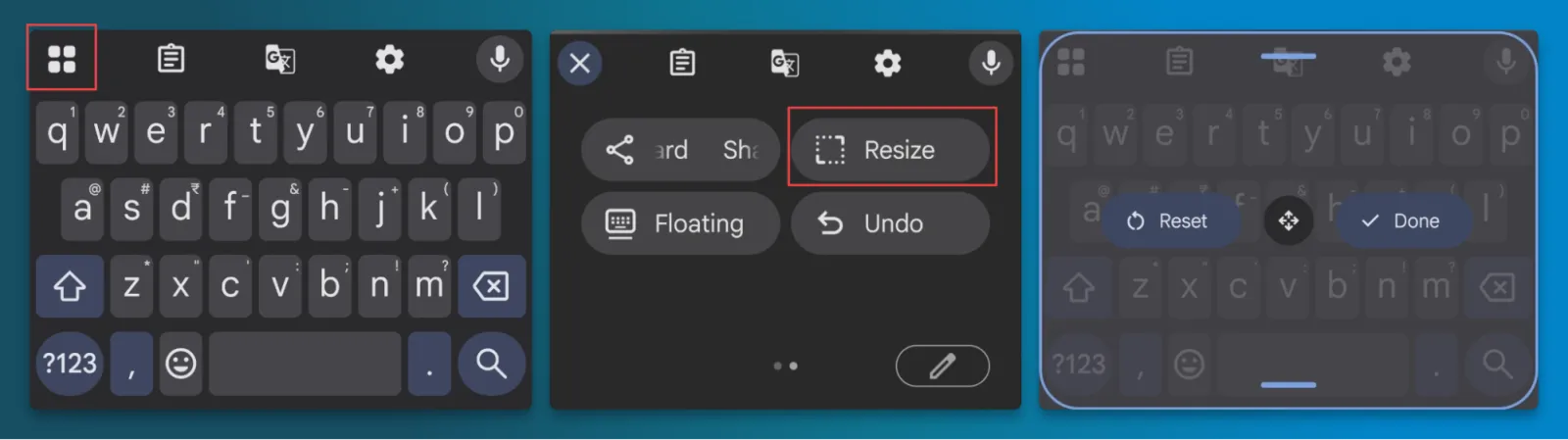
- Gboard (Android): open the keyboard, tap the four-squares icon, tap Resize, drag the handle up, then tap the check mark.
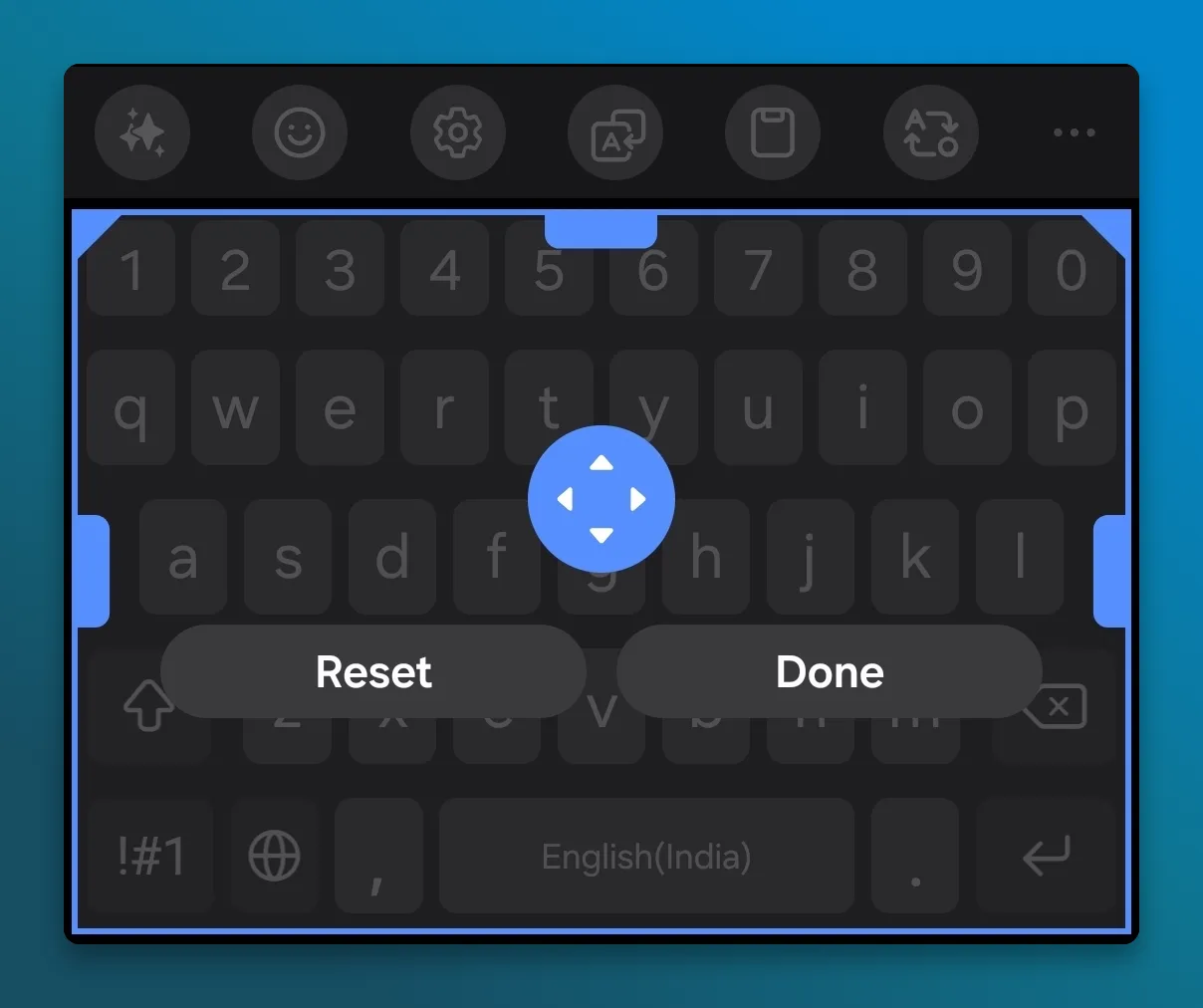
- Samsung Keyboard: go to Settings > General management > Samsung Keyboard settings > Size and transparency, drag the handles, then tap Done.
- iPhone keyboard: Apple's keyboard has no size slider. Turn the phone sideways, use Display Zoom, or switch to a third-party keyboard that has a size setting.
- Acti: Acti on iPhone has its own size and position controls, so you can resize the keyboard without zooming the whole phone. Go to Settings > Type > Keyboard Size & Position. On Android, use Settings > Type > Keyboard height.
If the keyboard was fine yesterday and looks tiny today, check for one-handed or floating mode before resizing it. And if you can hit the right key but can’t read its label, font size or contrast may help more than a taller keyboard.
First, check which keyboard you are using
Every keyboard puts its size setting somewhere different, so it helps to know which one you have before you start digging.
- On Pixel and many Motorola phones, you’ll usually see Gboard unless you’ve switched keyboards. Look for the grid icon in the keyboard toolbar.
- On Samsung Galaxy phones, check Settings → General management → Keyboard list and default → Default keyboard. If it says Gboard, use the Gboard instructions below. Samsung Support
- On iPhone, the default is Apple's own keyboard.
- If you installed SwiftKey, Acti or another keyboard app, follow the section for that app.
On other Android phones, search Settings for On-screen keyboard or Default keyboard. The exact menu name varies by phone and Android version.
How to make the keyboard bigger on Android with Gboard
Older guides tell you to go to Preferences → Keyboard height and pick Tall or Extra-tall. If that setting is missing, use the Resize tool in the keyboard toolbar. Gboard’s Resize rollout
To make Gboard bigger now:
- Open any app where you can type, such as Messages or WhatsApp, so the keyboard appears.
- Tap the four-squares icon in the top-left corner of the keyboard.
- Tap Resize. If you do not see it, swipe through the list of shortcuts.
- Drag the handle at the top of the keyboard upward to make the keys taller.
- If you want the keyboard to sit higher on the screen, touch and hold the move handle inside the resize frame and drag it up. This leaves a gap under the spacebar, which some people find easier to reach.
- Tap the check mark to save. Tap the reset option if you want to go back to the original size.
Motorola's keyboard guide describes the same flow: drag the handles to change the height, touch and hold to move the keyboard up or down, then save.
Here’s how to choose between the two. If you keep tapping the row above or below the letter you want, try taller keys. If the spacebar feels too low for your thumb, move the keyboard up without changing its height. Start with a small adjustment so the keyboard doesn’t cover more of the chat than you need.
If you also want to make it smaller
The same Resize screen works in the other direction. Drag the top handle down to make Gboard shorter and leave more room for the chat or page you are reading.
How to make the keyboard bigger on Samsung Keyboard
Samsung Keyboard lets you change both the height and the width, and you can move it left or right.
- Open Settings.
- Tap General management.
- Tap Samsung Keyboard settings.
- Tap Size and transparency.
- Drag the handles on the edges or corners of the keyboard to make it bigger.
- Use the arrow button in the middle if you want to move the keyboard.
- Tap Done. To go back to the default size later, return here and tap Reset.
These are the steps on Samsung's own support page. You can also reach the same screen from the keyboard: tap the settings gear in the keyboard toolbar, then scroll to Size and transparency.
On older One UI versions, there was also a Keyboard size shortcut in the keyboard's three-dot toolbar menu. According to SamMobile, Samsung removed that shortcut in One UI 8.5, so on newer phones the Settings route above is the way to do it.
If the keyboard suddenly looks narrow or floats over a chat, switch it back to Standard keyboard before you resize it. You might not need to change its size at all.
How to make the keyboard bigger on iPhone
Apple's keyboard does not have a size or height setting. That surprises a lot of people, and it is why many iPhone guides list workarounds instead of a single setting. Here are the options that actually work.
Turn your iPhone sideways
In apps that support landscape, including Messages, Mail, Notes and Safari, rotating the phone gives you a wider keyboard. Apple’s keyboard accessibility guide shows this option. If the screen does not rotate, open Control Center and turn off Portrait Orientation Lock.
The catch is that landscape leaves very little room to see what you are typing into, so it works best for short bursts.
Use Display Zoom
Display Zoom makes everything on the screen bigger, including the keyboard.
- Open Settings.
- On iOS 27, tap Appearance → Display Zoom. On iOS 26, tap Display & Brightness → Display Zoom. If you aren’t sure which version you’re using, search Settings for Display Zoom.
- Choose Larger Text.
- Tap Done, then confirm with Use Zoomed.
The trade-off is that apps, icons and menus all get bigger too, so you see less content on each screen. Apple’s iOS 27 instructions · Apple’s iOS 26 instructions
Use a third-party keyboard with a size setting
If you want to keep your phone upright and resize only the keyboard, look for a keyboard app with its own size control. Acti is one option. Install the app, then go to Settings → General → Keyboard → Keyboards → Add New Keyboard and select it. Use the globe key to switch while typing. If Apple’s keyboard comes back in a password field, that’s expected. Acti’s setup guide · Apple’s third-party keyboard documentation
How to make the keyboard bigger in SwiftKey
SwiftKey on Android has its own resize tool:
- Open the keyboard in any app.
- Tap the three-dot menu in the SwiftKey toolbar.
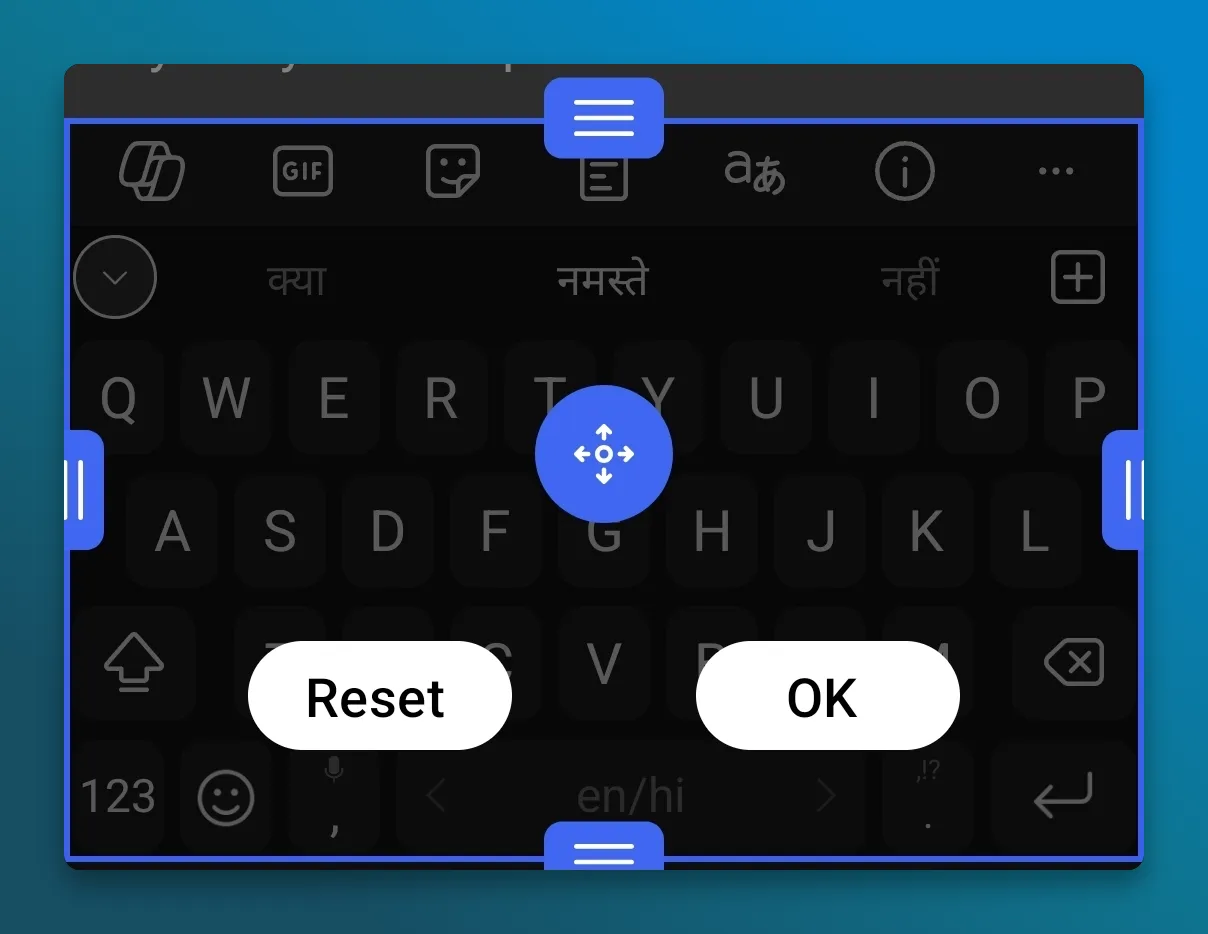
- Tap Resize.
- Drag the handles to make the keyboard taller. If you want to undo the change, tap Reset.
If you don’t see Resize in the toolbar, open the Microsoft SwiftKey app and go to Layout & keys → Resize. SwiftKey doesn’t have its own resize control on iPhone, so the iPhone steps above still apply. Microsoft’s SwiftKey resize guide
How to make the keyboard bigger in Acti
Acti is a keyboard you can use for everyday typing on Android and iPhone. On iPhone and Android, Acti has a keyboard size setting of its own. That’s useful if you like the way the rest of your phone looks and only want to change the keyboard. Acti’s App Store release notes
Which setting you try depends on what’s bothering you:
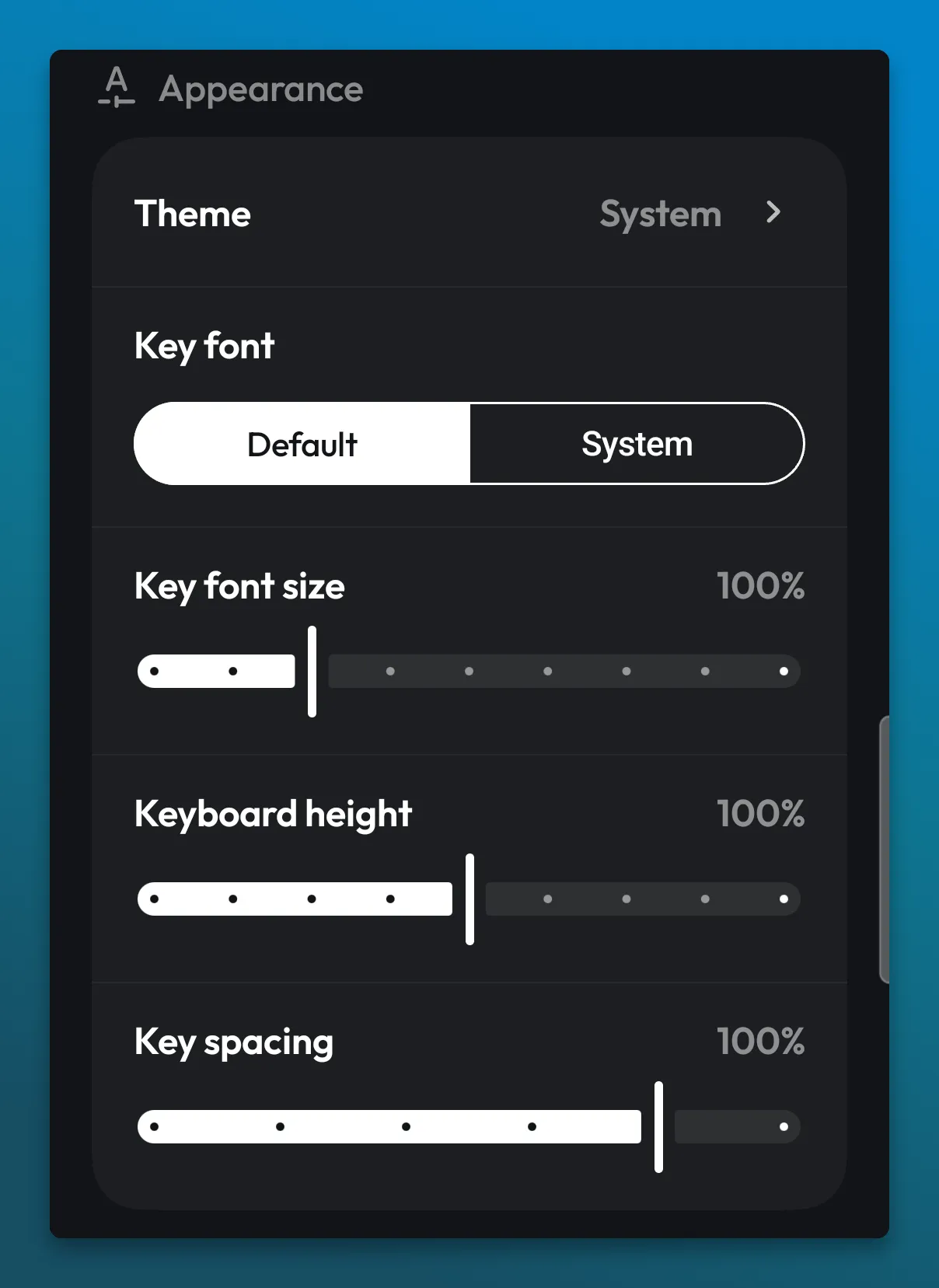
- Keyboard size is the one to start with if the keys feel too cramped to tap. On iPhone, it’s Keyboard Size & Position; on Android, it’s Keyboard height. Make a small change and type a reply in Messages or WhatsApp to see whether you still have enough room to read the conversation.
- Keyboard position is worth trying if the keys feel fine but the whole layout sits in an awkward spot for your thumbs. On iPhone, you can change the width and position in Keyboard Size & Position.
- Key spacing on Android changes the gap between the keys. Try it if the keys feel too crowded.
- One-handed mode is for reach, not bigger keys. Try it if the letters on the far side of the keyboard are the ones you struggle to reach.
- Key Label Weight on iPhone makes the letters on the keys heavier if they’re hard to read. You can also adjust Haptic Strength (Vibration strength on Android) if you want a more noticeable response when you tap. Neither change makes the keys physically bigger.
On Android, Keyboard height, Key font size and Key spacing are under Appearance in Settings > Type:
If you’re using Acti for the first time, the getting-started guide walks you through enabling it and switching to it.
The spacebar still works like a regular spacebar when you tap it. If you hold it, the Acti Wheel opens. Keep holding, drag to an Act and release to select it. That gesture is separate from resizing the keyboard. Acti Wheel guide
Why did my keyboard suddenly get small?
If your keyboard was fine yesterday and is tiny or pushed to one side today, you probably did not change the size. More often, a mode got switched on by accident. Here is how to undo it on each keyboard.
Gboard
- One-handed mode squeezes the keys toward one side. Tap the expand arrow (four arrows pointing outward) next to the keys to go back to full width.
- Floating keyboard detaches the keyboard so it hovers in the middle of the screen. Tap the four-squares icon and tap Floating to turn it off.
If Gboard is attached to the bottom and still spans the screen but looks shorter than usual, go to Resize and tap the reset icon instead. Gboard troubleshooting walkthrough
Samsung Keyboard
- If the keyboard is floating, split or pushed to one side, go to Samsung Keyboard settings → Mode → Standard keyboard. Samsung Keyboard modes
- If your whole screen has shrunk into a corner, that is Samsung's system-wide One-handed mode, not the keyboard. You can turn it off in Settings → Advanced features → One-handed mode. Samsung’s one-handed mode guide
iPhone
- If the keys are squashed to one side, you are in the one-handed keyboard. Tap the arrow on the empty side to bring it back to the center, or touch and hold the globe or emoji key and pick the centered layout. Apple’s typing guide explains both.
Acti
- On iPhone, check whether you enabled Acti’s one-handed layout before adjusting its size. If you’re seeing Apple’s keyboard instead, use the iPhone steps above.
When the problem is reading the keys, not hitting them
Sometimes the keyboard is a fine size but the letters are hard to see. A bigger keyboard will not fully fix that. Try these instead.
- iPhone Bold Text: search Settings for Bold Text if you’d also like heavier text elsewhere on the phone. For a keyboard-only change, try the label options below.
- iPhone Show Lowercase Keys: if you find it easier to read capital letters, go to Settings > Accessibility > Keyboards & Typing and turn off Show Lowercase Keys, so the key labels show uppercase letters without making you type in capitals. Apple’s keyboard accessibility guide
- Acti Key Label Weight on iPhone: use this to make the letters heavier without resizing the keyboard.
- Gboard font size on Android: look under Gboard settings → Preferences → Font size to enlarge the key labels. Use Resize if you want more room to tap. Gboard’s font-size control
- High contrast on Samsung: search your phone’s settings for High contrast keyboard to make the keys stand out more from the background. Samsung’s visibility settings
Other ways to make typing easier on a big phone
Bigger keys are one fix. A few others are worth trying if you still find yourself retyping words.
- Swipe typing: instead of tapping each letter, slide your finger across the keys. Gboard calls it Glide typing, Samsung calls it Swipe to type, iPhone calls it Slide to Type, and SwiftKey calls it Flow. It’s worth trying if tapping each letter is the part you find awkward. Our swipe typing guide
- One-handed mode: on a large phone, moving the keys closer to your thumb can help more than making them taller. The keys get narrower, but the far side is easier to reach with your thumb.
- Voice typing: if your thumbs are the bottleneck, talk instead. In Acti, tap the microphone, speak, then choose Transcribe to turn your words into text. Acti's voice typing works in WhatsApp too; see our guide to voice typing in WhatsApp.
- Fix mistakes after typing: if typos still slip through, a grammar tool can clean up a message before you send it. Our guide on how to check grammar while typing covers the options on Android and iPhone, including Acti's grammar Act in the Acti Wheel.
Which option should you use?
- You want taller keys on Android: use the resize control in Gboard, Samsung Keyboard or SwiftKey or Acti. Try one small adjustment before making it as tall as it goes.
- The keys are fine, but the spacebar sits too low: try moving the keyboard up if your resize screen lets you.
- You have an iPhone and want bigger keys only: Apple's keyboard cannot do this, so use a third-party keyboard with a size setting, such as Acti.
- You have an iPhone and want everything bigger: turn on Display Zoom.
- Your keyboard shrank on its own: look for one-handed or floating mode before changing any size settings.
- You can tap the right key but can’t read it easily: change the label size, weight or contrast first.
FAQ
Why is there no keyboard height option in Gboard anymore?
If Keyboard height is missing from Preferences, open the keyboard toolbar and choose Resize. You can drag the frame to the height you want instead of choosing a preset.
Can I make the iPhone keyboard bigger without zooming the whole screen?
Yes, if you turn your phone sideways in an app that supports landscape. If you want bigger keys in portrait without changing the rest of the screen, Apple’s keyboard has no separate size slider. Use a keyboard with its own size setting, such as Acti.
Will changing the font size on my phone make the keyboard bigger?
Font size and keyboard size are separate controls. Gboard’s Font size setting is for the labels. Use Resize to make the keys taller. On iPhone, Larger Text is also the name of an option inside Display Zoom, so make sure you’re in the Display Zoom menu if you want to enlarge the whole interface.
Does making the keyboard bigger affect WhatsApp?
Yes, if you use the same keyboard in WhatsApp. There’s no separate WhatsApp keyboard-size setting to change. If the keyboard looks different only in WhatsApp, check which keyboard is active in a regular message field.
How do I reset my keyboard to its normal size?
In Gboard, open Resize and tap the reset option. In Samsung Keyboard, open Size and transparency and tap Reset. In SwiftKey on Android, tap Reset in Resize. On iPhone, switch back to your previous Display Zoom setting if you zoomed the whole screen, or tap the expand arrow if the keyboard was pushed to one side.
If you’re on iPhone and want to resize your keyboard without zooming the rest of your phone, try Acti.
Spotted something outdated or incorrect? Email us at help@openacti.com.